


Why you should call Apex from Flow
I've been in plenty of design sessions where the debate is "Flow vs. Apex." The good architects I know don't pick a side. They use both, and the interesting work happens where the two meet. When you need complex logic, heavy math, or an external integration that gets messy on a canvas, call Apex from Flow and let the code do the heavy lifting.
Flow is great for the UI and the general "if this, then that" orchestration. It is also where a well-meant build turns into a "spaghetti monster" of loops and assignments. That's when you move the logic into an Apex class, and the automation gets easier to read and much easier to maintain. Comparing Apex vs Flow is a common starting point, but the skill worth having is bridging them.
How to call Apex from Flow using Invocable Methods
To make your code visible to the Flow Builder, you have to use the @InvocableMethod annotation. It is the bridge that tells Salesforce this specific block of code is ready to be used as an action.
Your method has to be static. And here's the part that trips up almost everyone at first: it has to accept and return a List. Salesforce bulkifies Flow execution. If 100 records trigger a Flow, Salesforce doesn't run your Apex 100 times. It runs it once with a list of 100 inputs. If you don't build your code to handle lists, your automation will fail the second you try to upload data via the Data Loader.
public with sharing class DiscountService {
    public class Request {
        @InvocableVariable(label='Account ID' required=true)
        public Id accountId;
        @InvocableVariable(label='Amount' required=true)
        public Decimal amount;
    }

    public class Response {
        @InvocableVariable(label='Discounted Amount')
        public Decimal discountedAmount;
    }

    @InvocableMethod(label='Calculate Special Discount' description='Returns a custom discount based on account history')
    public static List<Response> calculate(List<Request> requests) {
        List<Response> results = new List<Response>();
        for (Request req : requests) {
            Response res = new Response();
            // Do your complex math or queries here
            res.discountedAmount = req.amount * 0.9;
            results.add(res);
        }
        return results;
    }
}
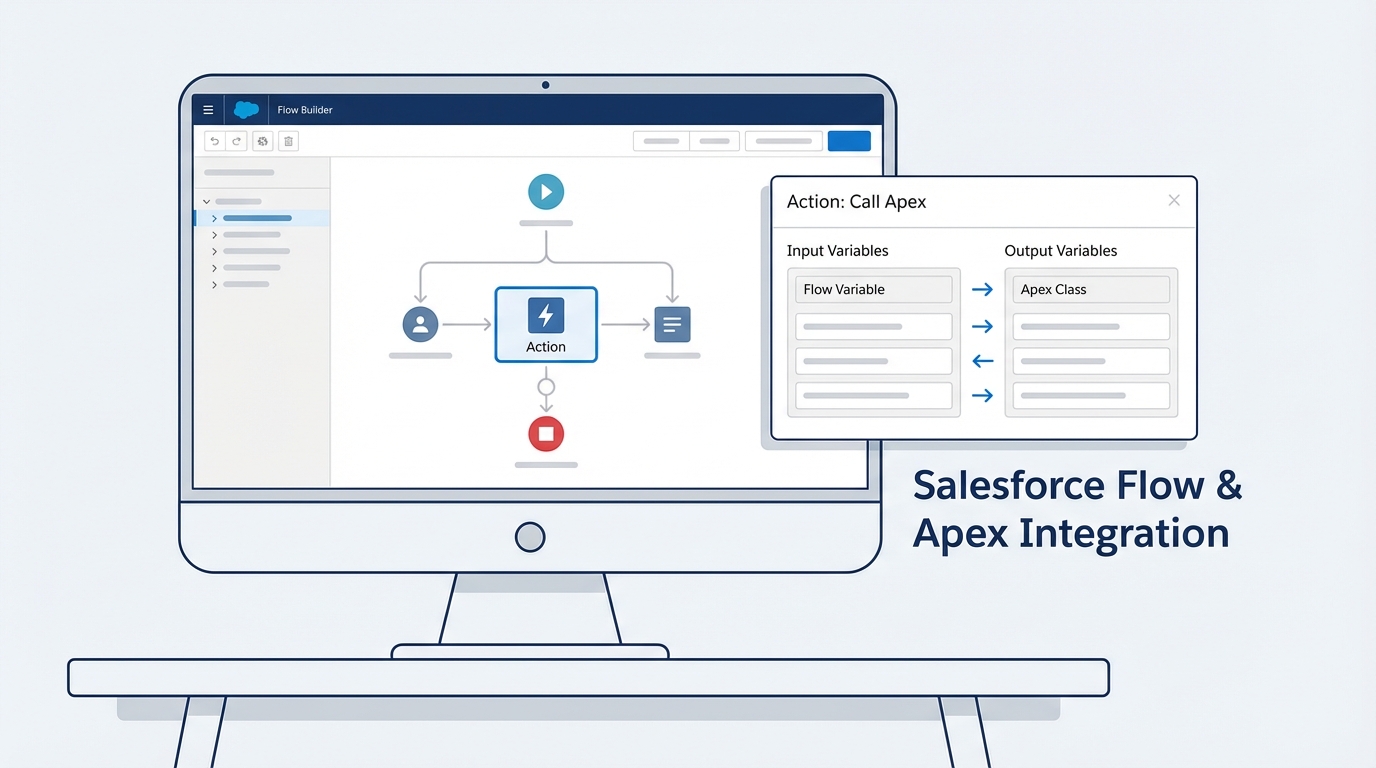
Configuring an Apex action and its input variables in Flow Builder.
Using Apex-defined data types
Sometimes you need to pass more than a single ID or a string. You might have a whole bundle of data. By using a wrapper class with @InvocableVariable, you can create what the Flow Builder calls an "Apex-defined" variable. That lets you map multiple fields from the Flow into one structured object in your code, which is much cleaner than passing 10 different individual variables into your method.
Going the other way: Launching Flows from Apex
What if you're already in a trigger or a custom controller and you want to start a Flow? You can do that with the Flow.Interview class. I've used this when a client had a complex business process already built in a Flow, and we needed to trigger that same logic from a custom LWC button or a legacy trigger.
You pass your variables into a Map and call the start() method. It's pretty straightforward. Just remember that the Flow you're calling needs to be an "Autolaunched Flow." You can't launch a Screen Flow from the background and expect it to pop up on someone's monitor.
Map<String, Object> params = new Map<String, Object>();
params.put('recordId', someAccount.Id);
params.put('updateType', 'Full Refresh');

Flow.Interview.My_Custom_Process myFlow = new Flow.Interview.My_Custom_Process(params);
myFlow.start();
Best practices when you call Apex from Flow
Calling Apex doesn't get you out of the rules of the road. Here's how to keep your org from breaking:
- Bulkify everything. I'll say it again because it's that important: always loop through your input list, and never put a SOQL query or a DML statement inside that loop. If you need a refresher, check out this guide on Salesforce Flow bulkification.
- Watch your limits. Flow and Apex share the same transaction. If your Flow has already used up 90 SOQL queries and your Apex tries to do 20 more, you're going to hit a governor limit and the whole thing will roll back.
- Handle errors properly. Don't just let the code crash. Use try-catch blocks and return an error message back to the Flow so the user knows what went wrong instead of seeing a "generic fault" screen.
Pro tip: Always give your Invocable Method a clear label and description. Six months from now, when an admin is looking at the Flow, they should know exactly what that Apex action does without having to open VS Code.
Key takeaways
- Use
@InvocableMethodto let your Flows trigger programmatic logic. - Always design your Apex to handle Lists of inputs so it survives bulk operations.
- Use wrapper classes to pass complex data structures between the two tools.
- Flow and Apex share the same governor limits in a single transaction.
- Unit tests are still mandatory. Cover your Invocable Apex like any other class.
Wrapping up
Calling Apex from Flow gets you low-code speed for the simple parts and the precision of code for the hard parts. Don't be afraid to move logic into Apex when the Flow is getting too hard to manage. It'll save you a lot of headaches during debugging and deployment. Start small, bulkify your methods, and your automations get much more stable.



Leave a Comment