

What exactly is a Salesforce Assignment Element?
If you've spent any time in Flow Builder, you've seen the orange variable icon. That's the Salesforce Assignment Element, and honestly, it's the engine room of any decent automation. It's how we set or change values for variables, records, or collections without actually touching the database yet.
Think of it as a temporary scratchpad. You're telling Salesforce, "Hey, hold this value in memory for a second while I finish the rest of the logic." Because it's an in-memory operation, it doesn't count against your DML limits. That's a huge deal when you're trying to keep your flows lean and fast.
I've seen plenty of admins try to skip this step and go straight to an Update Records element every time they need to change a field. But here's the thing: doing that is a one-way ticket to hitting governor limits and making your Flow look like a plate of spaghetti. Using a Salesforce Assignment Element keeps things clean and efficient.
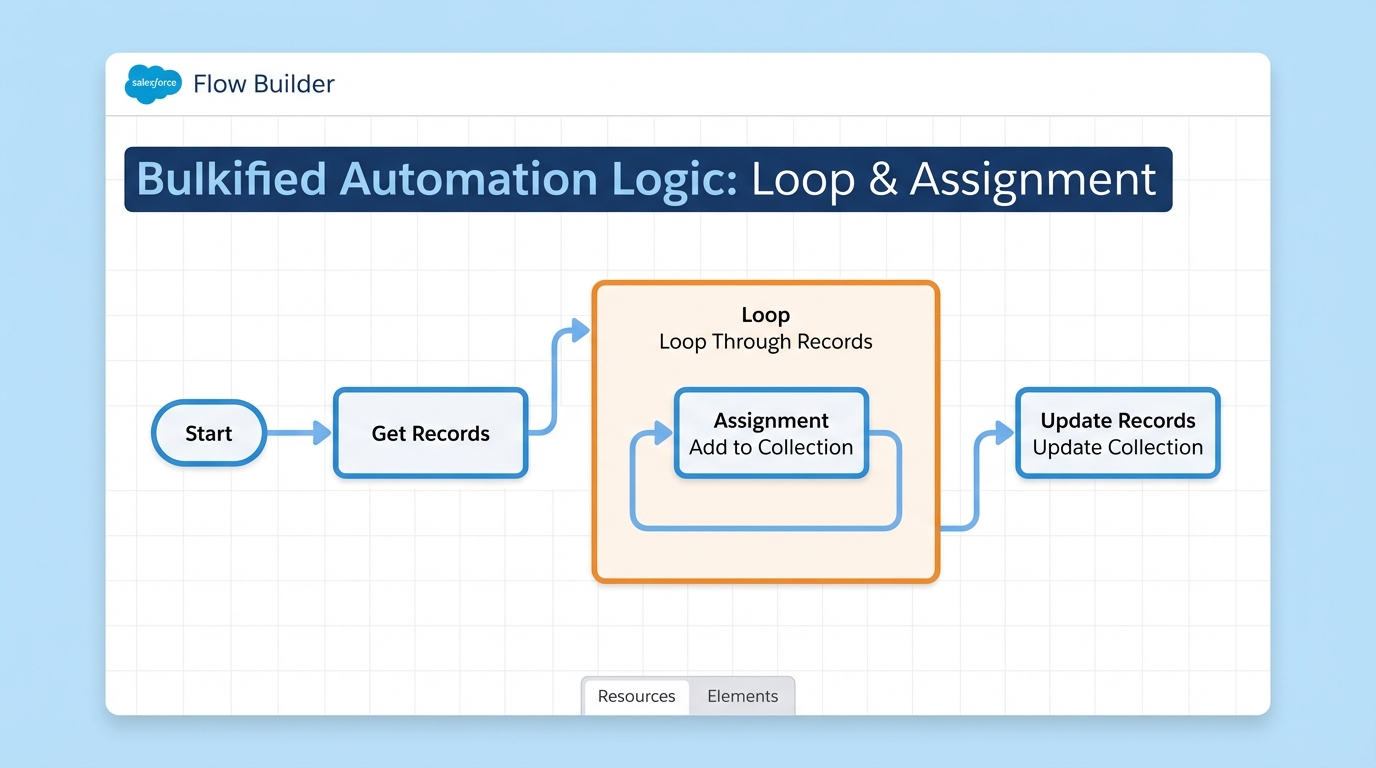
A Salesforce Flow Builder diagram demonstrating a bulkified process where an Assignment element is used within a loop to prepare records for a single update operation.
Mastering the Salesforce Assignment Element for bulk operations
The most common mistake I see? Putting a "Get Records" or "Update Records" element inside a loop. We've all been there when we were starting out, but it's a disaster for performance. This is where the Salesforce Assignment Element really shines.
Instead of updating records one by one, you use the assignment to modify a record variable and then add that record to a collection. Once the loop finishes, you perform a single update on that entire collection. If you want to dive deeper into this, check out this guide on how to handle bulk record processing in Flows. It'll save you a lot of debugging headaches later.
Common ways I use assignments in the field
- Setting Default Values: I often use an assignment at the very start of a Flow to populate fields like Status or Lead Source before the record even exists.
- Running Totals: If you're looping through line items, you can use an assignment to add a price to a "Total_Amount" variable on every pass.
- Toggling Flags: Sometimes you just need to set a Boolean to "True" if a certain condition is met during a complex decision tree.
- String Concatenation: I've used this to build custom error messages or descriptions by joining several pieces of text together.
Pro tip: You can actually perform multiple assignments within a single element. Don't create five different orange boxes when one will do the job. It makes the canvas much easier to read for the next person who has to touch your work.
Best practices for keeping your Flow readable
Look, we've all opened a Flow that someone else built and felt that immediate sense of dread. Usually, it's because the variables are named "Variable1" and the assignments are just labeled "Assignment." Don't be that person. Name your Salesforce Assignment Element based on what it actually does - like "Assign_UpdateLeadStatus" or "Assign_AddAccountToCollection".
Another thing to keep in mind is that while assignments are great, Salesforce has recently introduced the Flow Transform element which can handle some of these collection tasks even faster. But for 90 percent of your logic, the assignment element is still going to be your go-to tool.
When you're working on complex logic, I always suggest following standard Flow best practices. This means keeping your logic organized and using assignments to "prep" your data before any DML operations. It makes debugging much easier because you can see exactly how the data changed in the debug logs before it ever hit the database.
Key Takeaways
- The Salesforce Assignment Element is an in-memory tool, meaning it won't trigger DML limits.
- Always use assignments to build collections for bulk updates instead of updating inside loops.
- You can group multiple variable changes into a single assignment element to keep your canvas tidy.
- Clear naming conventions are your best friend for long-term maintenance.
- It's the safest place to transform data because you can test it in debug mode without changing real records.
At the end of the day, getting good at using the Salesforce Assignment Element is what makes your flows scalable. It might feel like an extra step when you just want to update a single field, but your future self (and your Org's performance) will thank you. Start looking for ways to consolidate your logic into assignments, and you'll notice your flows becoming much more "pro" in no time.




Leave a Comment