

Why You Should Master Salesforce Global Variables
I've spent years cleaning up messy orgs, and one of the biggest red flags is seeing hard-coded IDs buried inside validation rules. If you want to build things that don't break the moment a user changes their email or a profile gets renamed, you need to get comfortable with Salesforce global variables. These are essentially system-provided shortcuts that let you pull in dynamic data without doing any heavy lifting.
Honestly, most teams get this wrong by over-complicating their logic. Salesforce global variables allow your formulas to stay flexible. Instead of saying "if the user is Bob," you say "if the user has this specific permission." It's a much cleaner way to work, and it saves you a massive headache during deployments. Let's break down the ones you'll actually use in the field.
Common Salesforce Global Variables You'll Use Daily
Think of these variables as "live" data points that Salesforce keeps ready for you. You don't have to go looking for them; they're just there. Whether you're writing a formula field or a complex validation rule, these variables let you grab details about the current user or the org itself on the fly.
$User and $Profile
These are the bread and butter of most admin work. $User gives you details about the person currently logged in, like their ID, email, or even a custom checkbox on their user record. $Profile, on the other hand, tells you about their security settings. But be careful here. I've seen people use profile names in formulas, only for the formula to break when someone tweaks the profile name later. It's usually better to understand the differences between roles and profiles before you start locking down logic based on these variables.
Example: AND(NOT($User.Id = OwnerId), IsClosed = TRUE). This simple line stops anyone except the record owner from messing with a closed record. It's simple, effective, and doesn't require any hard-coded IDs.
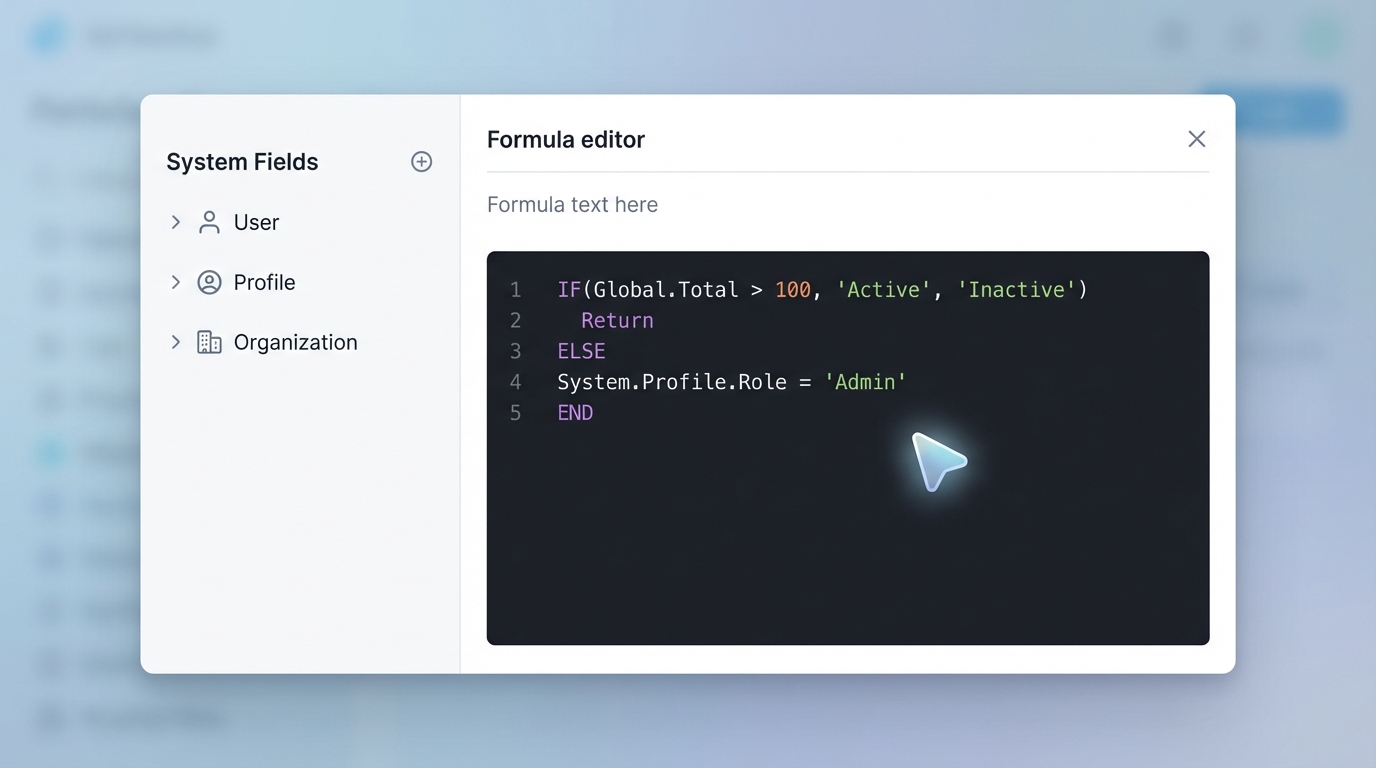
A realistic interface mockup of a formula editor showing logic and global system variables.
$Permission - The Pro Move
This is probably the most overlooked feature in the formula editor. Instead of checking a user's profile, you can check for a Custom Permission. This is great because you can assign that permission to a specific person via a Permission Set without changing their whole profile. I always tell my colleagues: if you can use $Permission, do it. It makes your logic much more "pluggable."
Pro Tip: Use $Permission to create "bypass" logic. Create a custom permission called "Bypass_Validation_Rules" and add
NOT($Permission.Bypass_Validation_Rules)to the start of your formulas. It makes data migrations so much easier.
$Setup and $Label
If you have values that change often - like a discount threshold or a specific notification message - don't bake them directly into the formula. Use $Setup to grab values from Hierarchical Custom Settings. This way, you can change the value in one place without touching the formula itself. Similarly, $Label is a lifesaver for multi-language orgs or just for keeping your error messages consistent across different Salesforce validation rules.
Making Salesforce Global Variables Work for You
So what does this actually mean for your day-to-day build? It means your formulas become more readable and easier to maintain. When I first worked with these, I tried to do everything with $User.Id, but I quickly realized that $Organization is just as important. For example, using $Organization.Id is a great way to ensure a formula only runs in a specific environment, though you have to be careful when moving code between sandboxes.
Now, here's where it gets interesting. You can combine these to create some pretty powerful logic. Look at this snippet for a "Super User" override:
AND($Profile.Name <> "System Administrator", NOT($Permission.Can_Edit_Closed_Deals), IsClosed = TRUE)
This checks the profile AND a custom permission. It's a belt-and-suspenders approach that keeps your data secure while giving you the flexibility to grant exceptions when needed.
Key Takeaways for Using Salesforce Global Variables
- Stop hard-coding: Use
$User.Idor$Setupinstead of copy-pasting 15-digit IDs into your formulas. - Favor Permissions over Profiles:
$Permissionis more flexible and less likely to break during a rename. - Keep it clean: Use
$Labelfor text strings so you can update them without editing the actual formula. - Context matters: Remember that
$Useralways refers to the person currently performing the action, not the record owner.
At the end of the day, Salesforce global variables are about making your life as a consultant or admin easier. The less time you spend updating hard-coded values, the more time you have to actually build cool stuff. Start small - maybe swap out one profile-based validation rule for a permission-based one this week. You'll thank yourself later when the requirements inevitably change.




Leave a Comment