

When I am reviewing code for a new client, the first things I look for are solid Apex security best practices. I have seen too many teams treat security as something you "bolt on" right before a big release or a security review. But here is the thing: if you do not build it into your daily workflow, you are just leaving a pile of technical debt for your future self to clean up.
Security in Salesforce is layered. It is not just about one checkbox; it is about making sure your code respects the permissions the admin already set up. Let's break down how to do this without over-complicating your life.
1. Stick to the Platform Security Model
Profiles, Permission Sets, and Sharing are your best friends. I have seen developers try to recreate these in code with custom settings or complex logic. Don't do that. If the permissions are set correctly in the org, your job is simply to make sure your Apex actually follows them.
Treat the platform's native security as your first line of defense. When you are deciding between Apex vs Flow for a task, remember that Flow often handles some of this "for free," while Apex requires you to be much more intentional.
2. Implementing Apex security best practices with User Mode
For a long time, we had to write long, annoying blocks of code to check isAccessible() or isUpdateable() for every single field. It was a mess and honestly, most teams got it wrong. Now, we have User Mode database operations. This is probably the most overlooked feature from recent releases.
Using WITH USER_MODE in your SOQL or as user in your DML tells Salesforce to automatically check the user's field-level and object-level permissions. If they don't have access, the platform throws an error. It is clean, it is safe, and it makes your code way easier to read.
// Querying the right way
List<Account> accts = [
    SELECT Name, Industry, SecureField__c
    FROM Account
    WHERE Id = :accountId
    WITH USER_MODE
];

// Updating the right way
update as user new Account(
    Id = someId,
    Name = 'New Name'
);
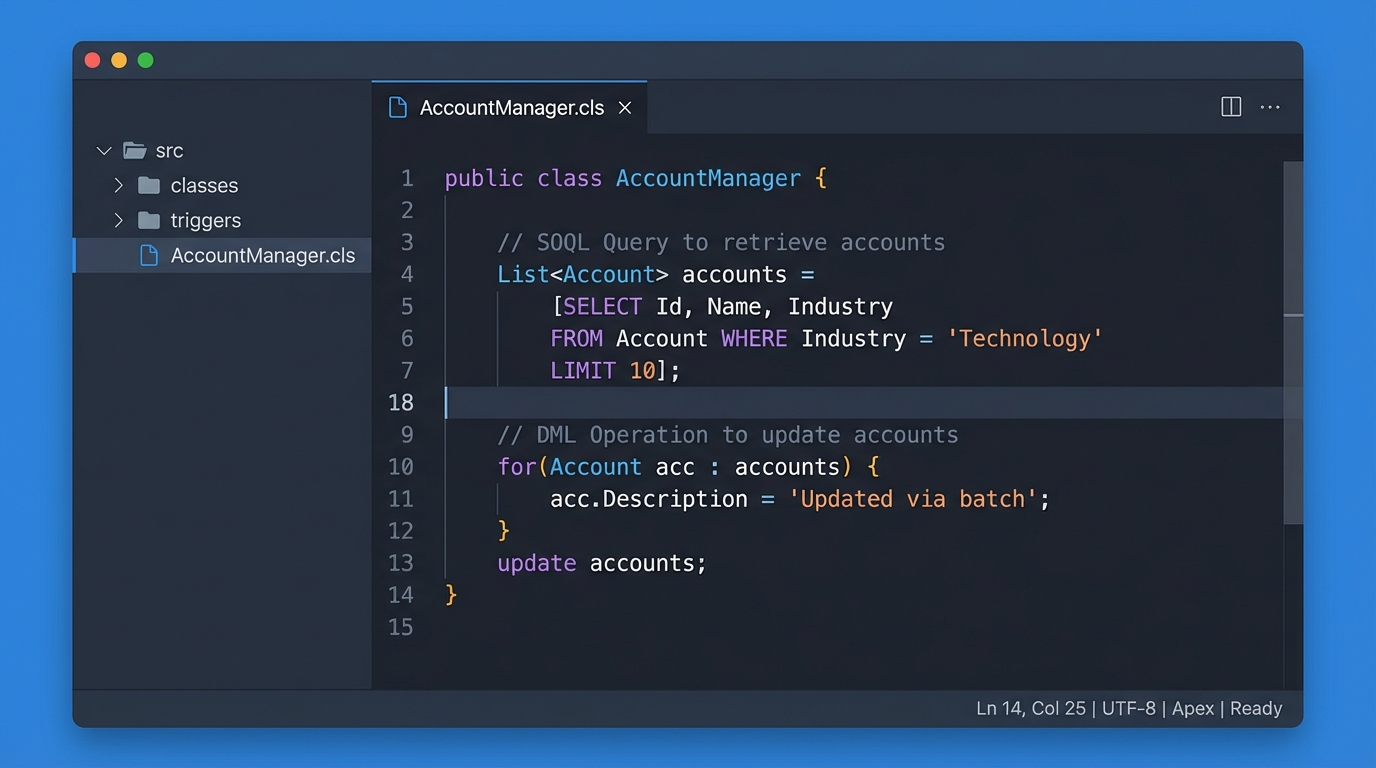
A realistic screenshot of a professional code editor showing secure Salesforce Apex programming patterns and database queries.
3. Stop SOQL Injection Before it Starts
I still see people concatenating strings to build dynamic queries. Just don't. It is the easiest way to let a malicious user run code they shouldn't. If you are building a query string, always use bind variables. If you absolutely must use dynamic field names, validate them first against the describe information.
String field = 'Name';
String name = 'ACME';

// Validate the field name exists first
String checkedField = Account.SObjectType.getDescribe().fields.getMap().get(field).toString();

// Use a bind variable for the actual data
String query = 'SELECT ' + checkedField + ' FROM Account WHERE Name = :name';
List<SObject> results = Database.query(query);
4. Don't Trust Frontend Input
Every @AuraEnabled method you write is basically a public API. I have seen developers assume that because a field is hidden in the UI, it is safe. But anyone with a browser console can send whatever data they want to your controller. So, why do we use @AuraEnabled annotation? To bridge the gap, but you have to be the gatekeeper.
Always assume the data coming from an LWC is untrusted. Instead of just passing a whole SObject into a DML statement, create a new instance of the object in your Apex and only map the fields you actually want to allow the user to change. Combine this with User Mode, and you have a solid defense.
One thing that trips people up is "Inherited Sharing." I usually tell my team to avoid it unless they have a very specific reason. Default to "with sharing" so you know exactly how the code will behave.
5. More Apex security best practices for Utilities
If you are building a reusable library or a utility class, you might not know ahead of time if it should run in User Mode or System Mode. A great pattern I use is to accept an AccessLevel as a parameter. This forces the person calling your code to be explicit about what they want to happen. No more accidental privilege escalations because someone forgot how a utility worked.
public with sharing class DatabaseService {
    public static List<Database.SaveResult> safeUpdate(List<SObject> records, AccessLevel level) {
        return Database.update(records, level);
    }
}
Automating the Boring Stuff
You cannot catch everything in a manual code review. We are all human. That is why you need to use the Salesforce Code Analyzer. It is a command-line tool that plugs right into your CI/CD pipeline. It will flag things like missing sharing keywords or unsafe SOQL before the code even gets to a sandbox. In my experience, setting this up once saves dozens of hours of cleanup later.
Key Takeaways
- Default to User Mode: Use
WITH USER_MODEandas userfor almost everything. - Be explicit with sharing: Use
with sharingby default and avoidinherited sharing. - Validate inputs: Never trust what comes from the frontend or dynamic strings.
- Use bind variables: This is the simplest way to prevent SOQL injection.
- Automate: Let static analysis tools find the easy mistakes for you.
Final Thoughts
At the end of the day, Apex security best practices are about reducing your "blast radius." By using the modern tools Salesforce has given us - like User Mode and the Code Analyzer - you can write less code while making it much more secure. It makes your life easier, keeps your customer data safe, and ensures you won't have any nasty surprises during your next security audit. So, start small. Try switching your next batch of queries to User Mode and see how much cleaner it feels.




Leave a Comment