

We've all been there: you spend an hour building out Lightning Email Templates only to realize they look broken the second a field is empty. It is a common headache when you're trying to pull in data like an Account Rating from a parent record that might not even exist for every contact. You end up with awkward blank spaces or weird punctuation that just looks messy.
Look, I've seen teams send out thousands of emails that looked like they were generated by a broken bot because they didn't account for missing data. But here's the thing: you don't need a heavy coding background to fix this. You just need to know how to handle basic conditional logic within the template editor.
Why you need conditional logic in Lightning Email Templates
In my experience, nothing kills a professional vibe faster than "Dear [Blank]" or a random empty line in the middle of a sentence. We want our emails to feel personal and accurate. If a parent account doesn't have a rating, we shouldn't just leave a hole where that data belongs. We should either show a fallback value or hide the section entirely.
So what does this actually mean for your day-to-day work? You're basically looking for a way to tell Salesforce: "If this field has data, show it; if not, show this other thing or nothing at all." While you might be used to best practices for Salesforce Flow for backend logic, sometimes you just need a quick fix right inside the email builder.
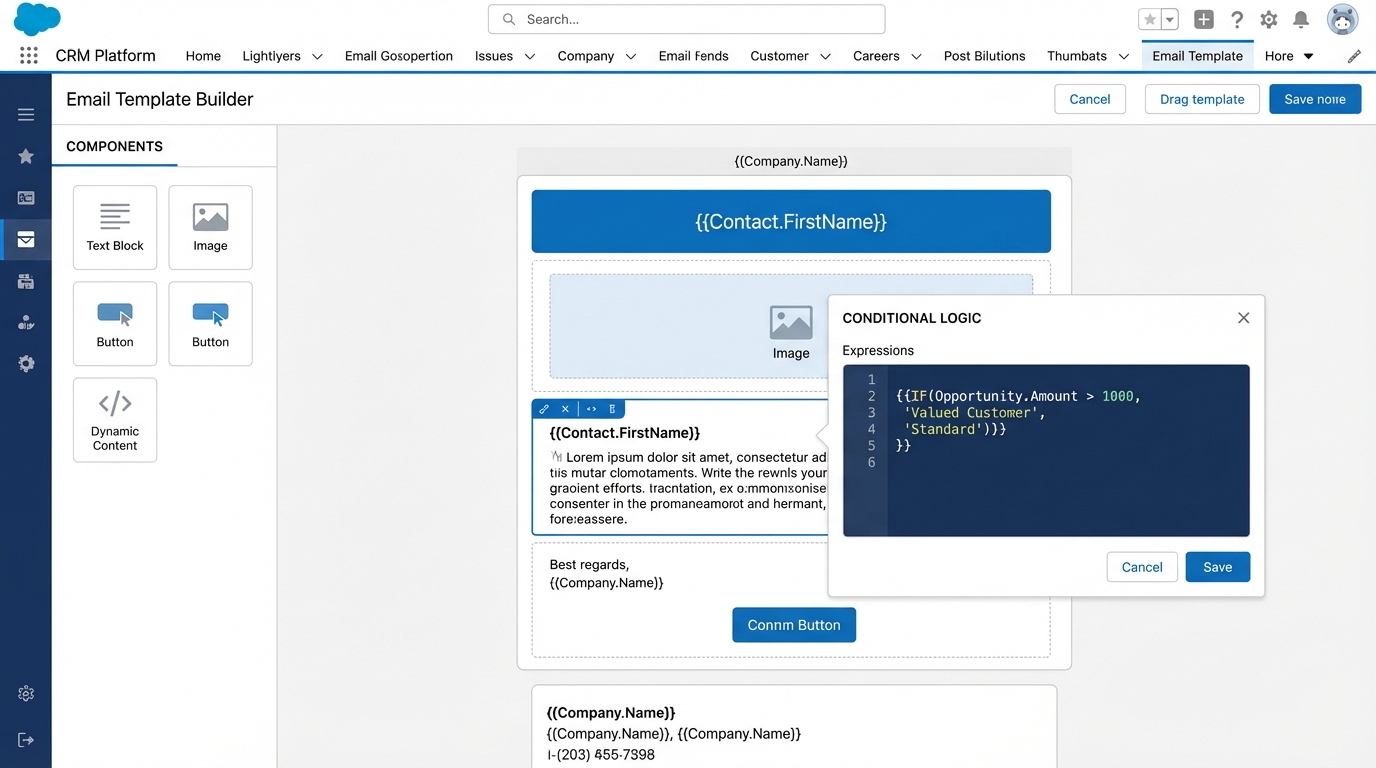
A realistic mockup of a Salesforce Lightning Email Template editor showing the placement of dynamic merge fields for conditional logic.
How to handle if/else logic in Lightning Email Templates
Now, Salesforce doesn't give us a full-blown scripting language inside the standard template editor, but we can use merge expressions to get the job done. Honestly, most teams get this wrong by trying to force complex Apex into a simple email. The trick is to use a conceptual "IF" statement that the renderer can understand.
The basic merge syntax
Here is the general idea of how you would write a conditional expression for a parent account rating. You're checking if the Parent ID exists before you try to display the rating itself. It looks something like this:
{!IF(Account.ParentId != null, Account.Parent.Rating, 'No Rating Available')}
But keep in mind that the exact syntax can shift depending on which version of the editor you're using. Some newer versions of Lightning Email Templates allow for conditional content blocks where you can toggle visibility without writing any code at all. Always check your specific org settings first.
"If your logic gets too messy for a merge field, move it to a formula field on the record itself. Your future self will thank you when you're trying to debug this six months from now."
Where most people trip up
One thing that trips people up is trying to nest too many conditions. I once worked with a dev who tried to build a seven-level nested IF statement inside a template. It was a nightmare to maintain. If you find yourself going down that rabbit hole, it's a sign you should be using code versus automation to prep the data before the email ever gets triggered.
Another big one? Testing. I can't stress this enough: test with a record that has the data and one that doesn't. I once sent a batch of 500 emails where half the recipients saw a weird trailing comma because I didn't test the "null" scenario. Don't be like me. Use the "Preview" feature with multiple different records to make sure the spacing stays clean.
Best practices for clean templates
- Use fallback text like "N/A" or "Valued Customer" so the recipient never sees a blank placeholder.
- Keep your logic simple. If it takes more than one line of code, use a formula field on the object instead.
- Document your merge fields. If a business user jumps in to change a sentence, they need to know why that weird-looking code block is there.
- Always check for parent-child relationships. If the relationship is missing, the merge field will almost always fail silently or look broken.
Key Takeaways for Lightning Email Templates
- Avoid the void: Never let an empty field dictate how your email looks to a customer.
- Use merge expressions: Use the IF function to provide fallbacks for missing parent account data.
- Formula fields are your friend: Move complex logic out of the template and onto the record whenever possible.
- Test every scenario: Always preview your Lightning Email Templates with both complete and incomplete data sets.
At the end of the day, it's about making sure your communication looks intentional. Whether you're showing a parent account rating or a specific discount code, these little tweaks make a huge difference in how customers see your brand. Give it a shot on your next project and see how much cleaner your output looks. It's a small step that saves a lot of embarrassment down the road.




Leave a Comment