


You can conditionally show or hide content in Salesforce email templates by embedding an IF merge expression such as {!IF(Account.ParentId != null, Account.Parent.Rating, 'No Rating Available')}. This syntax evaluates whether a field contains data, dynamically rendering the value or displaying fallback text to avoid awkward blank gaps. If your logic requires more than a single line or involves multi-level nesting, move the logic to a formula field on the record to prevent rendering issues.
I've seen teams send out thousands of emails that looked like a broken bot wrote them, purely because nobody accounted for missing data. You don't need a heavy coding background to fix this. You need to know how to handle basic conditional logic inside the template editor.
Why you need conditional logic in Lightning Email Templates
In my experience, nothing kills a professional vibe faster than "Dear [Blank]" or a random empty line in the middle of a sentence. We want our emails to feel personal and accurate. If a parent account doesn't have a rating, we shouldn't leave a hole where that data belongs. Either show a fallback value or hide the section entirely.
What you want is a way to tell Salesforce: "If this field has data, show it; if not, show this other thing or nothing at all." You might be used to best practices for Salesforce Flow for backend logic, but sometimes you just need a quick fix right inside the email builder.
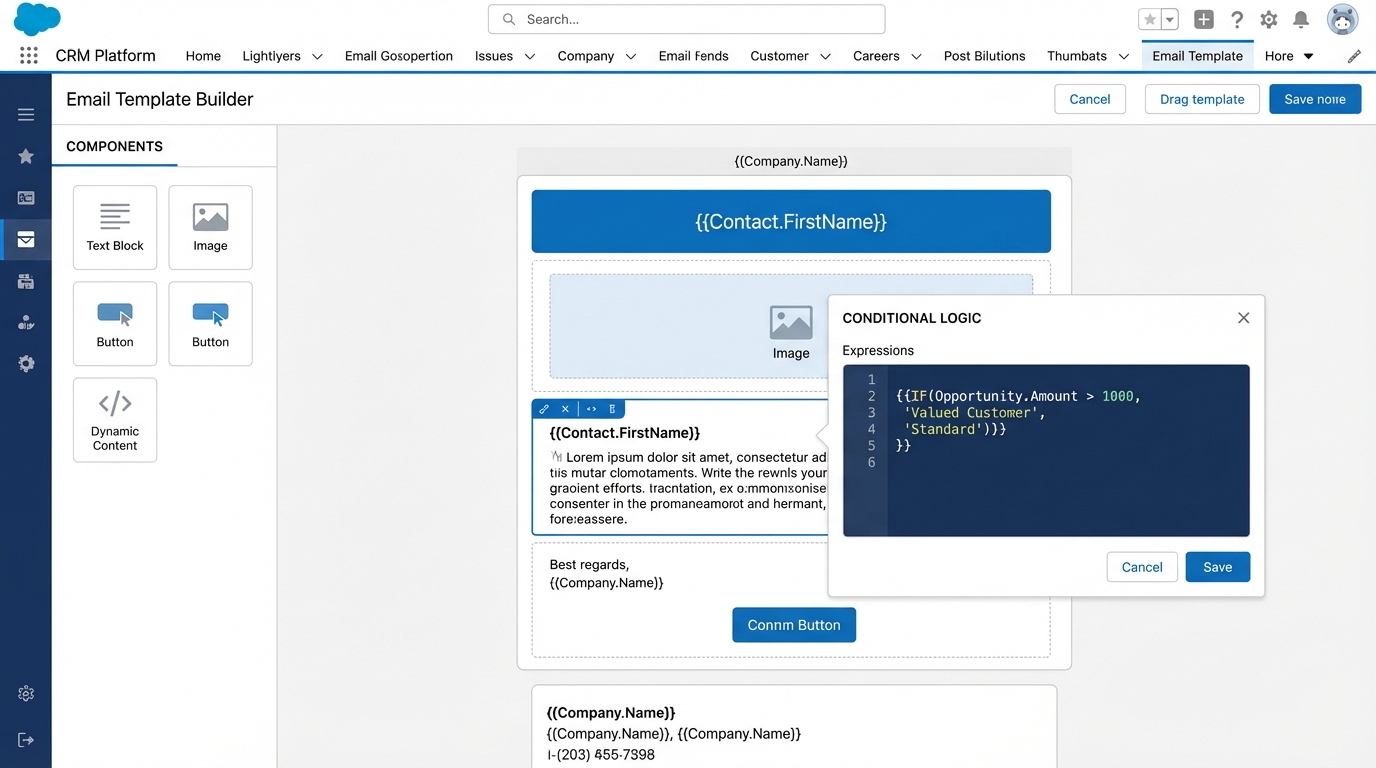
The template editor, with the merge fields that carry the conditional logic.
How to handle if/else logic in Lightning Email Templates
Salesforce doesn't give us a full-blown scripting language inside the standard template editor, but merge expressions get the job done. Most teams get this wrong by trying to force complex Apex into a simple email. The trick is a conceptual "IF" statement that the renderer can understand.
The basic merge syntax
Here is the general idea of a conditional expression for a parent account rating. You check whether the Parent ID exists before you try to display the rating itself. It looks something like this:
{!IF(Account.ParentId != null, Account.Parent.Rating, 'No Rating Available')}
Keep in mind that the exact syntax can shift depending on which version of the editor you're using. Some newer versions of Lightning Email Templates allow conditional content blocks where you toggle visibility without writing any code at all. Always check your specific org settings first.
"If your logic gets too messy for a merge field, move it to a formula field on the record itself. Your future self will thank you when you're trying to debug this six months from now."
Where most people trip up
Nesting too many conditions. I once worked with a dev who tried to build a seven-level nested IF statement inside a template, and it was a nightmare to maintain. If you find yourself going down that rabbit hole, it's a sign you should be using code versus automation to prep the data before the email ever gets triggered.
Then there's testing. I can't stress this enough: test with a record that has the data and one that doesn't. I once sent a batch of 500 emails where half the recipients saw a weird trailing comma because I skipped the "null" scenario. Don't be like me. Use the "Preview" feature with several different records to make sure the spacing stays clean.
Best practices for clean templates
- Use fallback text like "N/A" or "Valued Customer" so the recipient never sees a blank placeholder.
- Keep your logic simple. If it takes more than one line of code, use a formula field on the object instead.
- Document your merge fields. If a business user jumps in to change a sentence, they need to know why that weird-looking code block is there.
- Always check for parent-child relationships. If the relationship is missing, the merge field will almost always fail silently or look broken.
Key takeaways for Lightning Email Templates
- Never let an empty field dictate how your email looks to a customer.
- Use the IF function in a merge expression to provide fallbacks for missing parent account data.
- Move complex logic out of the template and onto the record whenever possible.
- Always preview your Lightning Email Templates with both complete and incomplete data sets.
All of this is about making sure your communication looks intentional. Whether you're showing a parent account rating or a specific discount code, these little tweaks change how customers read what you send. Give it a shot on your next template and see how much cleaner the output looks.



Leave a Comment