

If you have spent any time building complex automations, you know that loops can get messy fast. That is why the Salesforce Flow Transform element is such a big deal for those of us trying to keep our canvases clean while handling bulk data. I have seen too many flows cluttered with loops and assignment variables just to move data from one object to another, and frankly, it is a headache to maintain.
Look, the old way worked, but it was tedious. You would get your records, loop through them, assign values to a single record variable, and then add that to a collection. Now, we can do all of that mapping in a single screen. In this post, I will show you how to use this tool to create tasks for all open opportunities on an account without a single loop in sight.
Setting up the Salesforce Flow Transform element
Let's look at a common scenario. Say your sales team wants a high-priority task created for every open opportunity whenever an account is updated. In the past, this was a classic loop use case. But here is the thing: we can do this much faster now. Let's break down the steps to build this out.
- Start with the trigger: Create a record-triggered flow on the Account object. Set it to run when a record is created or updated and optimize it for "Actions and Related Records."
- Get your data: Add a Get Records element to find all Opportunities where the AccountId matches your record and IsClosed is false. Make sure you select "All records" and store the fields you need, like Name and OwnerId.
- The Transform step: This is where the magic happens. Add the Salesforce Flow Transform element to your canvas. Select your Opportunity collection as the source and the Task object as the target. Make sure you check the box to allow multiple values so it knows you are building a collection.
- Map your fields: Drag and drop the Opportunity Name to the Task Subject and the Opportunity Id to the WhatId. For fixed values like Status ("Not Started") or Priority ("High"), you can set those directly in the mapping tool.
- Finish with DML: Add a Create Records element. Instead of picking individual variables, just point it at the collection your transform element created.
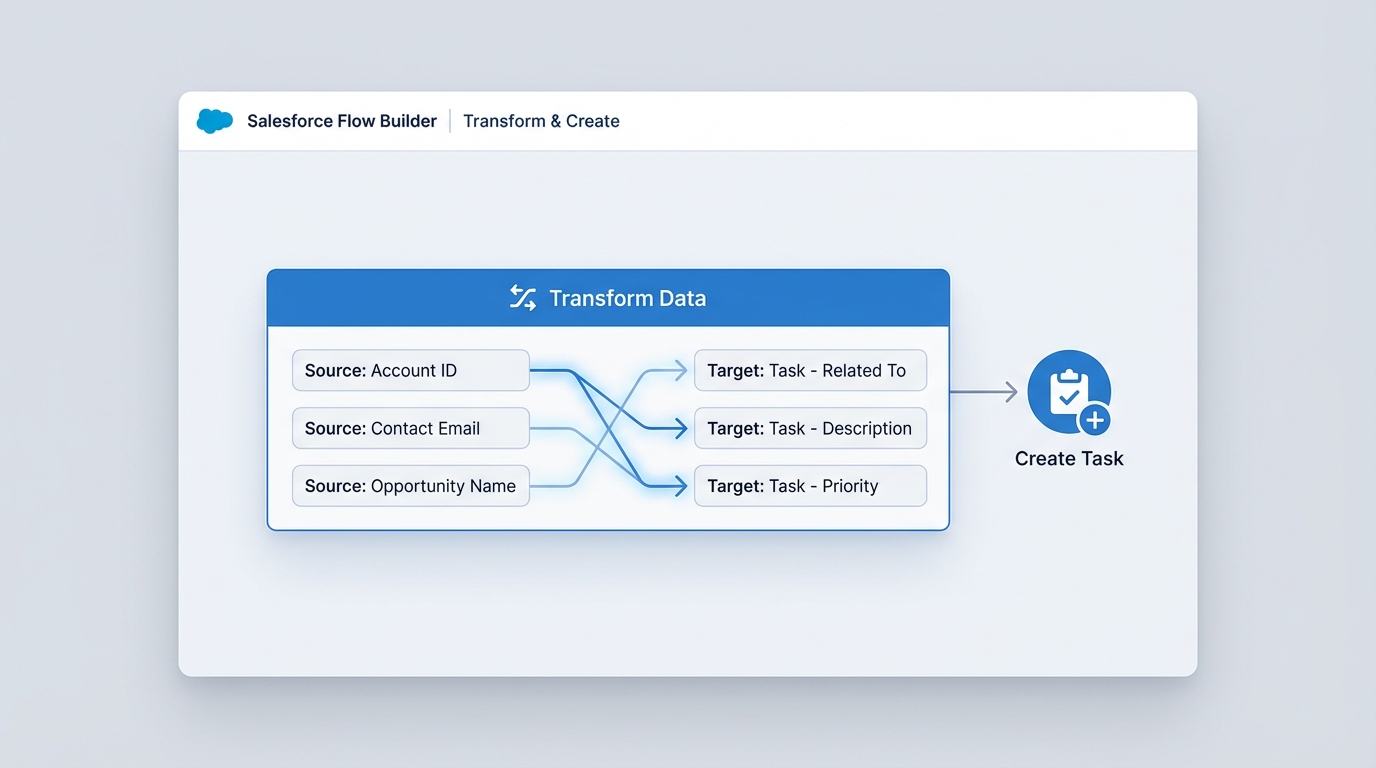
A Salesforce Flow diagram showing a Transform element mapping data fields into a collection for a Create Records element.
Why the Salesforce Flow Transform element beats traditional loops
So why does this matter? Honestly, most teams get this wrong by sticking to what they know. The biggest win here is readability. When a colleague opens your flow six months from now, they can see the entire mapping logic in one place instead of clicking through three different assignment elements inside a loop. It makes bulk record processing in Flows much easier to visualize.
In my experience, the Transform element is the most overlooked feature for improving flow performance. It handles the heavy lifting of collection building behind the scenes, which keeps your flow logic much leaner.
One thing that trips people up is formulas. If you need to set a due date for 15 days out, you might notice the formula option inside the transform UI can be a bit finicky depending on your release version. If it is not showing up, you can always create a standard flow formula and map it just like a field. You can even use this element for more than just mapping; it is great for aggregations like sum and count if you need to roll up data on the fly.
Key Takeaways
- The Salesforce Flow Transform element replaces the "Loop + Assignment + Add to Collection" pattern.
- It helps avoid DML limit issues by encouraging a single bulk insert at the end of the process.
- Mapping is visual, making it way easier to debug than hidden assignment variables.
- It works for almost any object conversion, like turning Contacts into Cases or Leads into custom records.
When I first worked with this element, I was skeptical. I thought it was just another UI layer. But after using it on a project with massive data sets, I realized how much cleaner the logic stays. If you are still building loops for basic field mapping, it is time to give this a try. It is a much better way to build, and your future self will thank you for the cleaner documentation.




Leave a Comment