
Starting your Agentforce setup and deployment
Getting your head around Agentforce setup and deployment can feel like a lot at first, especially when you're trying to push it live to an Experience Cloud site. I've spent plenty of time lately digging into the nuts and bolts of this, and honestly, the sequence of steps is what usually trips people up. It isn't just about flipping a switch; it's about making sure the plumbing-like Omni-Channel and CORS-is actually connected correctly.
So, I put together a deck that walks through the whole thing. I've seen teams try to skip the profile configuration or mess up the routing logic, and it always leads to a headache later. If you're still figuring out the "why" behind all this, you might want to look at these practical Agentforce use cases to see how other devs are actually using this in the wild.
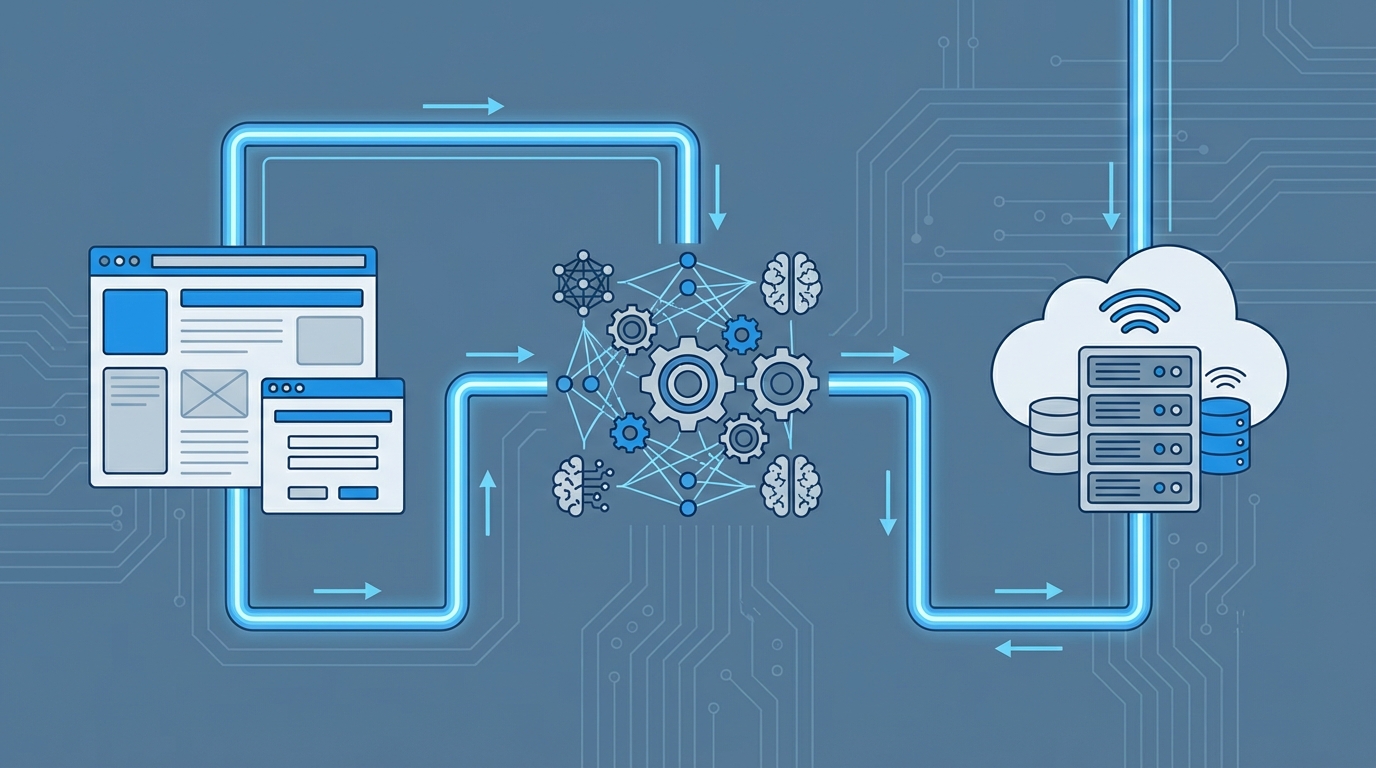
A technical architecture diagram showing the integration of Experience Cloud, Einstein AI, and Service Cloud infrastructure.
The core pieces of Agentforce setup and deployment
Look, the technical side of this involves a few different Salesforce "clouds" hitting each other at once. You've got Einstein features, Experience Cloud, and Service Cloud's messaging infrastructure all working together. If one piece is off, the whole thing stays quiet. Here's what we're actually building inside the org:
- Einstein Configuration: You've got to enable the big Einstein switch and make sure your Agent profile has the right permissions. Without the right user license, you won't even see the options you need.
- Experience Cloud Site: This is your front-facing home. You need a published site before you can even think about deploying the chat interface.
- Omni-Channel Routing: This is the brain that decides where a conversation goes. We're talking routing configurations, fallback queues, and the Flow that ties it all together.
- Embedded Service: This is the actual "widget" your customers see. It's where you define the look, feel, and the messaging channel it uses.
One thing that trips people up every single time: CORS. If you don't add your site URL to the CORS list in Setup, your chat widget will just sit there and spin. It's a simple fix, but it's the number one reason for "it's not working" emails.
Common traps in Agentforce setup and deployment
But wait, there's more. Even if you follow the documentation perfectly, there are some "gotchas" that aren't always obvious. For example, testing Omni-Channel in a sandbox can be a bit of a pain if you don't have enough test users to actually trigger the routing logic. I always suggest using a fallback queue so that no customer request ever just vanishes into the void.
Now, if you're coming from a traditional bot background, you'll notice this feels a bit different. It's less about rigid decision trees and more about how the agent handles the data it's given. If you've worked with Copilot before, you might recognize some of these patterns, but there are definitely specific gotchas to avoid when you're moving into the Agentforce space.
Download the Step-by-Step PPT
I created this PowerPoint to act as a checklist for my own projects. It includes the exact setup paths and screenshots so you don't have to hunt through the Setup menu for twenty minutes. It covers everything from the initial Einstein enablement to the final validation on the live site.
Download the guide here: agentforce-setup-and-deployment-to-community.pdf
Quick implementation checklist
- Enable Einstein and assign the Agent profile to your users.
- Get your Experience Cloud site published and ready.
- Set up your Omni-Channel routing and the fallback queue.
- Create the Omni-Channel Flow to handle the incoming traffic.
- Build the messaging channel and the embedded service deployment.
- Add your site URLs to the CORS settings and test the live site.
Key Takeaways
- Start with Permissions: Most errors in Agentforce setup and deployment are just missing checkboxes on the user profile or permission set.
- CORS is Critical: Your site won't talk to the messaging server if the URL isn't explicitly whitelisted.
- Routing Matters: A bad Omni-Channel Flow will break the customer experience before it even starts.
- Test in a Sandbox: Never try to do this live in production for the first time. The routing logic needs a safe place to fail.
So, that's the high-level view. Setting this up takes a bit of patience, but once you see that first message route correctly through your Experience Cloud site, it all clicks. Use the PPT as your guide, take it one step at a time, and make sure you're testing every single link in the chain. If you hit a wall, double-check your CORS and your routing Flow-nine times out of ten, the problem is right there.




Leave a Comment