SFDC Developers
0
  • Home
  • Apex
    • Integration
  • Visualforce
  • Lightning
    • Aura Component
    • Web Component
  • Interview Questions
  • DMCA
  • Terms & Conditions
  • Privacy Policy
  • About Us
  • Contact Us

Archives

  • February 2026
  • January 2026
  • December 2025
  • November 2025
  • October 2025
  • September 2025
  • April 2023
  • December 2020
  • November 2020
  • July 2020
  • June 2020
  • May 2020
  • April 2020
  • March 2020
  • February 2020
  • January 2020
  • December 2019

Categories

  • Apex
  • AppExchange
  • Architecture
  • Artificial Intelligence
  • Aura Component
  • Career Advice
  • Career Development
  • Community Cloud
  • Configs
  • CRM Analytics
  • Data Cloud
  • Deployment
  • DevOps
  • Flow Automation
  • Ideas
  • Integration
  • Interview Preparation
  • Interview Questions
  • Lightning
  • Lightning Web Components
  • News
  • Other
  • Process Builder
  • Recommandations
  • Sales Cloud
  • Salesforce
  • Salesforce Administration
  • Salesforce CPQ
  • Salesforce Development
  • Salesforce Events
  • Salesforce Flow
  • Salesforce Integration
  • Salesforce Integrations
  • Salesforce Tips
  • Step-by-Step Guides
  • Tech Industry
  • Uncategorised
  • Visualforce
  • Web Component

Meta

  • Log in
  • Entries feed
  • Comments feed
  • WordPress.org
[email protected]
  • Disclaimer
  • DMCA
  • Terms & Conditions
  • About Us
  • Contact Us
SFDCDevelopers Mobile Logo
SFDC Developers
  • Home
  • Categories
    • Apex
    • Integration
    • Configs
    • News
    • Flow Automation
    • Ideas
    • Interview Questions
    • Aura Component
    • Salesforce Tips
SFDC Developers
  • Home
  • Categories
    • Apex
    • Integration
    • Configs
    • News
    • Flow Automation
    • Ideas
    • Interview Questions
    • Aura Component
    • Salesforce Tips
SFDC Developers > Salesforce > Salesforce validation rule for Customer ID formatting
SalesforceSalesforce Integration

Salesforce validation rule for Customer ID formatting

Posted by Vinay Vernekar 2nd January 2026

How to clean up your account data with a Salesforce validation rule

I’ve seen so many integrations break because of messy data, and that’s usually where a solid Salesforce validation rule comes to the rescue. One of the most common requests I get from clients is to enforce a specific format for Customer IDs, especially when they’re syncing data with an ERP or an external billing system. If the ID doesn’t match the expected pattern, the whole sync fails, and then you’re stuck cleaning up hundreds of errors manually.

Look, we’ve all been there. You tell the sales team to use a specific format, but someone eventually enters “US 12345” instead of “US-12345678”. This post walks through how to build a simple, declarative solution to keep your data clean from the start. We’ll use a custom field, a formula, and a Salesforce validation rule to make sure every ID follows the “Country Code-8 Digits” pattern.

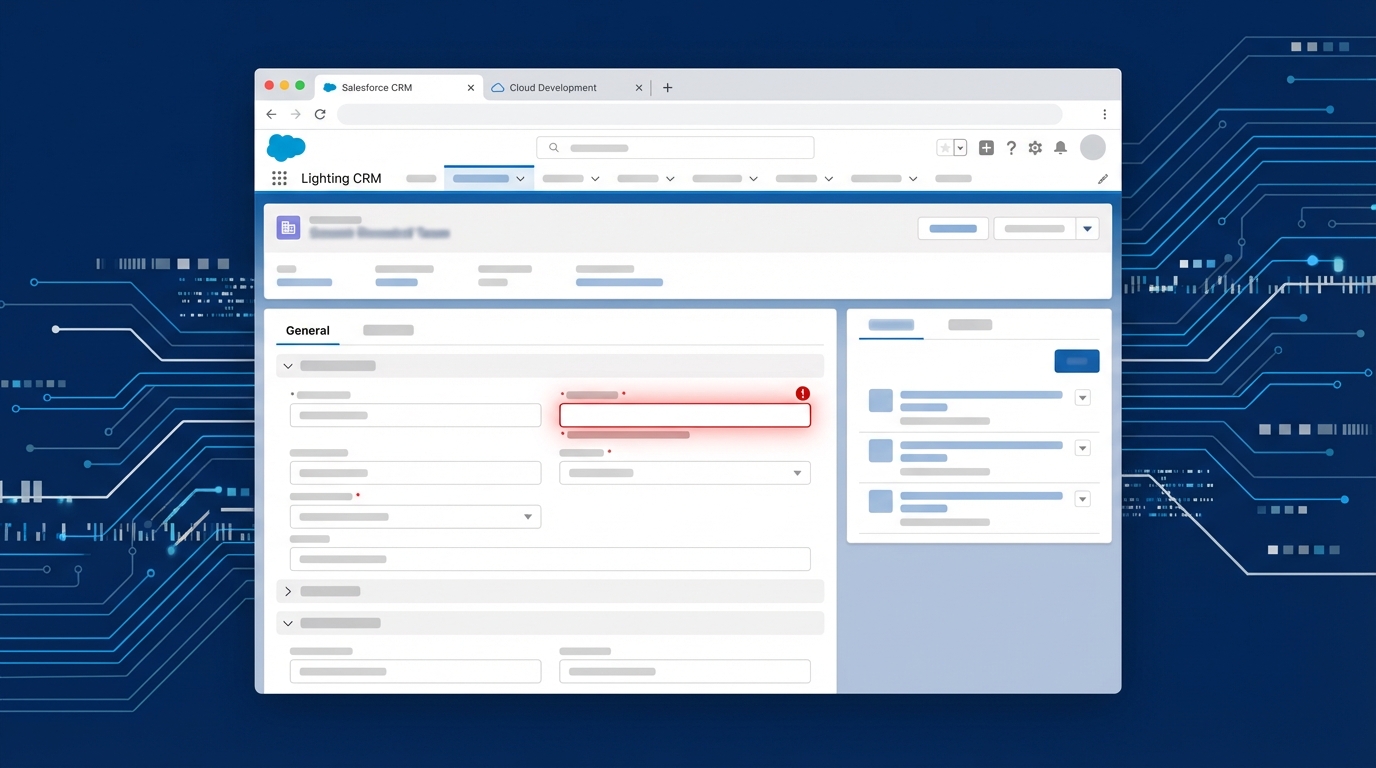
A realistic mockup of a Salesforce record page showing a Customer ID field with a validation error highlight.

Setting up the custom fields

First, we need a place to put this ID. Create a custom text field on the Account object called Customer_ID__c. I always recommend setting the length to exactly 11 characters and checking the “Unique” box. This is probably the most overlooked feature, but it prevents two accounts from having the same ID, which is a nightmare for any Salesforce API integration later on.

Next, we need to know what the country code should be. If you’re using standard State and Country picklists, you’ll want a formula field to grab that two-letter ISO code. I usually name this Billing_Country_Code__c. Here is the formula you’ll need:

TEXT(BillingCountryCode)

But here is the thing: if you aren’t using the standard picklists, you might just need a formula that looks at the BillingCountry text field. Whatever you use, just make sure it consistently returns that two-letter code like “US”, “CA”, or “GB”.

Building the Salesforce validation rule logic

Now for the fun part. We need to write the Salesforce validation rule logic. We want to check for two things: does the ID start with the correct country code, and does the rest of the string follow the “dash plus eight digits” format? Honestly, most teams get this wrong because they forget to account for the dash or they make the regex too loose.

Go to the Account object, hit Validation Rules, and create a new one. Use this formula:

AND(
    NOT(ISBLANK(Customer_ID__c)),
    OR(
        LEFT(Customer_ID__c, 2) != Billing_Country_Code__c,
        NOT(REGEX(Customer_ID__c, "^[A-Z]{2}-\\d{8}$"))
    )
)

So what does this actually mean? The first part makes sure the rule only fires if the field isn’t empty. The second part checks if the first two letters match your billing country. Finally, the REGEX part is the heavy lifter. It insists on two uppercase letters, a hyphen, and exactly eight numbers. If any of that is off, Salesforce will block the save.

In my experience, it’s always better to be strict with IDs. If you allow lowercase letters now, you’ll just end up writing a batch job to fix them six months from now when the finance team complains.

Testing your Salesforce validation rule

Before you push this to production, you’ve got to test it. I’ve seen people forget that REGEX is case-sensitive by default. If a user types “us-12345678” instead of “US-12345678”, the Salesforce validation rule will trigger an error. That’s usually what you want, but it’s good to be aware of it.

Try these scenarios in a sandbox:

  • Enter an ID with a space instead of a dash. (Should fail)
  • Enter an ID with only 7 digits. (Should fail)
  • Enter an ID where the country code is “FR” but the billing address is “US”. (Should fail)
  • Enter a perfectly formatted ID. (Should pass)

One thing that trips people up is when the Billing Country is blank. If your business process allows for empty addresses, you might need to adjust the formula to handle those cases so you don’t lock users out of saving records. It’s all about how you ensure data integrity without making the system impossible to use.

Key Takeaways

  • Always mark integration IDs as “Unique” at the field level to prevent duplicates.
  • Use REGEX in your Salesforce validation rule for complex patterns; it’s much cleaner than nested MID or LEFT functions.
  • Ensure your formula for the country code matches the format your users actually enter.
  • The Salesforce validation rule error message should be helpful. Don’t just say “Invalid ID” – tell them exactly what “XX-NNNNNNNN” means.

Final thoughts on data quality

Setting up a Salesforce validation rule like this takes maybe ten minutes, but it saves hours of troubleshooting down the road. It’s a low-code way to keep your data lean and mean. If you’re worried about users getting frustrated, just make sure the error message is crystal clear about the required format. Happy building!


Tags: Account Object Cloud Data Quality Formula Field Integration Salesforce
Shares
Share on Facebook Share on Twitter Share on Pinterest Share on Email
Previous Article Step-by-Step: Configure Google Analytics 4 (GA4) for Salesforce Experience Cloud Sites | GA4 Experience Cloud - Featured Image Step-by-Step: Configure Google Analytics 4 (GA4) for Salesforce Experience Cloud Sites | GA4 Experience Cloud
Next Article Apex Trigger Upsert - How Many Times Does It Execute? - Featured Image Apex Trigger Upsert – How Many Times Does It Execute?

Popular Posts

Salesforce for Beginners: A Free Udemy Course to Kickstart Your CRM Career in 2026

Salesforce for Beginners: A Free Udemy Course to Kickstart Your CRM Career in 2026

12th February 2026
Salesforce Layoffs 2026: The Truth Behind the AI Revolution

Salesforce Layoffs 2026: AI Impact and Future Outlook

11th February 2026
Salesforce Spring '26 Release: Flow Kanban & File Triggers

Salesforce Spring ’26 Release: Flow Kanban & File Triggers

11th February 2026

Agentforce RAG Grounding: Build Custom Retrievers & Agents

30th January 2026

You Might Also Enjoy

Salesforce Spring '26 - Apex Cursors and LWC Expressions - Featured Image
ApexLightning Web ComponentsSalesforce

Salesforce Spring ’26 – Apex Cursors and LWC Expressions

I've been testing the Salesforce Spring '26 preview and the new Apex Cursors are a total game changer for large data volumes. We also finally get LWC Expressions to help clean up those messy HTML templates.

25th January 2026
Architecting for Scale with the Atlas Reasoning Engine - Featured Image
SalesforceSalesforce Flow

Architecting for Scale with the Atlas Reasoning Engine

I used to spend all my time building rigid if-then logic, but this engine changes everything. It is less about mapping every step and more about giving your agents the right tools to solve problems on their own.

25th January 2026
Mastering the Apex Approval Process for Complex Logic - Featured Image
ApexSalesforce

Mastering the Apex Approval Process for Complex Logic

Standard approval tools are great, but sometimes you need more control. I'm breaking down how to use Apex to handle complex routing and bulk requests that Flow just can't touch.

25th January 2026
Guide to the Apex Zip Namespace in Salesforce Spring '25 - Featured Image
ApexSalesforceSalesforce Integration

Guide to the Apex Zip Namespace in Salesforce Spring ’25

Salesforce finally added a native way to handle zip files without needing AWS or external libraries. I will show you how to use ZipWriter and ZipReader to manage your documents directly in Apex.

24th January 2026
Load More
  • Disclaimer
  • DMCA
  • Terms & Conditions
  • About Us
  • Contact Us
©2026 SFDCDevelopers.com

Our website uses cookies to improve your experience. Learn more about: cookie policy

Accept