

If you're trying to build a lead response report that actually makes sense, you've probably realized that calculating Apex business hours is the only way to get real data. I've seen so many teams get frustrated because their "2-hour" response time looks like 48 hours on a Monday morning. That's because the system is counting the entire weekend. It's a mess, and it makes your team look like they're slacking when they're actually crushing it.
Look, Salesforce gives us some tools for this, but sometimes you need to get your hands dirty with custom logic. Whether you're tracking Case SLAs or just trying to see how long a Task sat in a queue, you need a way to filter out the noise of nights and weekends. Let's look at how to handle this without losing your mind.
Finding the day of the week in Apex
Here's the thing: Salesforce doesn't have a simple getDayName() method on the Date class. I know, it's annoying. But we can get around it using a little math with the toStartOfWeek() method. This is usually the first step before you even touch Apex business hours logic.
public static String getDayOfWeek(Date inputDate) {
    // This returns the Sunday of that week
    Date startOfWeek = inputDate.toStartOfWeek();

    // How many days since Sunday?
    Integer dayDifference = inputDate.daysBetween(startOfWeek);

    String dayOfWeek;
    switch on dayDifference {
        when 0 { dayOfWeek = 'Sunday'; }
        when 1 { dayOfWeek = 'Monday'; }
        when 2 { dayOfWeek = 'Tuesday'; }
        when 3 { dayOfWeek = 'Wednesday'; }
        when 4 { dayOfWeek = 'Thursday'; }
        when 5 { dayOfWeek = 'Friday'; }
        when 6 { dayOfWeek = 'Saturday'; }
        when else { dayOfWeek = 'Invalid'; }
    }

    return dayOfWeek;
}
Basically, we're just finding the Sunday of that week and seeing how far away our date is. It's a reliable trick I've used in dozens of projects. You'll need this if you're building a custom scheduler or just want to display a friendlier date on a UI.
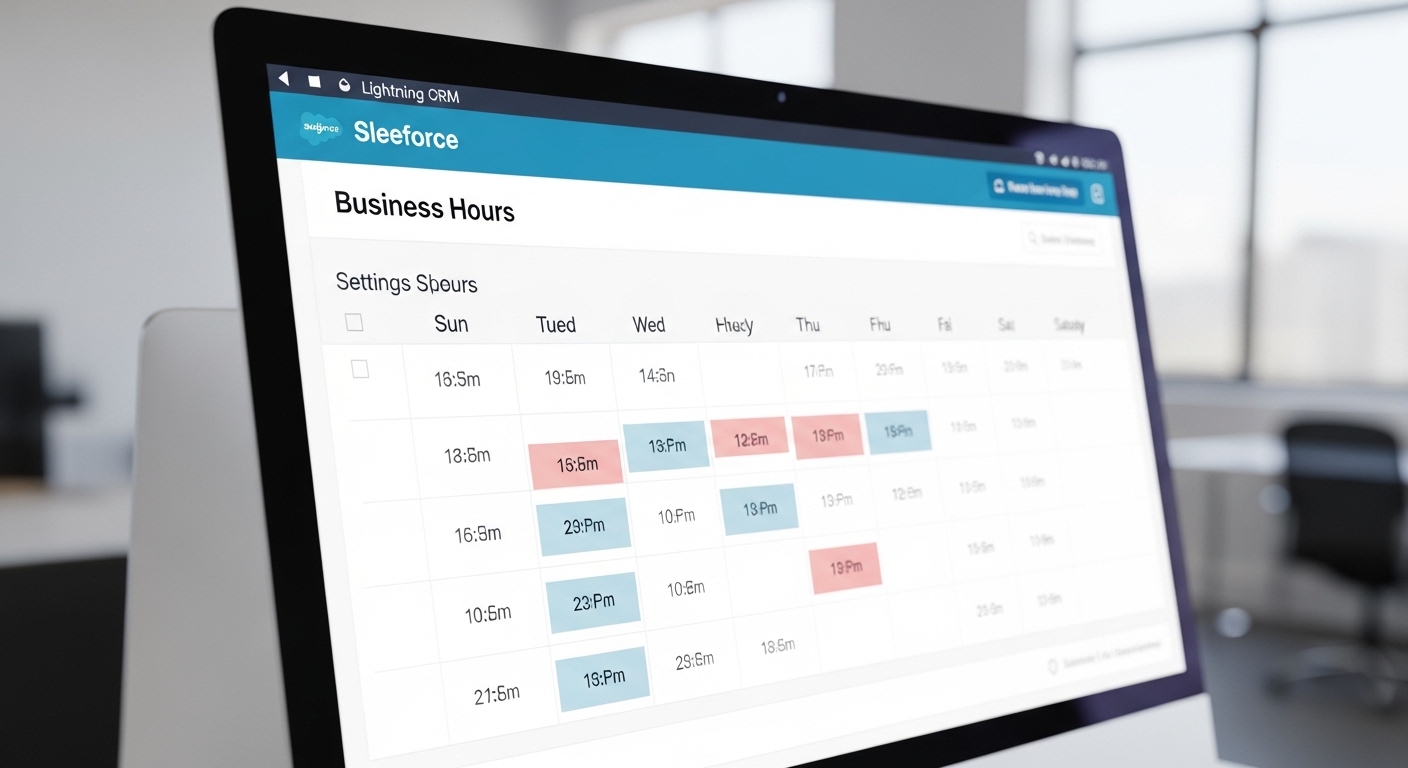
A professional UI mockup of a Salesforce business hours configuration screen showing a weekly schedule grid.
Why you might need custom Apex business hours logic
Now, why wouldn't you just use the standard BusinessHours class? Honestly, most teams should. But I've run into plenty of scenarios where the standard class was too rigid. Maybe you need to calculate hours based on a specific shift that changes, or you're dealing with a complex global setup where the "business hours" depend on the record's owner, not just a static ID. Knowing when to use Apex over a standard Flow or out-of-the-box feature is what separates the pros from the juniors.
If you find yourself needing a more flexible approach to Apex business hours, you can iterate through the days and "clamp" the time spent to your specific windows. This is especially helpful if your weekend hours are different from your weekday hours, which is a common request in retail or support orgs.
Building your own Apex business hours calculator
This snippet below is a workhorse. It loops through every day between two dates and calculates the "active" time based on the windows you define. In this example, we're assuming an 8 AM to 8 PM weekday and a shorter weekend shift. But you can easily tweak this to match your company's actual schedule.
public static Decimal calculateBusinessHours(Datetime startDateTime, Datetime endDateTime) {
    if (startDateTime == null || endDateTime == null) {
        return 0;
    }

    Date startDate = startDateTime.date();
    Date endDate = endDateTime.date();
    Decimal totalHours = 0;

    for (Date currentDate = startDate; currentDate <= endDate; currentDate = currentDate.addDays(1)) {
        Date startOfWeek = currentDate.toStartOfWeek();
        Integer dayDifference = currentDate.daysBetween(startOfWeek);

        // Default start at 8 AM
        Datetime businessStart = Datetime.newInstance(currentDate, Time.newInstance(8, 0, 0, 0));
        Datetime businessEnd;

        // Custom weekend logic
        if (dayDifference == 6 || dayDifference == 0) {
            businessEnd = Datetime.newInstance(currentDate, Time.newInstance(16, 30, 0, 0)); // 4:30 PM
        } else {
            businessEnd = Datetime.newInstance(currentDate, Time.newInstance(20, 0, 0, 0)); // 8:00 PM
        }

        Datetime effectiveStart = (startDateTime > businessStart) ? startDateTime : businessStart;
        Datetime effectiveEnd = (endDateTime < businessEnd) ? endDateTime : businessEnd;

        if (effectiveStart < effectiveEnd) {
            totalHours += (effectiveEnd.getTime() - effectiveStart.getTime()) / (1000.0 * 60 * 60);
        }
    }

    return totalHours;
}
Pro Tip: Always use 1000.0 (with the decimal) when dividing in Apex to ensure you're getting a Decimal return value instead of an Integer. It's a small detail, but it prevents those "why is my result always a whole number?" bugs.
Watch out for these common traps
I've seen teams try to shortcut this, but if you don't handle Apex business hours correctly, your SLA reports will be junk. One thing that trips people up is timezones. Datetime.newInstance uses the running user's timezone. If your server is in UTC but your users are in New York, your math might be off by five hours. Always double-check which timezone your context is running in.
Another thing? Performance. If you're running this logic on thousands of records in a trigger, you might hit CPU limits. If you're dealing with massive date ranges (like years), you should probably move this to asynchronous processing or find a way to bulkify the math so you aren't looping more than necessary.
Key Takeaways
- Use toStartOfWeek(): It's the most reliable way to map a date to a weekday name.
- Clamp your times: Don't just subtract dates; check if the start/end times actually fall within your business window.
- Mind the timezones: Ensure your code respects the org or user timezone to avoid reporting errors.
- Handle holidays: For a truly "real-world" solution, you'll want to query the Holiday object and skip those dates in your loop.
At the end of the day, getting your Apex business hours right is about giving the business data they can actually trust. It's much better to spend an extra hour on the code now than to spend ten hours later explaining why the reports are wrong. Grab these snippets, test them against a few weekend scenarios, and you'll be good to go.




Leave a Comment