

Working with Salesforce inactive users without losing your mind
Ever tried to assign a record to someone who left the company six months ago? If you are managing Salesforce inactive users, you have probably hit that wall where the UI just says "no." It is a common headache, especially during data migrations or when you are trying to keep historical records accurate. But here is the thing - just because a user is deactivated does not mean they are completely off-limits for every process.
I have seen plenty of teams get stuck on this. They think they have to reactivate a user, pay for the license for an hour, do the update, and then deactivate them again. Trust me, you do not want to do that dance. There is a much better way to handle this if you know which buttons to push in the backend.
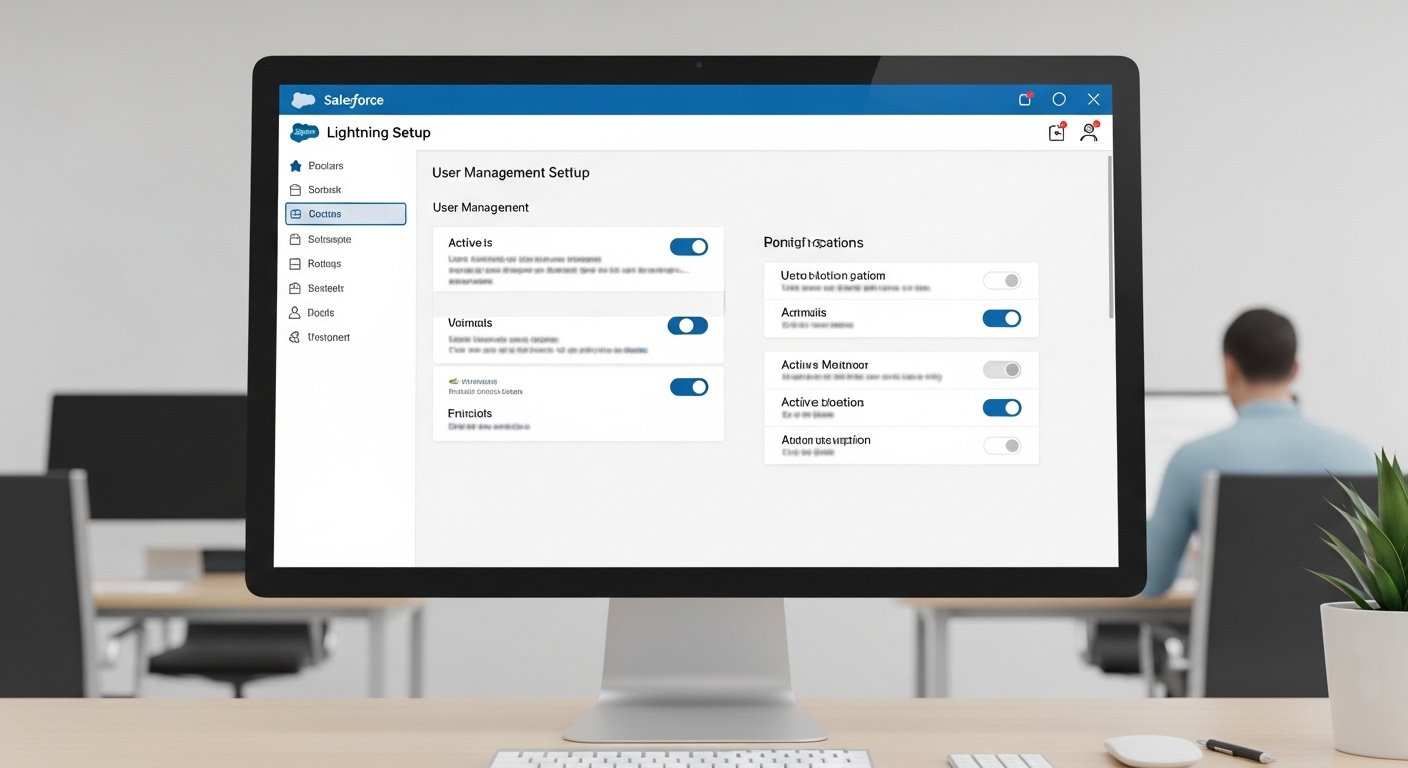
A realistic mockup of a Salesforce administrative settings page showing user management toggles and configuration options.
The gap between the UI and the API for Salesforce inactive users
When you deactivate someone, Salesforce tries to be helpful by hiding them. It makes sense. You do not want a sales rep accidentally assigning a fresh lead to someone who isn't there to pick up the phone. On a standard page layout, those Salesforce inactive users are basically ghosts. They won't show up in lookup searches, and you cannot pick them from the owner selection tool.
But the backend is a different story. The platform still holds onto those User IDs. If you are using the Data Loader, writing Apex, or running a tool like the Bulk API, the system is much more flexible. You can often link records to inactive IDs through these "backdoor" methods, even when the UI blocks you. This is a lifesaver when you are trying to effectively manage large data volumes in Salesforce without messing up your audit trails.
What about lookup fields?
For custom lookup fields, the rules are pretty simple. If you're trying to set a value through the standard "Edit" button on a record, you're out of luck. The search won't find the inactive person. However, if you're pushing data via an integration or a script, Salesforce will let you populate that field with an inactive User ID. The system validates that the ID exists, not necessarily that the user is active.
Updating record ownership for Salesforce inactive users
Ownership is where things get a bit more strict. If you try to change the OwnerId to an inactive user via the API without the right setup, you'll get hit with the INACTIVE_OWNER_OR_USER error. I've seen this trip up even senior devs who forgot to check their permission sets before a big deployment.
To get around this, you need to enable a specific "hidden" feature. Head over to Setup > User Interface and check the box for Set Audit Fields upon Record Creation and Update Records with Inactive Owners. It's a bit of a mouthful, but it's the golden ticket for data integrity.
Pro Tip: Even after you enable the org-wide setting, you still have to grant the "Update Records with Inactive Owners" permission to your specific user or integration profile. It's a two-step process that most people miss on the first try.
Using automation and flows
So, can you do this with a Flow? Yes, but it's tricky. If the Flow runs in "User Context," it'll follow the UI rules and likely fail. If it runs in "System Context," it has a better shot, but you still need that permission assigned to the person who triggered the Flow. If you're doing heavy lifting, you might want to look into how to handle bulk record processing in Flows to make sure your ownership updates don't tank your performance.
Key Takeaways for managing Salesforce inactive users
- The standard UI will almost always hide inactive users from lookups and owner pickers.
- You can still use Salesforce inactive users in lookups and as owners via the API and Data Loader.
- You must enable "Update Records with Inactive Owners" in the User Interface settings first.
- A specific Permission Set is required for any user or integration that needs to assign records to inactive people.
- Avoid doing this for "live" records; keep it for historical data or archiving purposes.
Why this matters for your data health
Look, the goal is always to have records assigned to people who can actually work them. But business isn't always clean. Sometimes you need to keep an old Opportunity assigned to the person who closed it for commission tracking, even after they've moved on. Knowing how to handle Salesforce inactive users correctly means you don't have to choose between a clean UI and accurate history.
Just remember to be careful with who you give these permissions to. You don't want your regular users accidentally assigning new cases to someone who hasn't worked at the company since 2019. Keep these tools in your admin toolkit for migrations and special clean-up projects, and you'll be just fine.




Leave a Comment