

Handling screen flow validation with built-in tools
If you have ever had a user type "idk" into a required phone number field, you know why screen flow validation is a lifesaver. It is the only way to keep your data clean without making your users want to pull their hair out. In my experience, the best way to start is right inside the screen component itself.
Most standard screen components have a section called "Validate Input." But here is the thing that trips people up every single time: the formula you write must evaluate to False for the error message to show up. Wait, I take that back - it's actually the opposite. The formula needs to be True for the input to be valid. If the formula is False, the error message pops up. I have been doing this for years and I still have to double-check that logic occasionally.
Let's look at a couple of common examples. If you want to make sure an "Amount" field is positive, your formula would simply be {!Amount} >= 0. If the user enters -5, the formula is False, and your error message tells them to try again. It is simple, it is fast, and it helps you ensure Salesforce flow data integrity before the record even hits the database.
Regex is another big one. I've seen teams struggle with email formats for ages. You can drop a regex formula into that validation block to catch typos before they become bounced emails. It is much better to catch it here than to wait for a system error later.
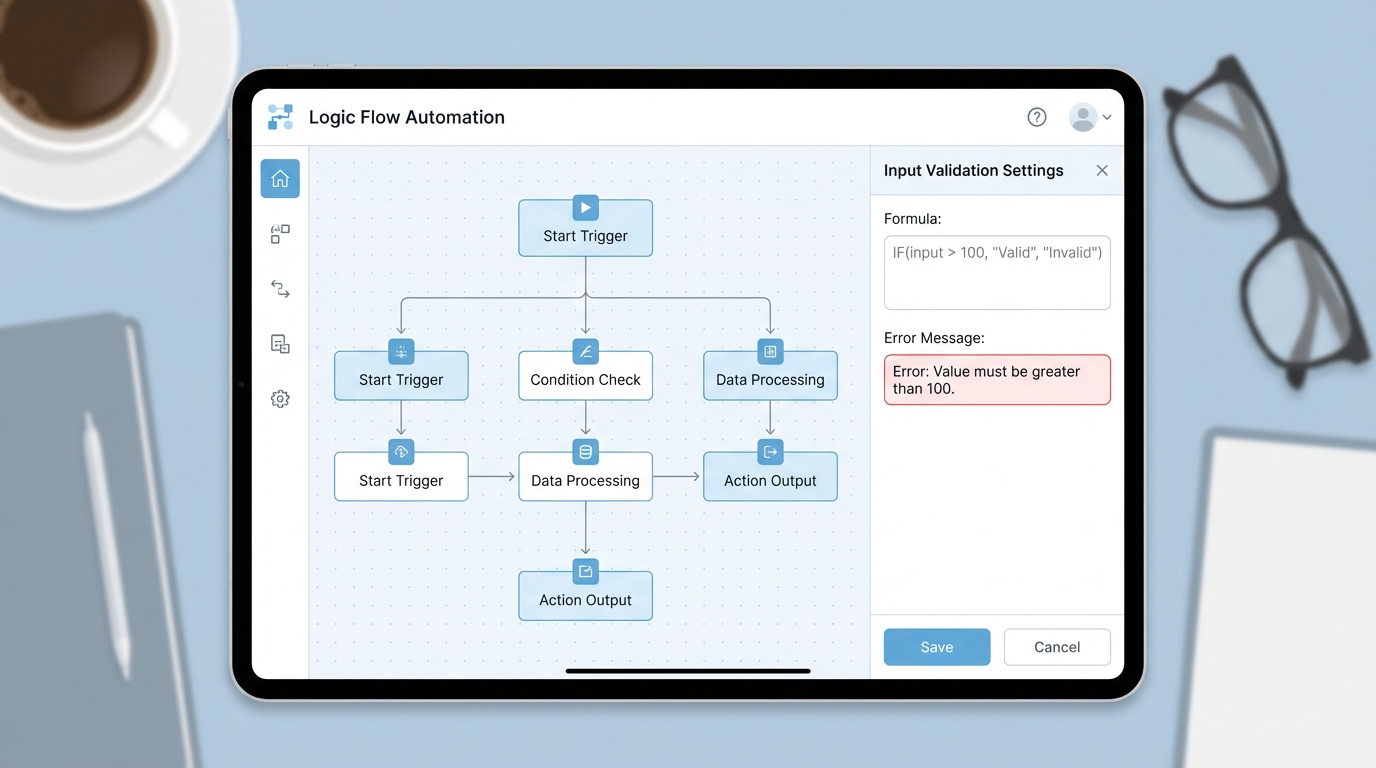
A high-quality UI mockup showing the input validation configuration and workflow logic within a screen flow builder.
Scaling your screen flow validation with custom logic
Now, what happens when a simple formula isn't enough? Maybe you need to check if a record with the same name already exists. You can't do that with a basic component formula because it can't "see" the rest of the database. This is where you have to decide on using Apex vs Flow for your validation logic.
The pattern I usually follow looks like this:
- The user enters data on Screen A.
- A Decision element or an Apex action checks that data against the database.
- If something is wrong, the Flow routes the user to an "Error Screen" instead of saving.
- On that Error Screen, I use a Display Text component to show exactly what went wrong.
I usually add a "Back" button to that Error Screen so the user can go fix their mistake. It is not as "slick" as an inline error message, but it gets the job done for complex business rules. If you are comfortable with code, you can even write an Invocable Method that returns a list of error strings. This is great for those massive validation projects where you have ten different rules to check at once.
Pro tip: Always give your users a clear path back. There is nothing worse than hitting a validation error and realizing you have to refresh the whole page and start over from scratch.
Handling those nasty system faults
We've all seen that scary "An unhandled fault has occurred" email. When a Flow fails because of a trigger or a system limit, it usually just crashes. But you can actually catch those. By using a Fault Connector on your "Create Records" or "Update Records" elements, you can redirect the user to a friendly screen.
Instead of a cryptic Apex error, show them a message saying, "Something went wrong on our end, please contact support." You can even use Flow error handling for email automation to alert the admin team with the specific fault message while the user sees a polite notice. It makes the whole experience feel way more professional.
Going advanced with Custom LWCs
If you really want to go all out, you can build a custom Lightning Web Component (LWC). This is the gold standard for screen flow validation. With an LWC, you can do real-time validation as the user types. Want to check a username's availability against the server without the user clicking "Next"? An LWC can do that. It takes more work to build, but for high-traffic flows, the UX improvement is huge.
Key Takeaways
- Standard component validation is best for simple, field-level checks.
- Remember the logic: The formula must be True for the input to be accepted.
- Use Decision elements and "Error Screens" for complex, cross-object validation.
- Always use Fault Connectors to catch system-level crashes and show friendly messages.
- LWCs are your best friend when you need real-time, server-side feedback.
So, the short answer is yes - you can absolutely show great validation errors in your flows. Start with the built-in tools first because they are easy to maintain. Move to logic-based screens or custom components only when the simple stuff won't cut it. Your users (and your data) will thank you for it.




Leave a Comment