

Getting Started with the Salesforce Flow HTTP Callout
I remember the days when any integration meant calling a developer and waiting for a sprint to open up. If you wanted to fetch data from an external system, you were writing Apex classes and test methods. But things changed. The Salesforce Flow HTTP Callout feature has turned declarative builders into integration pros without needing a single line of code.
It's a big shift in how we think about automation. Now, we can connect to external APIs directly from a Screen Flow or an Autolaunched Flow. I've used this for everything from simple weather lookups to complex shipping status updates. Let's look at how this actually works in the real world.
Why the Salesforce Flow HTTP Callout is a Huge Win
Before this feature existed, we had to weigh the Apex vs Flow debate every time an external system was involved. Code was almost always the winner because Flow couldn't talk to the outside world easily. Now, Salesforce handles the heavy lifting in the background by creating the External Service and the invocable actions for you.
The short answer? It makes your org more agile. You can prototype an integration in a sandbox in an afternoon rather than waiting weeks for a dev resource. But don't get me wrong - you still need to understand how APIs work. You need to know your GETs from your POSTs and how to read a JSON structure.
1. Set up your Named Credential
One thing that trips people up is authentication. For this example, we'll keep it simple with the Chuck Norris Jokes API. Go to Setup, find Named Credentials, and create a New Legacy credential. I usually prefer the legacy option for simple, public APIs because it's faster to configure.
- Label: ChuckNorrisAPI
- URL: https://api.chucknorris.io/jokes/search
- Identity Type: Anonymous (since it's a public API)
Using Named Credentials is one of the most important Salesforce Flow best practices. It keeps your URLs and secrets out of the Flow itself, which makes moving from Sandbox to Production much cleaner.
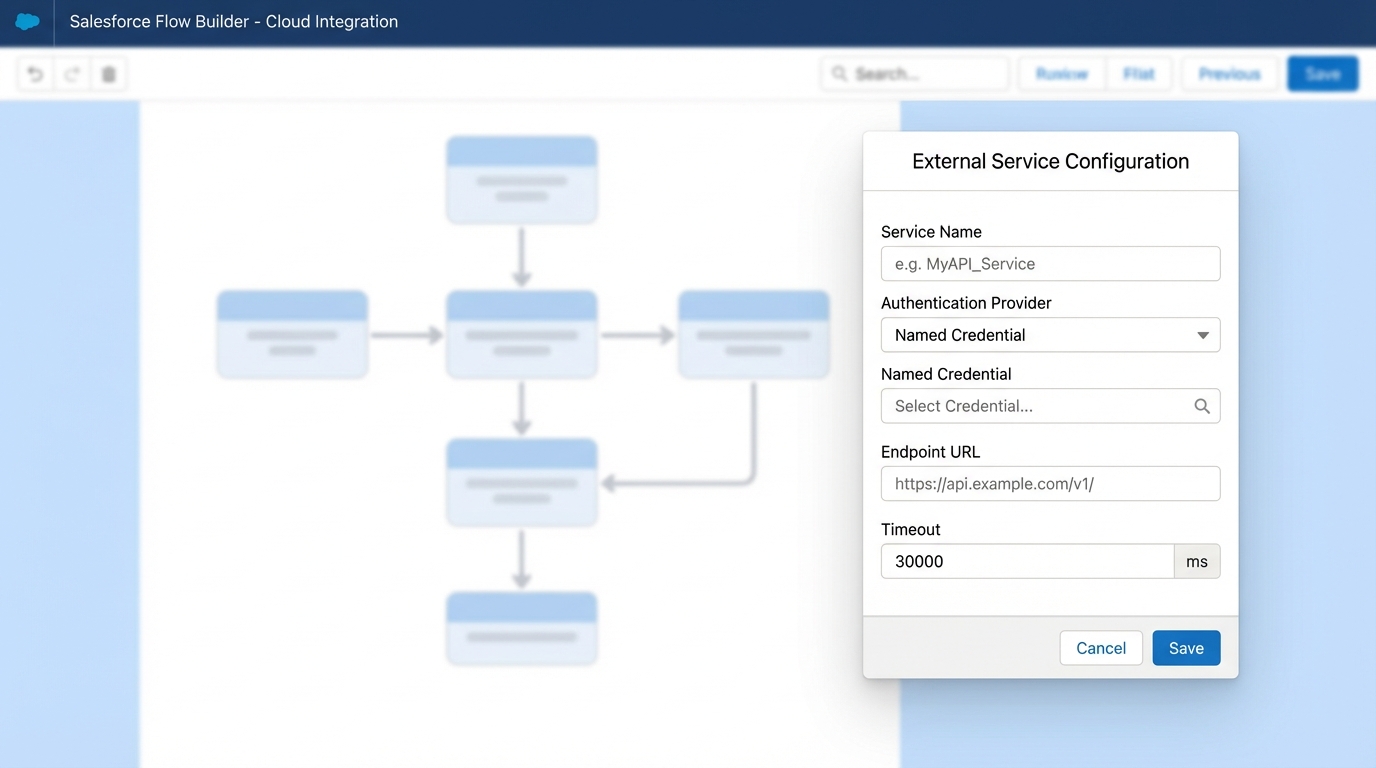
A realistic UI mockup of the Salesforce Flow Builder interface showing the configuration panel for setting up a secure HTTP callout integration.
2. Create the Action in Flow Builder
Now, open up a Screen Flow. Add a new Action and click Create HTTP Callout. You'll pick the Named Credential you just made. This is where the magic happens. You'll define the method (GET) and provide a sample JSON response. Salesforce uses that sample to build the data structure for you.
For our joke search, add a URL parameter called query. This lets the user type in a word like "work" or "gym" to find specific jokes. When you provide the sample JSON, Salesforce creates the Apex types behind the scenes. You don't have to touch them, but they're there doing the work.
Handling the Salesforce Flow HTTP Callout Response
Here's where it gets interesting. When the callout runs, it returns a response. You'll usually see a 2XX code if it worked. The data comes back as a collection or a single record depending on the API. In our Chuck Norris example, it returns a list of jokes in a "result" array.
Pro Tip: Always check the status code before you try to use the data. If the API is down or the search term is invalid, your Flow will crash if you try to loop through a null collection.
You can then take that "result" collection and feed it directly into a Data Table component. It's incredibly satisfying to see live data from another system pop up on a Salesforce screen without writing a single line of JavaScript or Apex.
Practical Use Cases I've Seen
I've seen teams use the Salesforce Flow HTTP Callout for some really clever stuff lately. It's not just for jokes; it's for real business value. If you're looking for a Salesforce API integration strategy that's easy to maintain, this is it.
- Address Validation: Send a shipping address to a service like SmartyStreets before the record is saved.
- Currency Conversion: Grab live exchange rates to update custom pricing fields.
- Slack Notifications: Send a POST request to a Slack webhook when a big deal closes.
- ERP Lookups: Check if a customer has an overdue balance in an external accounting system before allowing a new order.
Key Takeaways
- Start in a Sandbox: Always test your callouts in a safe environment. APIs can be finicky.
- Named Credentials are Mandatory: Don't hardcode URLs. It's a security risk and a deployment nightmare.
- JSON Samples Matter: Make sure your sample JSON is accurate, or Salesforce won't map the fields correctly.
- Error Handling: Use decision elements to handle non-200 responses gracefully.
- Limits: Be mindful of callout timeouts and governor limits in high-volume flows.
Final Thoughts
The Salesforce Flow HTTP Callout isn't just a shiny new tool; it's a fundamental shift in how we build on the platform. It bridges the gap between what an admin can do and what a developer used to own. Honestly, if you haven't tried building one yet, you're missing out on one of the most powerful features added to Flow in years.
It takes a bit of practice to get the JSON mapping right, but once it clicks, you'll start seeing integration opportunities everywhere. Just remember to keep your flows clean and handle your errors, and you'll be fine. So, what's the first API you're going to plug into?




Leave a Comment