
Why it's hard to refresh LWC data automatically
Ever had that moment where you update a field on a standard Salesforce page, but your custom LWC just sits there showing old data? It's a classic headache. To refresh LWC data effectively in these scenarios, we need a way to tell the component that something happened on the server.
Standard components and custom LWCs live in their own little worlds. If a Flow or a Trigger updates a record in the background, your @wire method doesn't always know it needs to run again. This is especially true if the update happened via an automated process or a different user. So, how do we bridge that gap?
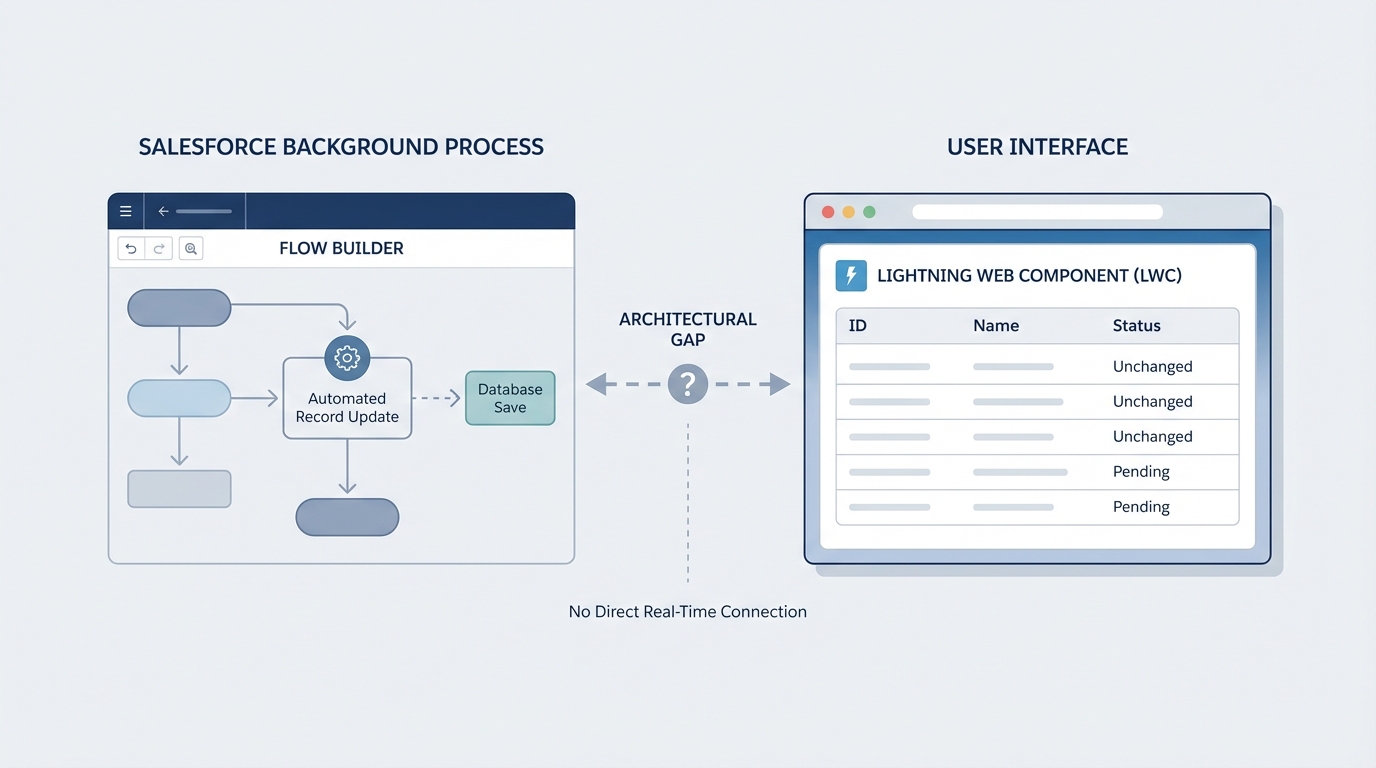
A technical diagram illustrating the synchronization gap between a Salesforce background Flow update and a front-end Lightning Web Component UI.
A better way to refresh LWC data using Platform Events
I've seen teams try to use timers or constant polling to keep data fresh. But honestly, that's a waste of resources and usually leads to performance lag. A much cleaner approach is to use a Platform Event as a "notification bell."
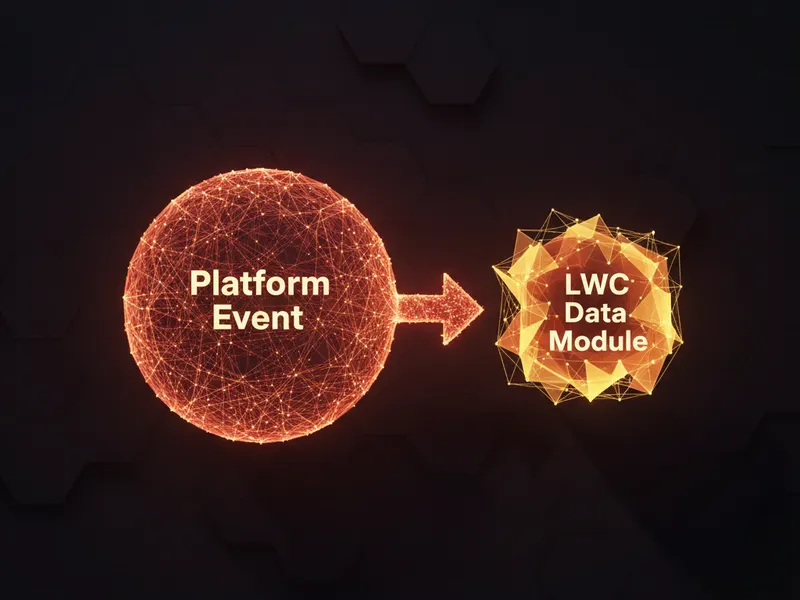
The logic is simple. When a record changes in the backend, we fire off a Platform Event. Your LWC listens for that specific event and, once it hears it, triggers refreshApex(). It's a lightweight way to refresh LWC data without overcomplicating your architecture.
One thing that trips people up is "event storms." Make sure you only publish your Platform Event when the specific fields you care about actually change. Don't just fire it on every single update or you'll hit your daily limits fast.
Step 1: Create the Platform Event
First, you need to head over to Setup and create a new Platform Event. Let's call it Refresh_Custom_Components__e. You don't even need custom fields for this specific pattern. The event itself acts as the signal. If you're deciding between different messaging tools, this guide on Platform Events can help you understand why they're perfect for this.
Step 2: Fire the event from your Trigger
Now, we need to publish that event. You can do this from a Flow, but if you're already working in Apex, a trigger is usually the way to go. Here is a simple example of how to hook this into an Opportunity trigger.
trigger OpportunityTrigger on Opportunity (after update) {
    if (Trigger.isAfter && Trigger.isUpdate) {
        List<Refresh_Custom_Components__e> events = new List<Refresh_Custom_Components__e>();
        events.add(new Refresh_Custom_Components__e());
        EventBus.publish(events);
    }
}
In a real project, I'd suggest moving this logic into a helper class. You want to keep your triggers thin. But for this example, the main point is just getting that EventBus.publish() call to run when the data changes.
Step 3: Wiring the LWC to listen and refresh
This is where the magic happens. We'll use lightning/empApi to subscribe to our event channel. Usually, communication between components happens via standard events, but since this is coming from the backend, empApi is our best friend.
import { LightningElement, api, wire } from "lwc";
import { refreshApex } from "@salesforce/apex";
import getOppty from "@salesforce/apex/OpptiesOverAmountApex.getOpptyOverAmount";
import { subscribe, onError } from 'lightning/empApi';

export default class OpportunitiesOverAmount extends LightningElement {
    @api recordId;
    wiredOpptyResult;

    @wire(getOppty, { recordId: "$recordId" })
    wiredOppty(result) {
        this.wiredOpptyResult = result;
    }

    connectedCallback() {
        const self = this;
        const messageCallback = function (response) {
            console.log('Event received: ', response);
            // This is the call that actually updates the UI
            refreshApex(self.wiredOpptyResult);
        };

        subscribe('/event/Refresh_Custom_Components__e', -1, messageCallback).then(response => {
            console.log('Successfully subscribed to channel');
        });
    }
}
And that's it. When the trigger fires the event, the LWC catches it and tells refreshApex to go grab the latest data. It feels much more responsive to the end user because the UI updates almost instantly after the record is saved.
Key Takeaways to refresh LWC data
- Use Platform Events as signals: You don't always need to pass data in the event; sometimes just knowing "something changed" is enough.
- Remember the wired property: To use
refreshApex, you must capture the entire object returned by the wire, not just the data property. - Filter your triggers: Only publish the event if the specific fields displayed in your LWC have changed.
- Handle unsubscriptions: In a production component, make sure to unsubscribe in the
disconnectedCallbackto prevent memory leaks.
Look, there are other ways to do this, like using the new RefreshView API, but that doesn't always work if the change happens entirely in the backend. This Platform Event pattern is a reliable fallback I've used on dozens of projects. It's simple, it's fast, and it just works.
Give this a try the next time your users complain about having to hit the browser refresh button to see their updates. It makes the whole experience feel a lot more modern.

Leave a Comment