


What is a Salesforce DataRaptor and why should you care?
If you're working in OmniStudio, you've definitely run into the Salesforce DataRaptor. It's a declarative tool for moving data in and out of Salesforce while changing its shape along the way. Think of it as a translator that speaks both "Salesforce Object" and "JSON" fluently.
When I first started with OmniStudio, back when it was still called Vlocity, I tried to write Apex for everything. It's what we're used to, right? But a Salesforce DataRaptor is usually much faster to build and way easier for the next person to maintain. You're mapping fields in a UI instead of writing lines of boilerplate code to parse JSON strings.
The four types you need to know
There are four distinct types, and picking the wrong one is a mistake I see all the time.
- Extract: your standard "read" tool. It grabs data from Salesforce objects using logic similar to SOQL and spits it out as JSON.
- Turbo Extract: the high-performance version of an Extract. It's faster because it only hits one object (and its immediate parents). If you don't need complex formulas, use this.
- Load: your "write" tool. It takes a JSON payload and saves it back to Salesforce, whether you're creating new records or updating existing ones.
- Transform: this one doesn't touch the database at all. It just reshapes JSON, which is perfect when you get a messy response from an external API and need to clean it up before showing it on a screen.
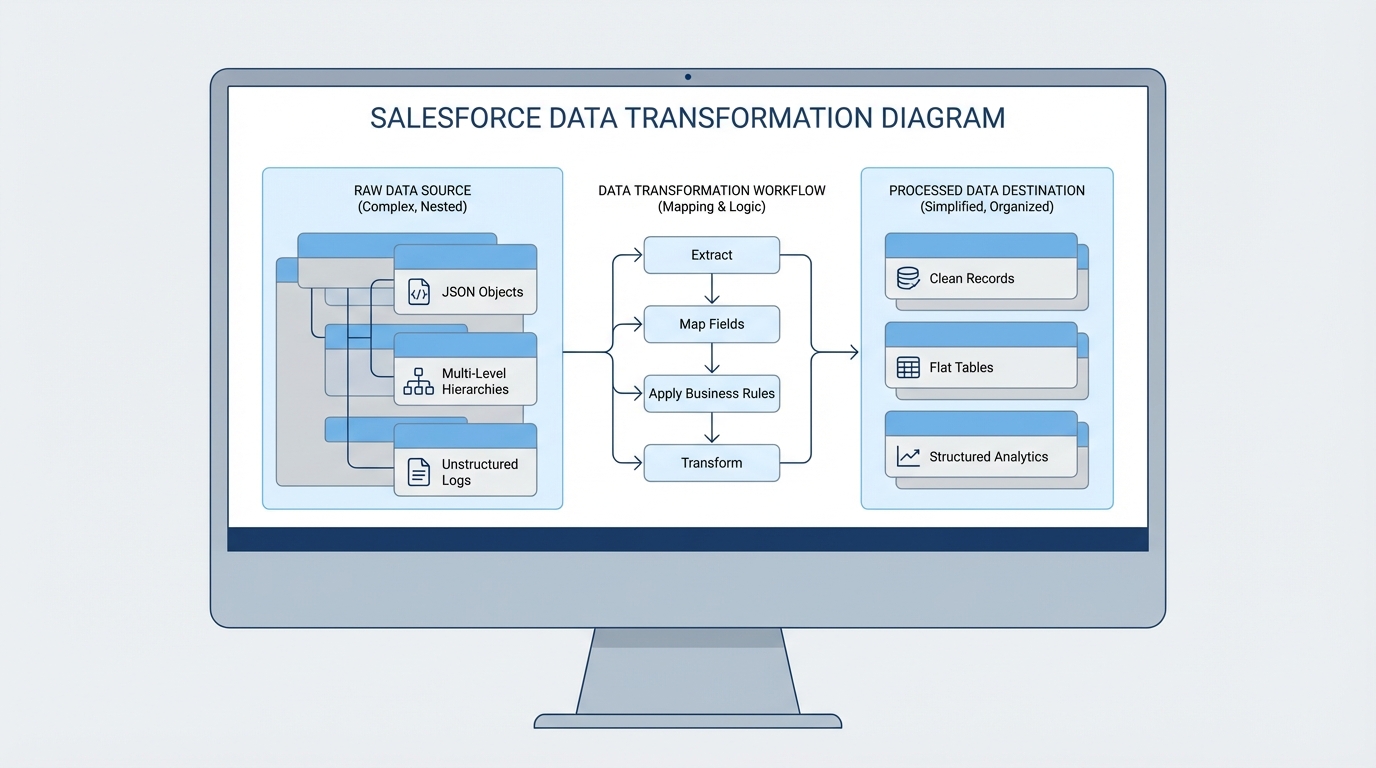
A technical diagram illustrating the data transformation process where complex input data is mapped and reshaped into a clean output format.
Common patterns for the Salesforce DataRaptor
So where does this actually fit into your project? Most of the time you'll see them paired with OmniScripts or Integration Procedures. You might use an Extract to pre-fill a form so a user doesn't have to type their own name and address, then a Load at the end to save their changes.
I've seen teams get into trouble by trying to do too much in a single mapping. If you're building something complex, look at Apex vs Flow logic to see whether you're over-engineering your data layer. Keeping your DataRaptors simple and focused is usually the way to go.
A quick look at how mapping works
Imagine a simple JSON object coming from a web form that you need to map to the Contact and Account objects. In the UI you point "firstName" at "FirstName" and you're done. Conceptually it looks like this:
// This is what your form sends
{
  "userForm": {
    "fname": "Alex",
    "lname": "Smith",
    "workEmail": "[email protected]"
  }
}

// The DataRaptor maps it to Salesforce fields
// userForm.fname -> Contact.FirstName
// userForm.lname -> Contact.LastName
// userForm.workEmail -> Contact.Email
It's straightforward, but don't let the simplicity fool you. You can add formulas to concatenate strings, format dates, or do basic math before the data ever hits the database.
Best practices from the field
After a few years of doing this, I've picked up some habits that save a lot of headaches during deployments. Follow strict OmniScript naming conventions for your DataRaptors too. Nothing is worse than hunting for a mapping named "TestDR123" six months later.
One thing that trips people up is reaching for a standard Extract when a Turbo Extract would be twice as fast. If you don't need complex formulas or multi-object joins, go Turbo every single time. Your page load speeds will thank you.
Also watch out for nested loops. Mapping deeply nested JSON arrays can tank performance pretty quickly. If your mapping starts looking like a spiderweb, it might be time to use a Transform DataRaptor to flatten that data before you load it into Salesforce.
Key takeaways for your next project
- Pick the right tool: Turbo Extract for simple reads, Transform for pure data reshaping.
- Stay declarative. Avoid Apex for simple data mapping, because a Salesforce DataRaptor is easier to maintain in the long run.
- Test as you go. The "Preview" tab is the fastest way to catch a typo in your JSON paths.
- Watch the limits. Even though it's low-code, you can still hit governor limits when you process thousands of records at once.
Mastering the Salesforce DataRaptor comes down to understanding how your data needs to move. Once the mapping UI clicks, you can build complex data requirements in a fraction of the time custom code takes. Keep your mappings clean and check whether a Turbo Extract can do the job first.



Leave a Comment