

Why you actually need a Salesforce Flow loop
If you've spent any time building automation, you've probably hit a wall where you need to update more than one record at a time. That's exactly where a Salesforce Flow loop comes into play. It's the tool we use when we have a collection of items - like a list of Contacts or Opportunities - and we need to look at or change each one individually.
Think of it like a conveyor belt. Your "Get Records" element dumps a pile of boxes on the belt, and the loop picks them up one by one, lets you do something to them, and then puts them back. I've seen teams try to avoid loops because they look intimidating, but once you get the hang of the pattern, it's easily the most useful tool in your kit. It's how we keep our automation efficient and bulk-safe.
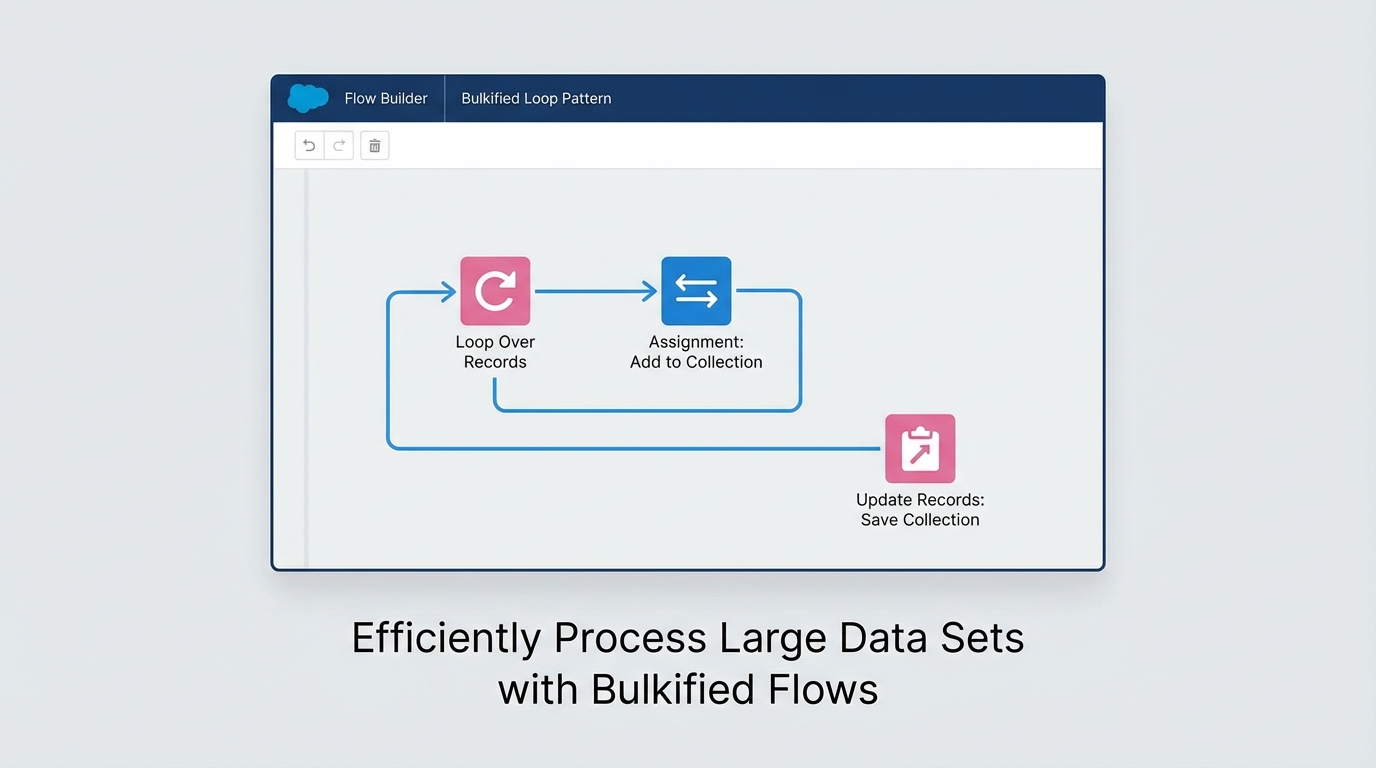
A Salesforce Flow Builder diagram showing a bulk-safe loop pattern where the Update Records element is placed outside the loop to avoid governor limits.
Building a bulk-safe Salesforce Flow loop pattern
Here's the thing: most people fail with loops because they try to save their changes inside the loop. Don't do that. If you put an "Update Records" element inside your Salesforce Flow loop, you're going to hit governor limits faster than you can say "System.LimitException". Salesforce hates it when you talk to the database over and over in a tiny window of time.
Instead, we use a specific pattern to handle bulk record processing. We grab our records, loop through them, make our changes in memory using an Assignment element, and then add those changed records to a new collection. Only after the loop is totally finished do we hit that single "Update Records" button. It's cleaner, faster, and it won't break your org when you have more than ten records to process.
A real-world example: The 90-day follow-up
Let's look at a scenario I run into all the time. Say your sales VP wants a checkbox called Needs_Follow_Up__c checked on every Contact related to an Account if they haven't had any activity in 90 days. You can't just do a simple update because you need to check the date on every individual person. You need a loop.
In this case, you'll start with a "Get Records" to find all Contacts where the AccountId matches your current record. This gives you your initial collection. Now, you're ready to set up the logic. But before you start, keep data integrity in mind - you want to make sure you're only updating what actually needs to be changed.
The configuration logic
So what does this actually look like under the hood? Here's the play-by-play for your Salesforce Flow loop:
- Get Records: Pull all Contacts for the Account into
collectionContacts. - Loop: Iterate through
collectionContactsusing a loop variable (let's call itcurrentItem). - Decision: Is the
LastActivityDateolder than 90 days? - Assignment 1: If yes, set
currentItem.Needs_Follow_Up__cto True. - Assignment 2: Add
currentItemto a new collection variable calledcontactsToUpdate. - Update Records: After the "Last Item" path of the loop, update the
contactsToUpdatecollection.
// The logic flow
Loop: For each Contact in collectionContacts
  Check: Is LastActivityDate <= 90 days ago?
    Yes:
      Assign: currentItem.Needs_Follow_Up__c = True
      Assign: Add currentItem to contactsToUpdate
    No:
      Continue to next item
End Loop
Update: contactsToUpdate
Common mistakes that break your Salesforce Flow loop
One thing that trips people up is forgetting to initialize their collections. If you try to "Add" a record to a collection variable that hasn't been set up properly, the Flow might just cough and die. Always make sure your "To Update" collection is ready to receive data. Also, keep an eye on your record counts. If you're trying to loop through 5,000 records in a single Flow, you're probably better off using Apex or a scheduled batch.
Another common trap is over-complicating the logic. Sometimes you don't even need a loop anymore. With the Transform element, you can often handle simple mappings or counts without the overhead of a traditional loop. I always tell my junior devs: just because you can use a loop doesn't mean you should. Always look for the simplest path first.
Pro Tip: Use Fault Paths on your Update elements outside the loop. If one record in your collection fails (maybe due to a validation rule), the whole update fails. You'll want to know why that happened rather than just seeing a generic "Flow Error" email.
Key Takeaways
- Never, ever put a DML operation (Create, Update, Delete) inside a Salesforce Flow loop.
- Use a "Get Records" element to build your initial collection before the loop starts.
- Create a secondary "Update Collection" to hold your modified records.
- Perform a single "Update Records" element after the loop finishes its work.
- If you're dealing with massive datasets, consider moving to a Scheduled Flow or Apex Cursors.
Loops are the bread and butter of serious Flow building. They let you handle complex logic that a simple record-triggered update just can't touch. Stick to the "Get-Loop-Assign-Update" pattern and you'll stay well within your governor limits while building automation that actually scales. Next time you're staring at a requirement that involves multiple records, don't sweat it - just grab a loop and get to work.




Leave a Comment