

If you've been an admin for more than a week, you've likely run into the classic Data Loader vs Wizard debate. It's one of those choices that seems obvious at first, but it can really bite you if you pick the wrong tool for a big project. I've seen teams try to force a massive import through the browser only to have it hang halfway through, and honestly, it's a headache nobody needs.
Understanding the Data Loader vs Wizard trade-offs
Look, the Import Wizard is the friendly, browser-based option we all start with. It's built into the Setup menu, and it's great because you don't have to install anything. But it's limited. You can only use it for certain standard objects - like Accounts, Contacts, Leads, and Solutions - and your custom objects. If you're trying to update Opportunities or Cases, the Wizard isn't going to help you.
The Data Loader is a different beast. It's a standalone app you install on your machine. It's built for the heavy lifting. When I'm dealing with managing Salesforce large data volumes, I don't even look at the Wizard. The Data Loader handles every single object in your org, and it doesn't care if you have fifty records or five million.
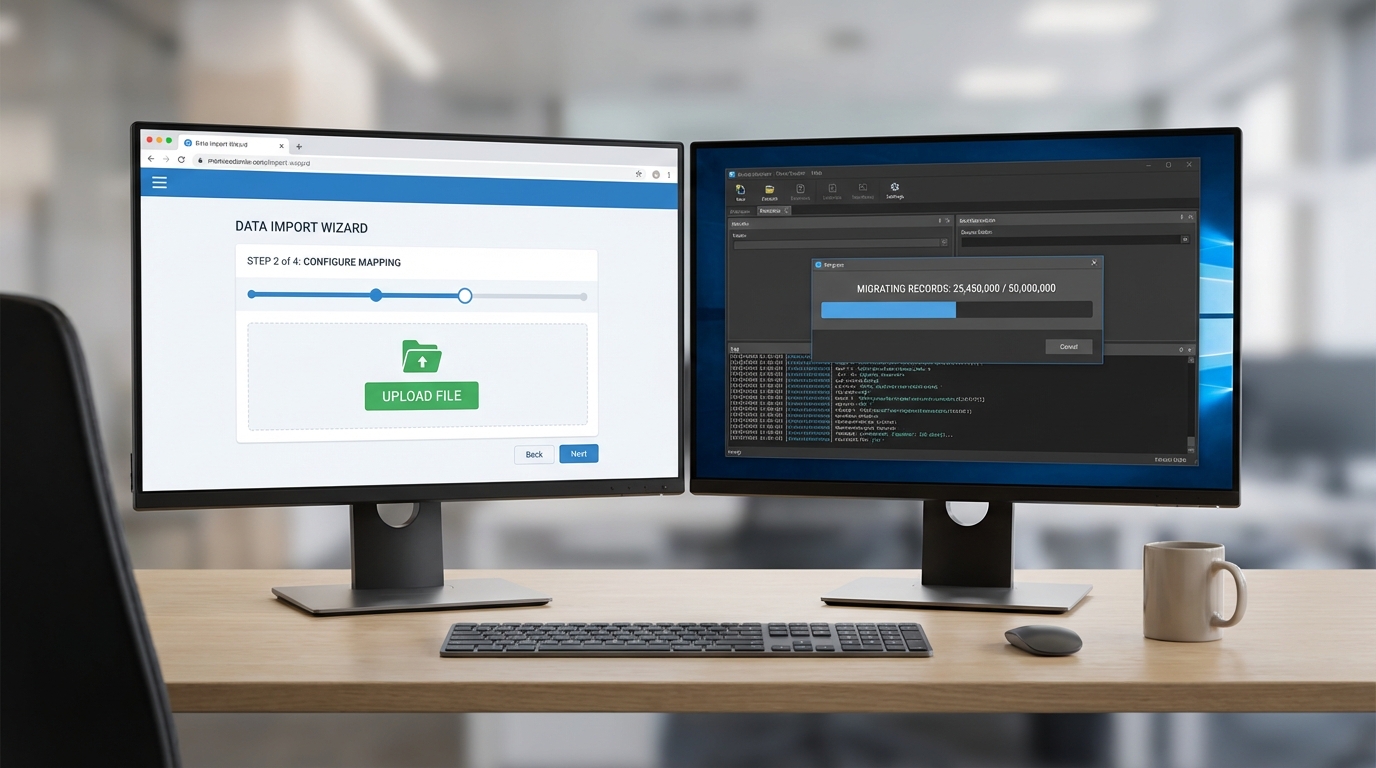
A side-by-side comparison of a simple web-based data import wizard and a powerful desktop data loading application processing a large volume of records.
Volume and speed
Here's the thing: the Wizard caps out at 50,000 records. That sounds like a lot until you start doing a historical data migration. If you try to push the limits, the browser session can time out, and you're left wondering which rows actually made it in. The Data Loader uses the Bulk API, which is much more stable for large sets. It processes data in the background, so you aren't sitting there staring at a loading screen for an hour.
Operations and automation
So what can these tools actually do? The Wizard is fine for basic inserts and updates. But if you need to do a "Hard Delete" - where you bypass the Recycle Bin entirely - you need the Data Loader. It's also the only way to "Export All," which includes the stuff sitting in your Recycle Bin and archived activities.
Now, if you're a fan of automation, the Data Loader wins every time. You can run it through the Command Line Interface (CLI). I've worked on projects where we scheduled nightly imports using the CLI and a simple batch script. You just can't do that with the Wizard. It's a manual, point-and-click process every single time.
When to pick Data Loader vs Wizard for your project
In my experience, the decision usually comes down to complexity. If a sales manager hands me a CSV with 200 new leads, I'm using the Wizard. It handles the mapping quickly, and it's done in two minutes. But if I'm doing a multi-step load where I need to link child records to parents using External IDs, I'm reaching for the Data Loader. It lets you save your field mappings as a file, which is a lifesaver when you have to run the same import five times in a sandbox before doing it in production.
One thing that trips people up is the way these tools handle duplicates. The Wizard has some built-in deduplication features for things like Leads and Accounts. The Data Loader doesn't care about your duplicates; it will push whatever is in your file unless you have a validation rule or a trigger to stop it. If you aren't careful, you can end up with some serious Salesforce data skew or just a messy database.
Pro tip: Always run a small test batch of 5-10 records first. I don't care how confident you are in your CSV; it's better to find a mapping error on 10 records than on 10,000.
Mapping and relationships
The Wizard's mapping tool is pretty basic. It tries to guess the fields based on your header row, and it's usually right. But it's not great for complex relationships. The Data Loader allows for much more control. You can map fields to specific Salesforce IDs or use External IDs to link records on the fly. This is huge when you're moving data between environments and the internal Salesforce IDs don't match up.
Key Takeaways
- Use the Wizard for quick, one-off imports under 50,000 records on supported objects.
- Use the Data Loader for anything involving millions of records or the Bulk API.
- Hard Deletes and Export All functions are only available in the Data Loader.
- Automation is only possible with the Data Loader via the CLI.
- The Wizard is better for beginners who want a guided, step-by-step UI.
The short answer? Keep both in your toolkit. Most days, the Wizard is all you need for the small stuff. But when the project gets serious and the record counts climb, you'll want the Data Loader installed and ready to go. Just remember to check your API limits before you start a massive job, and always, always keep a backup of your original data.




Leave a Comment