

The Reality of OmniStudio Deployment
If you've spent more than five minutes in the ecosystem lately, you know that a successful OmniStudio deployment isn't exactly a "click and forget" situation. It's different from moving a simple custom field or an Apex class. Since OmniStudio (which many of us still call Vlocity) relies on complex JSON structures and deep relationships between components, you need a specific game plan to avoid breaking things.
I've seen teams try to treat these like standard metadata and it almost always ends in a mess of missing dependencies. Let's talk about how to actually move your OmniScripts, FlexCards, and DataRaptors without losing your mind.
Why Change Sets Struggle with OmniStudio Deployment
Look, I'm a fan of keeping things simple, but Change Sets are just not the right tool for this job. They don't reliably pick up the nested relationships inside an OmniScript or an Integration Procedure. If you forget one sub-component, the whole thing fails in the target org.
In my experience, relying on manual clicks in the UI is a recipe for configuration drift. You want a process that's repeatable and version-controlled. That's where the Vlocity Build Tool (VBT) and SFDX come into play.
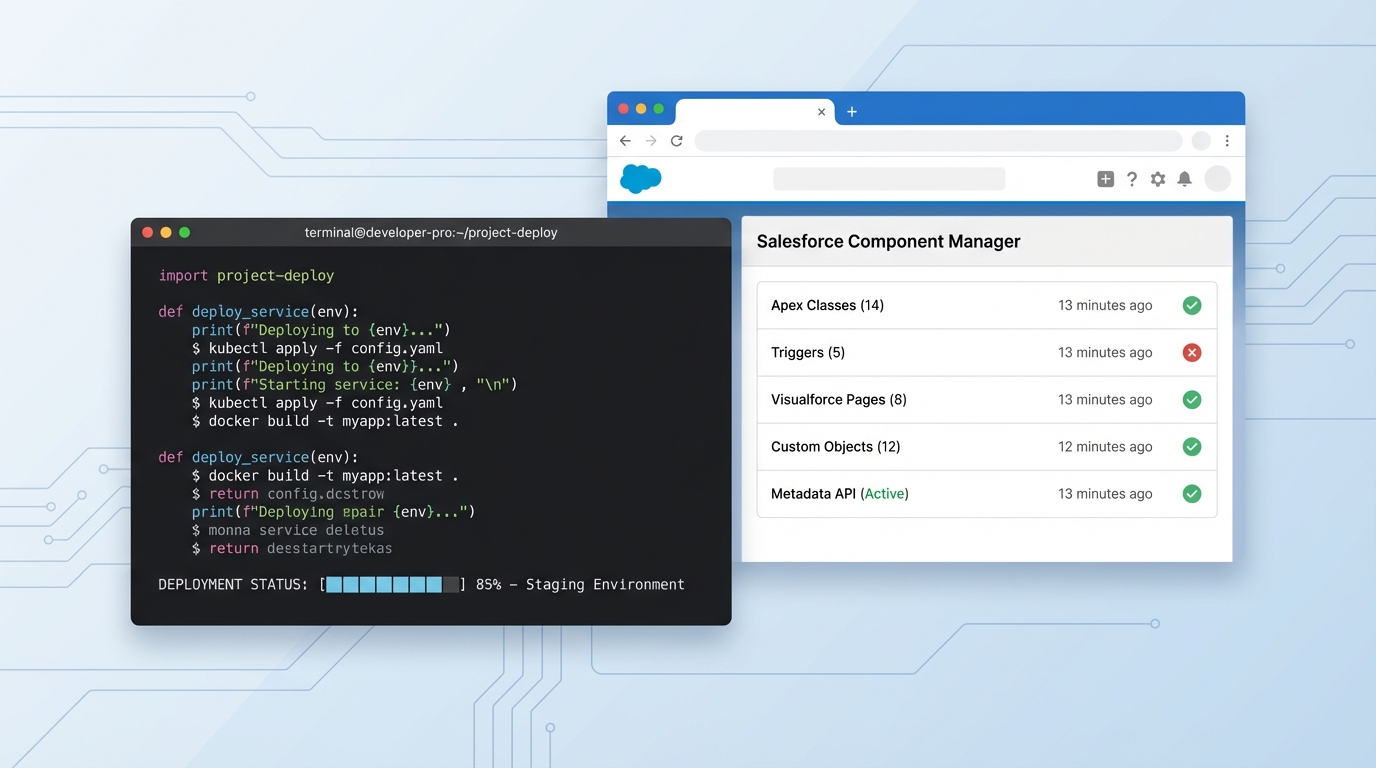
A professional developer's screen showing a terminal window with deployment code next to a Salesforce OmniStudio component management interface.
The Gold Standard: Vlocity Build Tool (VBT)
The Vlocity Build Tool is basically the industry standard for migrating these assets. It understands how a FlexCard connects to a DataRaptor and ensures they move together as a "DataPack." It's a command-line tool that handles the heavy lifting of exporting from your source and importing to your target.
Here's a quick look at the typical flow using the CLI:
vlocity packExport -u SourceOrgAlias -p ./datapack - query "Name='MyNewServiceProcess'"
vlocity packDeploy -u TargetOrgAlias -p ./datapack
One thing that trips people up is the activation step. By default, your components might land in the target org but stay inactive. I always make sure to include the activation flags in my deployment commands so the business users can actually see the changes immediately.
Handling Platform Dependencies with SFDX
Now, here's the catch. Your OmniStudio assets usually sit on top of regular Salesforce metadata like Custom Objects, Fields, or Permission Sets. VBT won't move those. You need to use the Salesforce CLI (SFDX) for the platform-level stuff.
I've found it best to deploy your standard metadata first. If your DataRaptor is looking for a field that doesn't exist yet in Production, your OmniStudio deployment will fail. It sounds obvious, but it's the number one reason for deployment errors I see in the field.
Pro tip: Always keep your DataPacks and your SFDX metadata in the same Git repository. Versioning them together ensures you don't accidentally deploy a new OmniScript version that relies on a field you haven't merged yet.
A Proven Workflow for OmniStudio Deployment
So what does this actually look like in a real project? Most high-performing teams I've worked with follow a specific sequence. It's not just about running a command; it's about the order of operations.
- Identify the Metadata: List out any new objects, fields, or Apex classes your OmniStudio components need.
- Deploy Platform Metadata: Use
sfdx force:source:deployto push the foundations to your target sandbox. - Export and Deploy DataPacks: Use VBT to move the actual OmniStudio logic.
- Manual Post-Steps: Update any Named Credentials or environment-specific URLs that might differ between Sandbox and Prod.
Following a strict naming convention also makes this much easier. If your components are named randomly, your VBT queries will be a nightmare to maintain.
Automating with CI/CD
If you're still doing this manually every Friday night, it's time to look at automation. You can easily wrap these VBT commands into a GitHub Action or a Jenkins pipeline. This way, when you merge a pull request, the OmniStudio deployment happens automatically.
This approach reduces human error and ensures that what you tested in QA is exactly what lands in Production. It's a bit of work to set up initially, but it pays for itself in a single release cycle.
Common Troubleshooting Tips
Ever had a deployment "succeed" but the FlexCard just shows a blank screen? It's usually a permission issue or a missing DataRaptor. Here's a quick checklist I use when things go sideways:
- Check if the component is actually activated in the target org.
- Verify that the user has the correct OmniStudio permission sets assigned.
- Ensure any Remote Site Settings or Named Credentials were updated for the new environment.
- Look at the VBT logs for any "Partial Success" messages - those are sneaky.
Key Takeaways
- Avoid Change Sets for OmniStudio assets; use the Vlocity Build Tool (VBT) instead.
- Deploy your standard Salesforce metadata (fields, objects, classes) before your DataPacks.
- Keep all your assets in version control to maintain a single source of truth.
- Always automate the activation of OmniScripts and FlexCards during the OmniStudio deployment process.
- Double-check environment-specific configurations like API endpoints after the move.
Getting your OmniStudio deployment right is all about respecting the dependencies. Don't try to skip steps or move too fast. Build a repeatable process, lean on the CLI tools, and you'll find that moving these complex components becomes just another routine part of your release day.




Leave a Comment