
Why LWC Design Attributes are a lifesaver for developers
If you've ever built a component and then had an admin ask you to change a label five times in one afternoon, you already know why LWC Design Attributes are a lifesaver. These are the properties we expose to the Lightning App Builder so that non-developers can tweak things without us having to touch the code. It makes our components flexible and, more importantly, it stops us from getting bogged down in minor UI requests.
Look, I've seen teams hardcode everything from titles to hex colors directly into their components. It's a maintenance nightmare. By using LWC Design Attributes, you're essentially building a template that anyone can customize. Whether it's for a record page or an Experience Cloud site, giving admins the power to change a component's behavior through a simple checkbox or text field is just smart engineering.
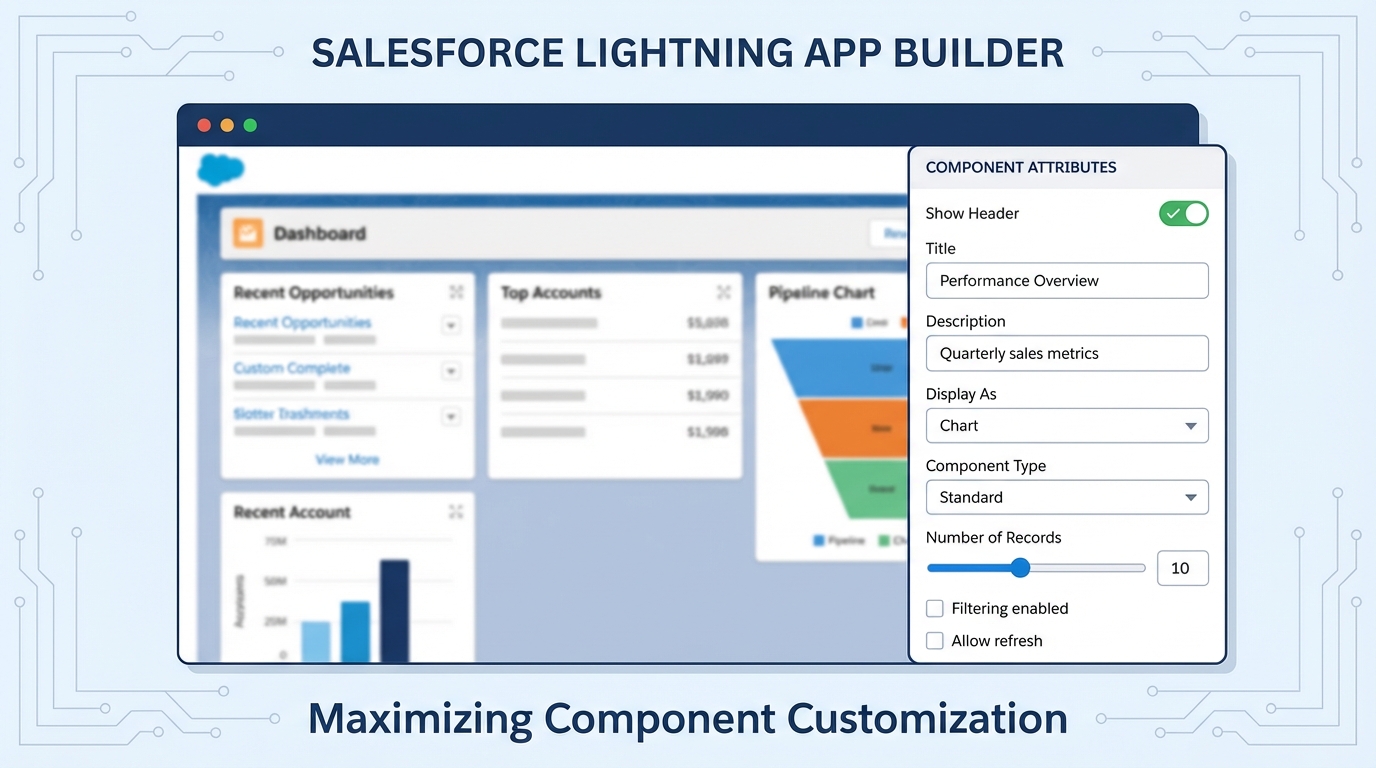
A realistic UI mockup of the Salesforce Lightning App Builder showing the property panel with various admin-configurable settings for a custom component.
Setting up your LWC Design Attributes in the metadata
The magic happens in your component's configuration file - that's the .js-meta.xml file you usually ignore after setting isExposed to true. This is where you tell Salesforce which properties should show up in the builder UI. You define the name, the type of input, and even the default values.
Here's a quick look at how you'd set up a basic configuration for a header component. We're exposing a string for the title and a boolean to toggle an icon. This is a great way to start building a reusable LWC for Flow or standard pages.
<?xml version="1.0" encoding="UTF-8"?>
<LightningComponentBundle xmlns="http://soap.sforce.com/2006/04/metadata">
  <apiVersion>60.0</apiVersion>
  <isExposed>true</isExposed>
  <targets>
    <target>lightning__AppPage</target>
    <target>lightning__RecordPage</target>
  </targets>
  <targetConfigs>
    <targetConfig targets="lightning__RecordPage">
      <property name="headerTitle" type="String" label="Custom Title" default="Recent Updates"/>
      <property name="showIcon" type="Boolean" label="Display Icon?" default="true"/>
    </targetConfig>
  </targetConfigs>
</LightningComponentBundle>
But the XML isn't enough on its own. You have to tell your JavaScript file to listen for these changes. We do that using the @api decorator. If you don't use @api, the builder might see the property, but your component won't actually react to what the admin types in.
import { LightningElement, api } from 'lwc';

export default class MyComponent extends LightningElement {
  @api headerTitle = 'Recent Updates';
  @api showIcon = true;
}
Handling complex LWC Design Attributes like picklists
One thing that trips people up is when they want to limit what an admin can choose. You don't always want a free-text field where someone might type "Red" when the CSS only supports "red-500". This is where picklists come in. They're much safer because they force the user to pick from a pre-defined list.
I've found that using picklists for "Themes" or "Layout Styles" is the best way to keep the UI consistent. You define the datasource in your XML, and it shows up as a nice dropdown menu in the Lightning App Builder. It's a small detail, but it makes the admin experience feel much more polished.
Pro Tip: If you find yourself needing a dynamic picklist that changes based on other settings, you'll need to look into Dynamic Picklists for LWC. It's a bit more work but worth it for complex tools.
So what types can you actually use? Most of the time, you'll stick to these:
- String: For text inputs and labels.
- Boolean: For simple on/off switches (checkboxes).
- Integer/Double: For numbers like record limits or padding values.
- Color: Shows a native color picker in the builder.
- Picklist: For restricted choices via a dropdown.
Common mistakes and troubleshooting
Honestly, most teams get this wrong the first time they try to scale their components. The biggest issue I see is forgetting that design attributes are tied to specific targets. If you define a property for lightning__RecordPage but try to use the component on a Home Page, that property won't show up. You have to be intentional about where these attributes live.
If your property isn't showing up in the App Builder, check these three things first:
- Is
isExposedset to true? (We've all forgotten this one). - Does the property name in the XML exactly match the
@apiproperty in your JS? It's case-sensitive. - Did you clear your browser cache? The Lightning App Builder is notorious for caching old versions of the metadata.
Also, keep in mind how your component handles data internally. If you are doing complex LWC component communication, make sure your design attributes aren't clashing with values being passed in from parent components.
Best practices for LWC Design Attributes
After building dozens of these for different clients, I've developed a few rules of thumb. First, don't over-expose. Just because you can make every single CSS margin a design attribute doesn't mean you should. You'll end up with a sidebar that's five miles long and confuses everyone.
Second, always provide sensible defaults. If an admin drags your component onto a page and it looks broken because no text is filled in, that's on you. Make it look good out of the box. Finally, use clear labels. "Property1" means nothing to an admin. Use "Sidebar Heading" or "Number of Records to Show" instead.
Key Takeaways
- LWC Design Attributes live in the
.js-meta.xmlfile and must match an@apiproperty in your JS. - They allow admins to customize components without writing a single line of code.
- Always use picklists instead of strings if you need to restrict user choices.
- Properties are target-specific, so make sure your
targetConfigsmatch where the component is used. - Keep the builder UI clean by only exposing what's actually necessary for the business.
At the end of the day, these attributes are about making your life easier. The less time you spend making tiny CSS tweaks for stakeholders, the more time you have to work on the actual logic. Start small by exposing a few labels, and you'll quickly see how much more useful your components become across the entire org. It's one of those small shifts in how you build that pays off every time a new requirement comes in.


Leave a Comment