

Why Salesforce Flow bulkification is non-negotiable
Look, if you've been working in the ecosystem for more than a week, you've probably heard about Salesforce Flow bulkification. It's one of those things that sounds like technical jargon until your Flow crashes because a data import hit a governor limit. I've seen teams build beautiful logic that works perfectly for a single record, but the second a user tries to mass-update 200 records, the whole thing falls apart.
Salesforce processes record-triggered Flows in batches. If your Flow isn't designed to handle those batches efficiently, you'll hit SOQL or DML limits faster than you can say "System.LimitException". When I first started with Flows, I made the mistake of thinking the system would just "handle it" for me. It doesn't. You have to design for the batch from the start.
And here's the thing: bulkification isn't just about avoiding errors. It's about performance. A well-built Flow keeps the UI snappy for your users and prevents those annoying "Apex CPU time limit exceeded" emails that haunt every admin's inbox. If you follow some basic best practices for Salesforce Flow, you'll save yourself a lot of late-night debugging.
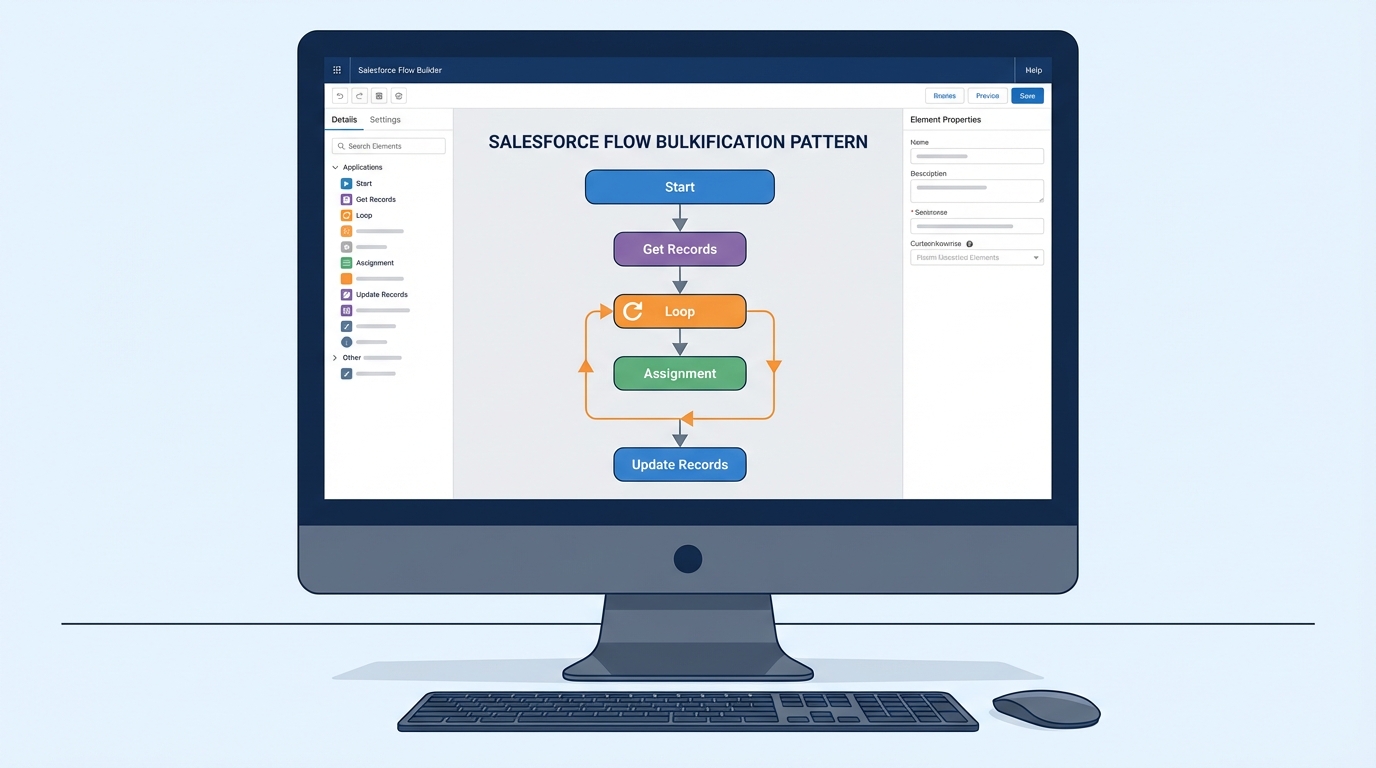
A professional Salesforce Flow Builder interface showing a bulkified automation workflow with data elements placed outside of a loop for efficient processing.
The blueprint for Salesforce Flow bulkification
So how do we actually do this? It's mostly about where you put your elements and how you handle data. Most people get into trouble because they think record-by-record instead of collection-by-collection. Let's break down the rules I live by when building any automation.
1) The golden rule: No SOQL or DML in loops
This is the most common mistake I see. Never, ever put a "Get Records", "Update Records", or "Create Records" element inside a Loop. If you have a loop that runs 50 times and you have an update inside it, that's 50 DML statements. If two people trigger that Flow at the same time, you're toast.
Instead, use an Assignment element to add your modified records to a collection variable. Then, once the loop is completely finished, perform one single "Update Records" operation on that entire collection. This is the heart of Salesforce Flow bulkification.
2) Get comfortable with the Transform element
I used to spend way too much time building loops just to map fields from one object to another. But honestly, the Transform element has changed how I handle data mapping. It's much cleaner than a loop with five assignments inside it. It lets you map source fields to target fields in a visual way, and it handles the collection logic behind the scenes.
3) Use Before-Save Flows for simple updates
If you only need to update fields on the record that triggered the Flow, use a "Fast Field Update" (before-save). These are incredibly efficient because they don't trigger an extra DML statement. They happen before the record is even saved to the database. I always tell my juniors: if you aren't touching related records or sending emails, go with before-save.
Pro tip: If you find yourself hitting CPU limits even with bulkified logic, check your record-triggered flows. Sometimes a simple field update is better handled in a before-save flow to skip the entire save-order overhead.
4) When to bring in Invocable Apex
Flow is powerful, but it isn't always the right tool for heavy lifting. If you're dealing with complex math, deep nested loops, or thousands of records, you might need to call an Apex action. Just make sure your Apex is also bulk-safe. Here is a simple pattern I use for processing account data in bulk:
public with sharing class FlowBulkProcessor {
    @InvocableMethod(label='Update Account Values')
    public static void updateAccounts(List<Id> accountIds) {
        List<Account> toUpdate = [SELECT Id FROM Account WHERE Id IN :accountIds];
        for (Account acc : toUpdate) {
            acc.Description = 'Updated via Flow and Apex';
        }
        update toUpdate;
    }
}
Notice how the method takes a List of IDs? That's because Flow will pass a list of inputs if multiple records trigger the action at once. You have to write your code to handle that list, or you'll just end up with the same limit problems you were trying to avoid.
5) Error handling and async paths
One thing that trips people up is what happens when one record in a batch fails. By default, the whole transaction rolls back. I like to use Fault Paths to catch errors and log them to a custom "Error Log" object. This way, I can see exactly what went wrong without the user getting a generic "An unhandled fault has occurred" message.
Now, if you're doing something really heavy, like calling an external API, you should use an Asynchronous Path. This moves the work to a separate thread so the user doesn't have to wait for the process to finish. It's a great way of staying under limits while still getting the work done.
Key Takeaways
- Never query or update inside a loop: Always use collection variables and perform DML at the very end.
- Prioritize Before-Save: Use Fast Field Updates for any change happening on the triggering record itself.
- Use the Transform element: It's faster and cleaner than manual looping for data mapping.
- Think in lists: Always assume your Flow will be triggered by 200 records at once, not just one.
- Don't fear Apex: If the logic gets too messy in Flow, move it to an Invocable method.
Wrapping up
Mastering Salesforce Flow bulkification is what separates the beginners from the pros. It's all about respecting the governor limits and treating every input as a potential batch of data. Start by moving those DML elements out of your loops, and you'll already be ahead of most people.
Next time you build a Flow, try running a bulk test with a few hundred records in a sandbox. It's much better to find a limit issue there than to have your boss call you on a Friday afternoon because the "New Lead" process is broken for the entire sales team. Trust me, I've been there, and it's not fun.




Leave a Comment