

Why you need to Enable List Custom Settings
Ever found yourself staring at the Custom Settings page, wondering why the "New" button is playing hide-and-seek? You're trying to Enable List Custom Settings for a project, but the option is just gone. I've seen this happen to plenty of experienced admins who are moving into a new org and realize their permissions aren't what they thought.
The short answer? You're likely missing the Customize Application system permission. Salesforce treats Custom Settings as part of the core application schema. Because of that, they don't let just anyone poke around in there. If you don't have that specific permission, the UI simply hides the creation and management options from you.
But here's the thing: it isn't just about clicking a checkbox. You need to understand where this fits into your security model. If you're still getting comfortable with how permissions are layered, it's helpful to review the basics of Salesforce roles vs profiles to see how these system-level rights are handed out.
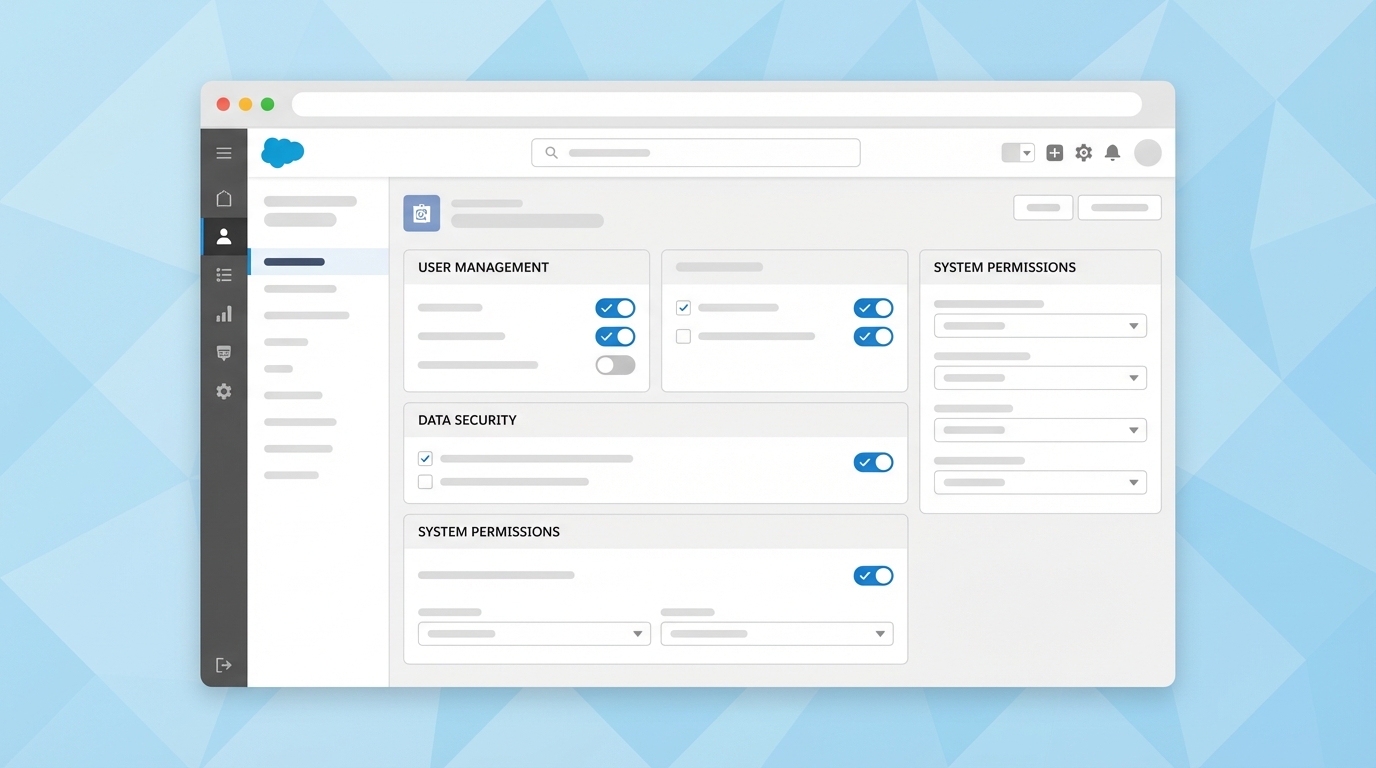
A realistic mockup of the Salesforce Setup interface showing various administrative toggle switches and configuration settings.
Steps to Enable List Custom Settings on a Profile
If you're the one in charge of the org, you'll need to update your profile (or whichever profile needs access). Most of the time, I prefer using a Permission Set for this because it's cleaner, but sometimes a profile change is just faster for a quick fix in a sandbox.
- Head over to Setup and type Profiles in the Quick Find box.
- Select the profile you want to edit.
- Find the System Permissions section.
- Click Edit and look for Customize Application.
- Check the box, hit Save, and you're good to go.
Now, once you do this, the "New" button should magically appear. It makes it easy to Enable List Custom Settings without having to jump through hoops. Just keep in mind that this permission is powerful - it lets users change almost anything in the Setup menu, so don't hand it out like candy.
Using a Permission Set for better control
In my experience, the best way to handle this is through a Permission Set. It's much safer than modifying a standard profile. You can create a "Metadata Manager" set, add the Customize Application permission there, and then assign it only when someone actually needs to Enable List Custom Settings or modify objects. It keeps your security tight and your auditors happy.
Troubleshooting the missing "New" button
So, you've enabled the permission but you still can't see the option? Don't panic. I've run into this a few times. First, make sure you also have the View Setup and Configuration permission. Without that, you can't even get into the room, let alone sit at the table.
Another thing that trips people up is the browser cache. Salesforce is notorious for hanging onto old UI states. Give it a hard refresh or log out and back in. If you are trying to Enable List Custom Settings in a sandbox that was recently refreshed, double-check that your user permissions actually carried over correctly.
One thing I always tell my team: if you're working with Managed Packages, some Custom Settings are "protected." You won't be able to edit those even with the right permissions because the package developer has locked them down. Always check if the setting belongs to a namespace before you start pulling your hair out.
If you're a developer using tools like VS Code or the Metadata API, you might need one more thing. Make sure your user has the Modify Metadata Through Metadata API permission. It's a separate beast from the UI permission but just as vital for modern deployments.
Key Takeaways
- The Customize Application permission is the "master key" for this issue.
- Use Permission Sets instead of Profile changes to keep your org secure.
- You must also have View Setup and Configuration enabled to see the menu.
- Refresh your browser cache if the "New" button doesn't show up immediately.
- To Enable List Custom Settings via API, ensure your metadata permissions are active.
Look, Salesforce permissions can be a bit of a maze, but once you know which toggle to flip, it's a five-minute fix. Just remember to be careful with "Customize Application" since it opens up a lot of doors. If you're looking for more ways to speed up your workflow, check out some of these Salesforce chrome extensions that can help you navigate the Setup menu faster. Now, go get those settings built.




Leave a Comment