

If you’ve ever felt like you’re flying blind with your user portals, setting up GA4 Experience Cloud is the first step to getting some actual visibility. It’s one thing to know how many people have a login, but it’s another thing entirely to see which search terms they’re using and where they’re getting stuck in the process.
Why GA4 Experience Cloud is a must for site tracking
Look, I’ve worked on dozens of sites where the project team just assumed users were finding what they needed. But once we turned on GA4 Experience Cloud, we realized people were searching for terms that didn’t even exist in our knowledge base. That’s the kind of insight you just can’t get from standard Salesforce reports.
GA4 uses an event-based model. Instead of just counting simple hits, it looks at specific actions like clicks, searches, and logins. It’s much more flexible than the old Universal Analytics, but it does require a bit more legwork to get the settings right. Now, if you’re worried about privacy, GA4 is actually built for a world without cookies, so it’s a lot safer for compliance than the older versions.
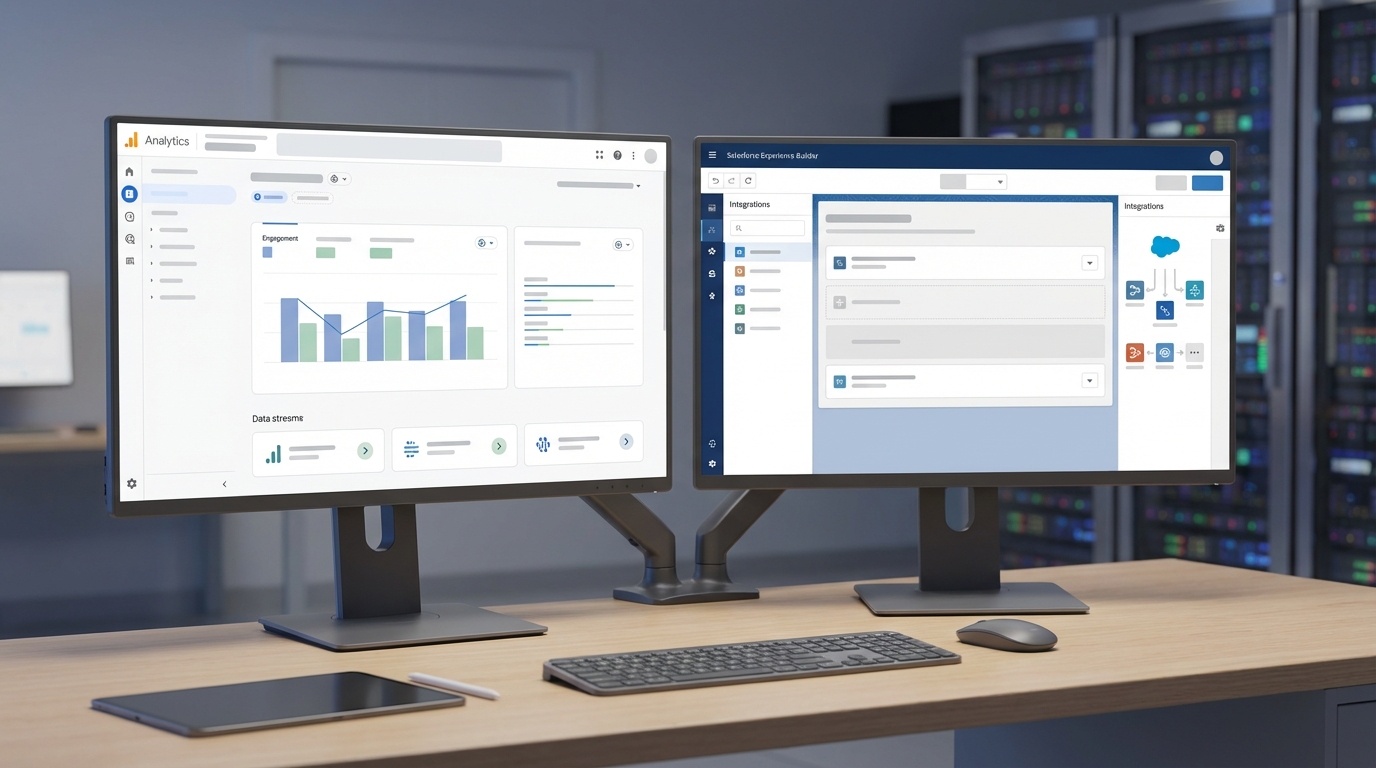
How to link GA4 Experience Cloud in Experience Builder
Before you touch anything in Salesforce, you need your Measurement ID from Google. Go to your Admin panel in Google Analytics, create a new Web data stream, and grab that “G-” ID. Once you have that, the rest happens inside your site’s settings. Honestly, most teams get the ID right but forget the security settings, which breaks everything.
Configuring the Salesforce side
Here’s the thing: Salesforce is secure by default, which means it likes to block outside scripts. You have to tell it that Google is a friend. I’ve seen plenty of admins miss this and wonder why their reports are empty.
- Open Experience Builder and head to Settings.
- Go to Security and Privacy. This is the part that trips people up. You have to set the Content Security Policy (CSP) to Relaxed CSP. If you don’t do this, the browser will block the Google scripts from running.
- Navigate to the Advanced tab. You’ll see a field specifically for the Google Analytics ID. Paste your “G-” ID right there.
- Check the box that lets Google access your Salesforce data. This is how you get those deeper insights like user types and specific search terms.
- Publish your site. It sounds obvious, but nothing happens until you hit that publish button.
One thing that trips people up is forgetting that GA4 can take up to 24-48 hours to show full data in your standard reports. If you don’t see numbers right away, don’t panic. Just use the Realtime report to check if your own hits are registering.
Testing and verifying your setup
So how do you know if it’s actually working? Open your site in an incognito window and click through a few pages. Then, go back to Google Analytics and look at the Realtime report. If you see a user from your location, you’re golden. But if it’s still quiet after ten minutes, double-check your CSP settings.
While you’re working on the site, you might want to look at better UX through LWC scrolling or other ways to keep users engaged once they’re on the page. If you’re also deploying your site to a community for the first time, getting this tracking right from day one is a huge win for your stakeholders.
Key Takeaways for GA4 Experience Cloud
- Relax the CSP: Google Analytics won’t work if your security settings are too tight. Set it to Relaxed CSP in the Security and Privacy tab.
- Enable Data Access: Don’t forget to check the box for Salesforce data access if you want to see search terms and user IDs.
- Use Realtime Reports: It’s the fastest way to verify your Measurement ID is actually firing without waiting a full day.
- Be Patient: Data streams can be slow to populate in the main reports, so don’t expect a full dashboard five minutes after publishing.
Setting up GA4 Experience Cloud doesn’t take long, but it’s probably the most useful thing you’ll do for your site’s long-term health. Once you have the data, you can stop guessing and start building what your users actually want. Grab your Measurement ID and get it done today.