

Look, we've all been there. You build a complex multi-screen flow, and halfway through, the user just quits because they have no idea how much more is left. Adding a Salesforce Flow progress bar is one of those small UX wins that keeps people from dropping off your forms. It gives them a clear "light at the end of the tunnel" so they know exactly where they stand.
I've seen teams try to hack this together with static images or display text on every screen, but that's a maintenance nightmare. If you change a step, you have to update every single screen. Here's a better way: we're going to build a simple, reusable Lightning Web Component (LWC) that handles the heavy lifting for us. It's flexible, it's clean, and honestly, it just looks more professional.
Why you should use a Salesforce Flow progress bar
The main reason is clarity. When a user sees a path at the top of the screen, they feel in control. But from a dev perspective, the real win here is reusability. By using an LWC, you can pass in a simple list of steps as a string. If you're already following best practices for Salesforce Flow, you know that keeping your logic decoupled from your UI is the way to go.
This approach lets you define your stages once in a variable and then just tell each screen which stage is currently "active." It's much easier than dragging and dropping multiple components or trying to manage visibility rules for five different progress images. Plus, it uses the standard Lightning Design System (SLDS) look, so it feels native to Salesforce.
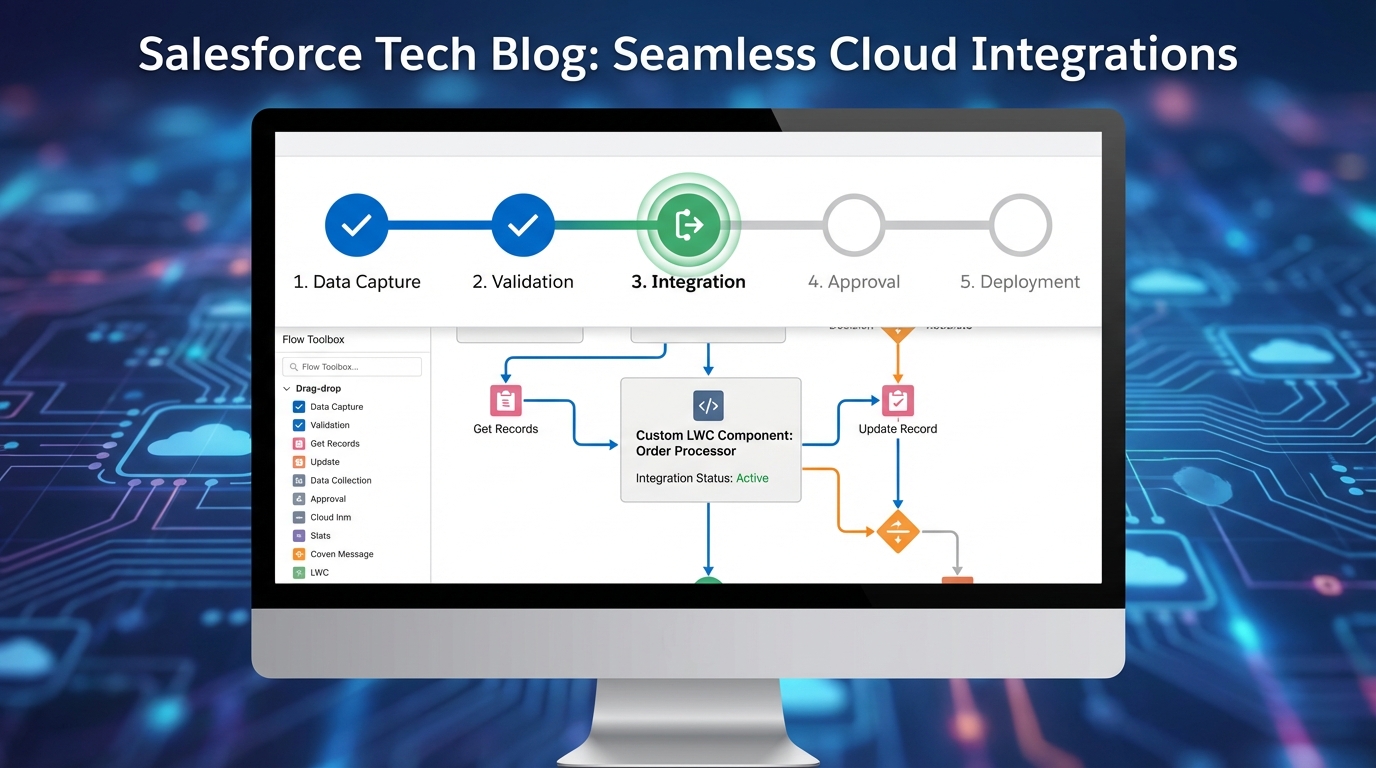
A realistic UI mockup of a Salesforce Flow screen featuring a multi-step horizontal progress bar at the top.
Building your own Salesforce Flow progress bar with LWC
We're going to create a simple LWC that takes two inputs: a comma-separated list of all your steps and the name of the current step. The component will do the work of splitting that string and figuring out which index to highlight. Here is the code you'll need to get this running.
The HTML Template
This is pretty straightforward. We're using the standard lightning-progress-indicator and looping through our steps. Note the type="path" attribute - that's what gives it that "chevron" look we see on Lead or Opportunity records.
<template>
    <lightning-progress-indicator current-step={currentStepValue} type="path" variant="base">
        <template for:each={steps} for:item="step">
            <lightning-progress-step label={step.label} value={step.value} key={step.value}></lightning-progress-step>
        </template>
    </lightning-progress-indicator>
</template>
The JavaScript Controller
Here's where the logic lives. We take that stepsString, split it by the comma, and map it into an array of objects that the progress indicator can understand. One thing that trips people up is matching the labels exactly, so I've added a trim() call to handle any accidental spaces in your comma-separated list.
import { LightningElement, api, track } from 'lwc';

export default class DynamicProgressPath extends LightningElement {
    @api currentStep;
    @api stepsString;

    @track steps = [];
    @track currentStepValue;

    connectedCallback() {
        this.initializeSteps();
        this.setCurrentStepValue();
    }

    initializeSteps() {
        if (this.stepsString) {
            this.steps = this.stepsString.split(',').map((step, index) => ({
                label: step.trim(),
                value: `step-${index + 1}`
            }));
        }
    }

    setCurrentStepValue() {
        const step = this.steps.find(s => s.label === this.currentStep);
        this.currentStepValue = step ? step.value : '';
    }
}
The Meta XML
Don't forget to expose the component to the Flow Builder. We need to define our two properties so they show up in the Flow's configuration panel.
<?xml version="1.0" encoding="UTF-8"?>
<LightningComponentBundle xmlns="http://soap.sforce.com/2006/04/metadata">
    <apiVersion>61.0</apiVersion>
    <isExposed>true</isExposed>
    <masterLabel>LWC Progress Path</masterLabel>
    <targets>
        <target>lightning__FlowScreen</target>
    </targets>
    <targetConfigs>
        <targetConfig targets="lightning__FlowScreen">
            <property name="currentStep" type="String" label="Current Step Label" />
            <property name="stepsString" type="String" label="Steps (Comma Separated)" />
        </targetConfig>
    </targetConfigs>
</LightningComponentBundle>
Setting up your Salesforce Flow progress bar
Now that the code is in your org, you just need to wire it up. Start by creating a text variable in your flow, maybe call it varT_Stages. Set the default value to your stages, like: Customer Info, Account Setup, Billing, Review. This makes it easy to manage everything in one spot.
Next, drag your new LWC onto the first screen. For the "Steps" input, use your variable. For the "Current Step" input, just type the label for that specific screen. Repeat this for every screen in your flow. Since you're using the same variable for the steps list, the Salesforce Flow progress bar will stay perfectly consistent as the user moves forward or backward.
Pro Tip: If you're building for a global org, don't hard-code the stage names in the variable. Use Custom Labels instead so your progress bar can be translated into different languages without touching the flow logic.
If you're interested in more advanced UI tricks, you might want to check out how to handle element scrolling in LWC to make sure your users stay focused on the right part of the screen when they click "Next".
Key Takeaways
- User Experience: A progress bar reduces form abandonment by setting clear expectations.
- Maintenance: Using a single text variable for stage names makes updates much faster.
- Consistency: The LWC approach ensures the UI looks the same across every screen in the flow.
- Native Look: Using SLDS components makes your custom flow feel like a part of the standard Salesforce platform.
This is a simple tool, but it's effective. Once you have the LWC in your org, you can drop it into any flow in seconds. It's much better than hard-coding progress indicators on every single screen. Give it a try on your next multi-step project and see how much your users appreciate the extra context. It's also worth keeping an eye on top Flow features in the Spring '26 release to see if even more native UI options are coming our way soon.



Leave a Comment