
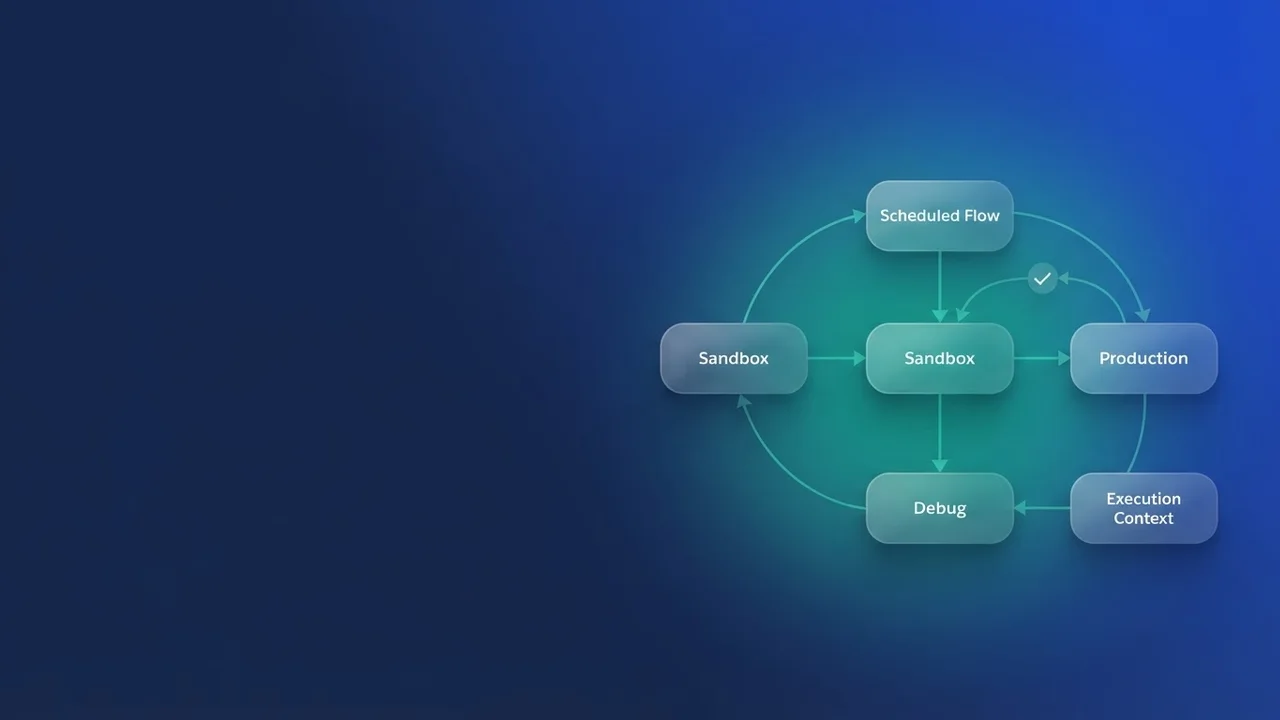

Analyzing Scheduled Flow execution discrepancies
A Salesforce Scheduled Flow can behave perfectly during debug execution, confirming the correct run time and processing logic, then run silently in production and perform zero DML operations. If no failure emails arrive and the Flow Monitoring tool shows a successful run, the cause is usually the execution context, user permissions, or data access under the asynchronous scheduler.
Common pitfalls for Scheduled Flow success vs. debug
The scheduler runs a Flow under different constraints than a manual debug session. Check these areas, since they are the usual reason logic that passes in debug fails silently in production:
1. User context and permissions
Scheduled Flows run in System Context unless explicitly configured otherwise, which the standard scheduler trigger generally does not allow. Problems still appear when the intended user context differs from the execution context.
- Running user profile and permission sets. The Flow runs in system context, but confirm that the underlying
GetorUpdateelements are not relying on record-level security (FLS or object permissions) that the asynchronous environment might apply inconsistently or misread. Note: system context usually bypasses typical user sharing rules, but FLS is still critical. - Guest user and external access. If the Flow touches records owned by users on restricted access profiles, confirm the system context bridges those gaps. It should, but verify user licensing where that applies.
2. Data visibility and scope
If the Flow executes but updates zero records, the Get Records element is probably returning an empty collection.
- SOQL visibility. Sharing rules and object visibility settings can behave differently in a logged-in debug session than in the background scheduler, so the query the
Get Recordselement runs may be subtly different. - Filter logic. Go through the criteria in your
Get Recordselement. A common mistake is using a record variable or collection element that filled up in debug but is empty when the scheduler fires, for example one populated by a Process Builder or Workflow that hasn't executed yet, or by a prior record creation that never happened.
Here is how that looks in practice. In debug, a variable $InputDate might be set to today by hand. In the scheduled context, if the Flow expects that date to come from an external source or an initial value that doesn't translate correctly, the query fails:
// Hypothetical SOQL executed by Get Records element
SELECT Id, Status FROM Opportunity WHERE CloseDate = {!$Flow.CurrentDate}
If the Flow's configuration expects an environment variable that is null during scheduled execution, the query returns no rows and the subsequent Update element does nothing.
3. Asynchronous execution limits and transaction boundaries
Scheduled Flows execute as a single asynchronous transaction. Governor limits apply, and there is no built-in retry on transient errors unless you configure one explicitly.
- Data volume. If the criteria return a massive set of records that trips a query limit, the Flow might fail to process the update loop correctly even when the initial execution appears successful.
- DML limits. If the Flow processes many records in a loop, confirm the total DML operations, especially
Update RecordsorCreate Recordselements, stay well within the 10,000 operation limit per transaction.
4. Scheduling configuration verification
Double-check the initial scheduling setup within Setup.
- Recurrence pattern. Verify the start time, the end time where one applies, and the frequency (daily, every N hours). Check that the timezone offset the scheduler uses is the one you expect.
- Active status. Confirm the Scheduled Flow definition itself is marked Active.
Debugging strategy: capture execution context
Production logs are often too sparse to tell you anything. Modify the Flow temporarily so it logs the exact execution context when the scheduler runs it:
- Add logging. At the start of the Flow, add an Assignment element to capture key context variables into a global variable or a custom logging record.
- Log query results. After the
Get Recordselement, use a Decision element to check whether the resulting collection is empty. - Create a debug record. If the collection is empty, create a new custom object record (or a temporary record) containing the time of execution, the user context where accessible, and the criteria used in the query. Save that debug record.
- Inspect the record. When the scheduled time passes, check the newly created debug record. It tells you definitively what data the Flow thought it was operating on.
Key takeaways
When a Scheduled Flow runs without errors but performs no DML, look past the Flow's internal logic. The answer is usually in what data it finds, or in the user permissions and sharing rules that apply to the asynchronous runner. Log the output of your Get Records element immediately after execution so you can confirm whether zero records came back.



Leave a Comment