

If you have been playing around with the new AI features, you probably know that Einstein Prompt Templates are the backbone of most generative workflows in Salesforce. But let's be real: the standard components don't always fit every UI requirement. I have seen plenty of teams struggle to find the right balance between giving users AI insights and keeping token costs under control.
I recently worked on a project where we needed a custom "Sales Coach" inside a Lightning Web Component (LWC). The idea was to give reps tactical advice on an Opportunity, but only when they actually asked for it. By calling Einstein Prompt Templates directly through Apex, we were able to build a slick, on-demand experience without burning through our AI budget every time a page refreshed.
Why trigger Einstein Prompt Templates via Apex?
The main reason I prefer this approach is control. When you use standard AI components, they often fire off requests automatically. That is fine for some cases, but if you have a high-traffic org, those tokens add up fast. When deciding between Apex vs Flow for your AI logic, code is usually the winner if you need a custom UI that only triggers on a specific user action.
Plus, Apex lets you handle the response however you want. You can parse it, log it, or even run some extra business logic before the user ever sees the "advice." It just feels more professional than dumping raw LLM text into a standard field.
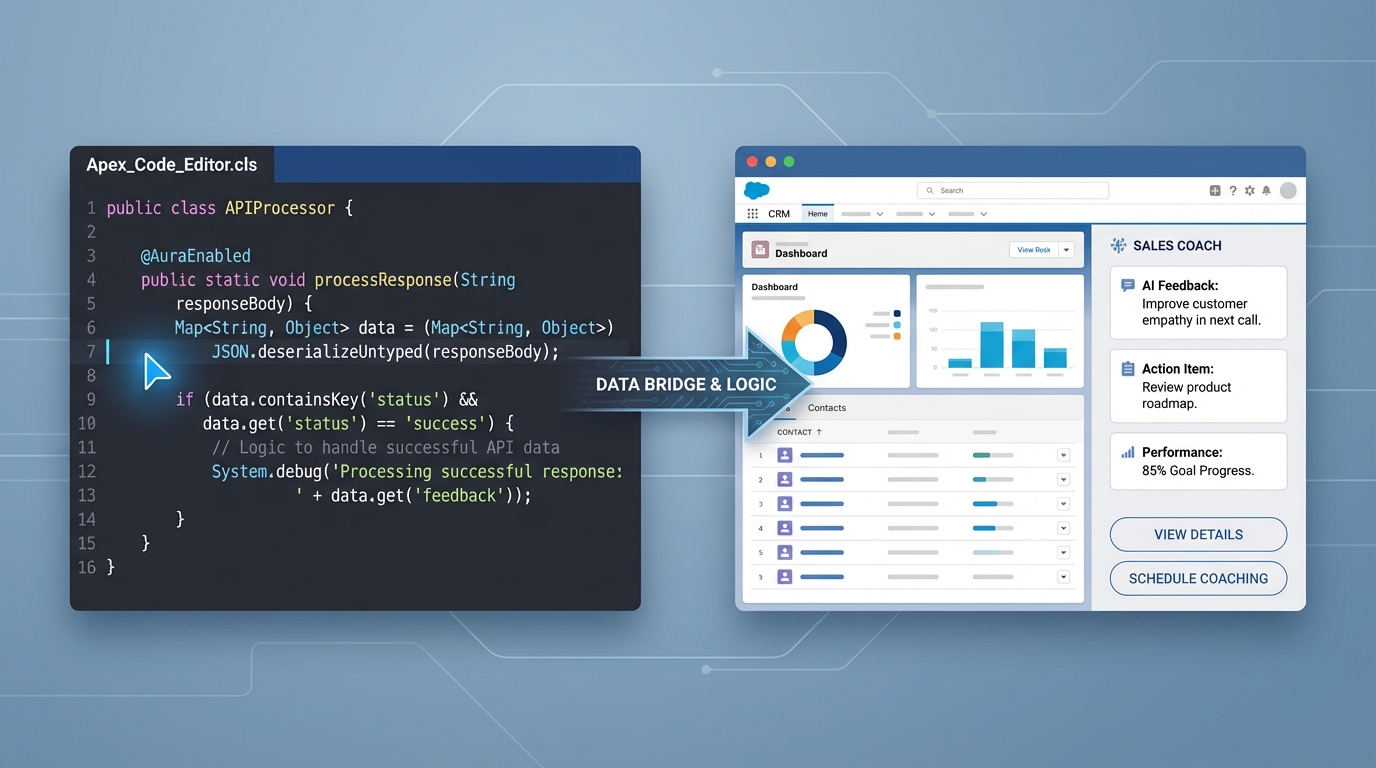
A split-screen view showing backend Apex code on the left and a structured Sales Coach UI component on the right, illustrating the processing of AI responses.
Setting up the Apex logic
Here is the thing: the ConnectApi for Einstein is a bit of a nested mess at first glance. You can't just pass a simple string and call it a day. You have to wrap your inputs in a specific way so the engine knows which record goes with which placeholder in your template.
ConnectApi.EinsteinPromptTemplateGenerationsInput promptInput =
    new ConnectApi.EinsteinPromptTemplateGenerationsInput();

// This map holds our parameters
Map<String, ConnectApi.WrappedValue> valueMap = new Map<String, ConnectApi.WrappedValue>();

// We need to tell the template which Opportunity we are talking about
Map<String, String> recordIdMap = new Map<String, String>();
recordIdMap.put('id', oppId);

ConnectApi.WrappedValue wrappedOpp = new ConnectApi.WrappedValue();
wrappedOpp.value = recordIdMap;

// 'Input:Candidate_Opportunity' must match your template's input name
valueMap.put('Input:Candidate_Opportunity', wrappedOpp);

promptInput.inputParams = valueMap;
promptInput.isPreview = false;
One thing that trips people up is the isPreview flag. If you leave it as true, you won't get a real response from the model. Always set it to false if you want the actual AI-generated coaching advice. Also, keep in mind that you'll need the ID of your prompt template record. Since you can't query these easily yet, I usually stick the ID in a Custom Metadata record to avoid hard-coding it.
Pro tip: Check out these Einstein Copilot gotchas if you are hitting walls with your initial setup, as the permissions can be finicky when calling AI from code.
Making the call and parsing the response
Once your input is ready, you call the generateMessagesForPromptTemplate method. This is where the magic happens. The response comes back as a list of "generations," though usually, you're only looking for the first one. Don't forget to add some defensive null checks here. LLMs can be unpredictable, and the last thing you want is a null pointer exception crashing your LWC.
ConnectApi.EinsteinPromptTemplateGenerationsRepresentation output =
    ConnectApi.EinsteinLLM.generateMessagesForPromptTemplate('0hfao000000hh9lAAA', promptInput);

// Grab the first response text
String coachAdvice = output.generations[0].text;
Integrating Einstein Prompt Templates with LWC
Now, how do we show this to the user? In the LWC, I like to use an imperative Apex call. You can't use @wire here because ConnectApi calls aren't cacheable. And honestly, you wouldn't want it to be. You want the rep to click a "Get Advice" button or open a specific tab to trigger the call.
Here is a simple way to handle the state in your Javascript controller:
@api recordId;
advice;
loading = false;

handleGetAdvice() {
    this.loading = true;
    getCoachAdvice({ oppId: this.recordId })
        .then(result => {
            this.advice = result;
            this.loading = false;
        })
        .catch(error => {
            console.error('AI Error:', error);
            this.loading = false;
        });
}
I highly recommend adding a "Coach is thinking..." spinner. AI isn't instant, and users get click-happy if they don't see immediate feedback. A simple lightning-spinner goes a long way in making the UX feel smooth rather than broken.
Key Takeaways
- Control your costs: Use imperative Apex to ensure Einstein Prompt Templates only run when the user actually needs them.
- Mind the inputs: The
ConnectApi.WrappedValuestructure is picky. Make sure your map keys match your template's input variables exactly. - Handle the wait: Always include a loading state in your LWC to account for the LLM's processing time.
- Stay configurable: Store your template IDs in Custom Metadata instead of hard-coding them in your classes.
Final thoughts
Building a custom Sales Coach using Einstein Prompt Templates is a great way to prove the value of AI to your stakeholders without going overboard on complexity. It's practical, it's useful, and it gives you a reusable pattern for any other generative features you might need down the road. Just remember to keep an eye on your safety scores and token usage as you scale it out to more users. Happy coding!




Leave a Comment