

Why you should restrict Aura component visibility
One of the most common questions I get from junior devs is how to keep the Lightning App Builder from looking like a junk drawer. I've seen teams build dozens of great tools, but then they let every single one of them show up on every record page in the org. It's a mess for admins and confusing for users. When you **restrict Aura component** visibility to only the objects that actually need them, you're making everyone's life easier.
Look, if you've built a specialized component for the Account object, there is zero reason for it to pop up as an option when someone is editing a Case or a Lead. It's about enforcing the right patterns. In my experience, a little bit of work in the metadata saves a ton of "Why is this button here?" emails later on. Plus, it just makes the UI feel faster and more intentional.
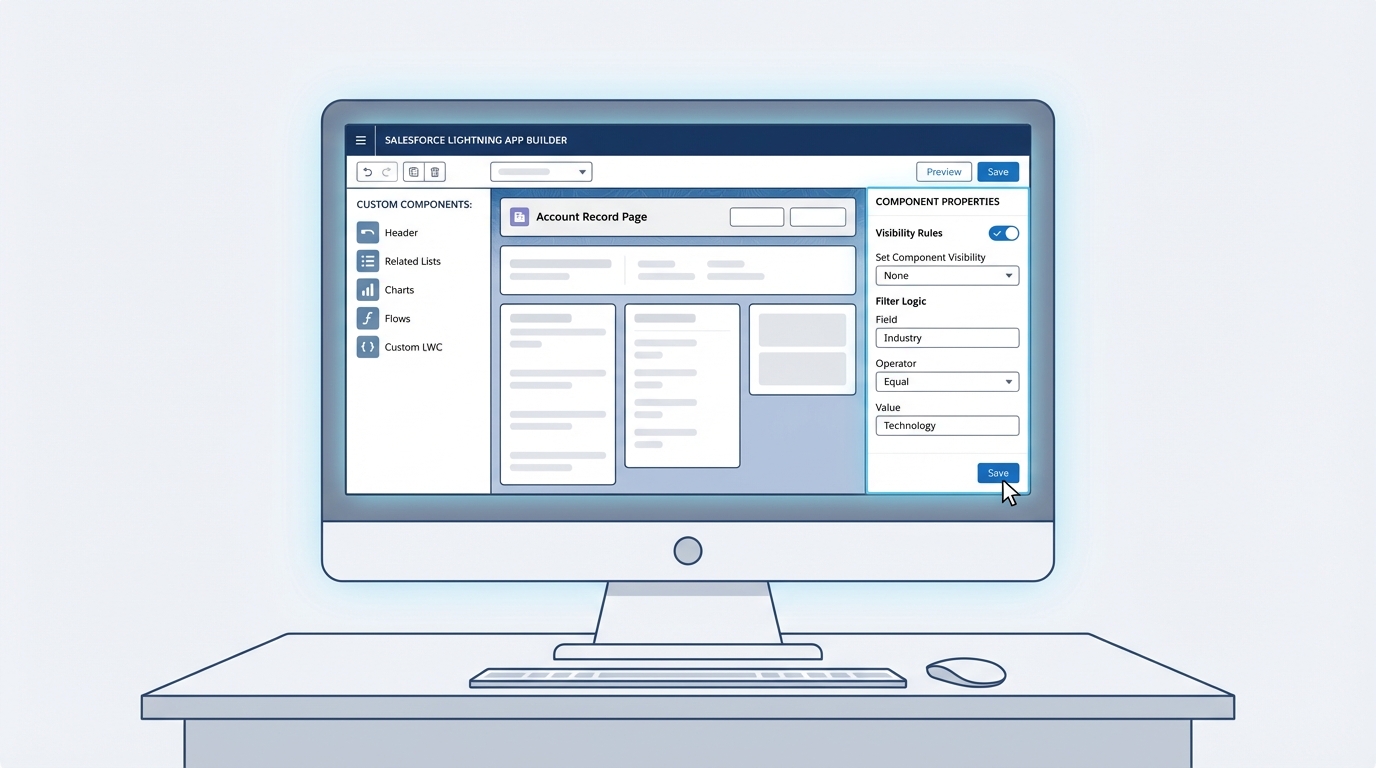
A professional mockup of the Salesforce Lightning App Builder showing a clean record page configuration and component properties panel.
Steps to restrict Aura component to specific objects
To **restrict Aura component** bundles (or their LWC counterparts) to specific pages, you have to get comfortable with the metadata file. This is the -meta.xml file that sits in your component folder. Most people just use it to set the API version or flip the isExposed switch to true, but it can do so much more.
Here is the thing: you need to define targetConfigs. This is where you tell Salesforce, "Hey, only show this component if the user is looking at these specific objects." If you leave this out, Salesforce assumes the component is a free-for-all and puts it everywhere. That's usually not what you want.
The metadata configuration
Check out this example below. We are targeting the lightning__RecordPage and then explicitly listing the objects we want to allow. In this case, it's just Account and Contact.
<?xml version="1.0" encoding="UTF-8"?>
<LightningComponentBundle xmlns="http://soap.sforce.com/2006/04/metadata">
    <apiVersion>60.0</apiVersion>
    <isExposed>true</isExposed>
    <targets>
        <target>lightning__RecordPage</target>
    </targets>
    <targetConfigs>
        <targetConfig targets="lightning__RecordPage">
            <objects>
                <object>Account</object>
                <object>Contact</object>
            </objects>
        </targetConfig>
    </targetConfigs>
</LightningComponentBundle>
But what if you are working with custom objects? Just use the API name, like My_Custom_Object__c. And don't forget that if you're working within a managed package, you'll need that namespace prefix too. I've seen that trip up even senior devs more times than I can count.
A quick note on Aura vs LWC
I know we often use the term "Aura" to describe any custom component, but most of us are moving toward LWC these days. The example above uses the LWC metadata format. If you're still strictly in Aura, you'd typically use a .design file to control some of these attributes, but the industry is moving toward this XML structure. If you're building new stuff, just stick with LWC and use the targetConfigs shown above. It's much cleaner and helps when you're trying to master LWC element scrolling or other advanced UI behaviors.
Pro tip: Always refresh your browser or clear your cache after deploying metadata changes. Sometimes the Lightning App Builder likes to hang onto old component definitions, making you think your restriction didn't work when it actually did.
Using a programmatic guard as a backup
Sometimes metadata isn't enough, or maybe you have a weird edge case where you need to **restrict Aura component** logic at runtime. In those cases, you can check the object name in your controller. It isn't as clean as the metadata approach because the component still "exists" in the builder, but it's a solid safety net.
If you're doing this in an Aura controller, you might use something like this in your doInit function. This is also a good place to think about why you might use @AuraEnabled annotation if you need to pull extra object details from the server to decide if the component should stay visible.
// Aura Controller Example
doInit: function(component, event, helper) {
    var sobjectName = component.get("v.pageReference").attributes.objectApiName;
    var allowed = ['Account', 'Contact'];
    var isAllowed = allowed.indexOf(sobjectName) !== -1;

    component.set('v.isAllowed', isAllowed);
}
So, why does this matter? Because even if an admin accidentally drops your component on the wrong page, your code will just hide the UI. It's a "belt and suspenders" approach to development. But honestly, try to fix it in the XML first. It's the right way to do it.
Key Takeaways
- Always **restrict Aura component** visibility in the metadata to keep the App Builder clean.
- Use the
<objects>tag within<targetConfig>for thelightning__RecordPagetarget. - Make sure you use the exact API names for both standard and custom objects.
- Deploy your changes and refresh the App Builder to see the restriction in action.
- Use a runtime check in your JS controller if you need an extra layer of security.
The short answer? Don't be the developer who makes the Admin's life hard. Take the extra two minutes to update your -meta.xml file. Your users will thank you for not cluttering their screens with components that don't belong there. Give it a shot on your next deployment and see how much cleaner your Lightning pages feel.




Leave a Comment