


Ever tried debugging a production issue where a user says "it just didn't work," but you can't see what happened in the browser? If you're building complex components, Salesforce lightning/logger takes the guesswork out of that. It's a lightweight API that lets us push logs from a Lightning Web Component (LWC) directly into Salesforce's Event Monitoring system.
Why Salesforce lightning/logger beats console logs
I've seen so many teams rely on console.log for debugging. Once your code is in production, those logs are basically invisible to you. You can't ask a customer to open their DevTools and read back a stack trace. lightning/logger captures structured data and stores it on the server side, so you can actually see what's happening across your user base.
It doesn't replace a full Salesforce Universal Logging Framework, but for front-end observability it's a big step up. You get a direct line from the user's browser to your Event Monitoring logs without making the app feel sluggish.
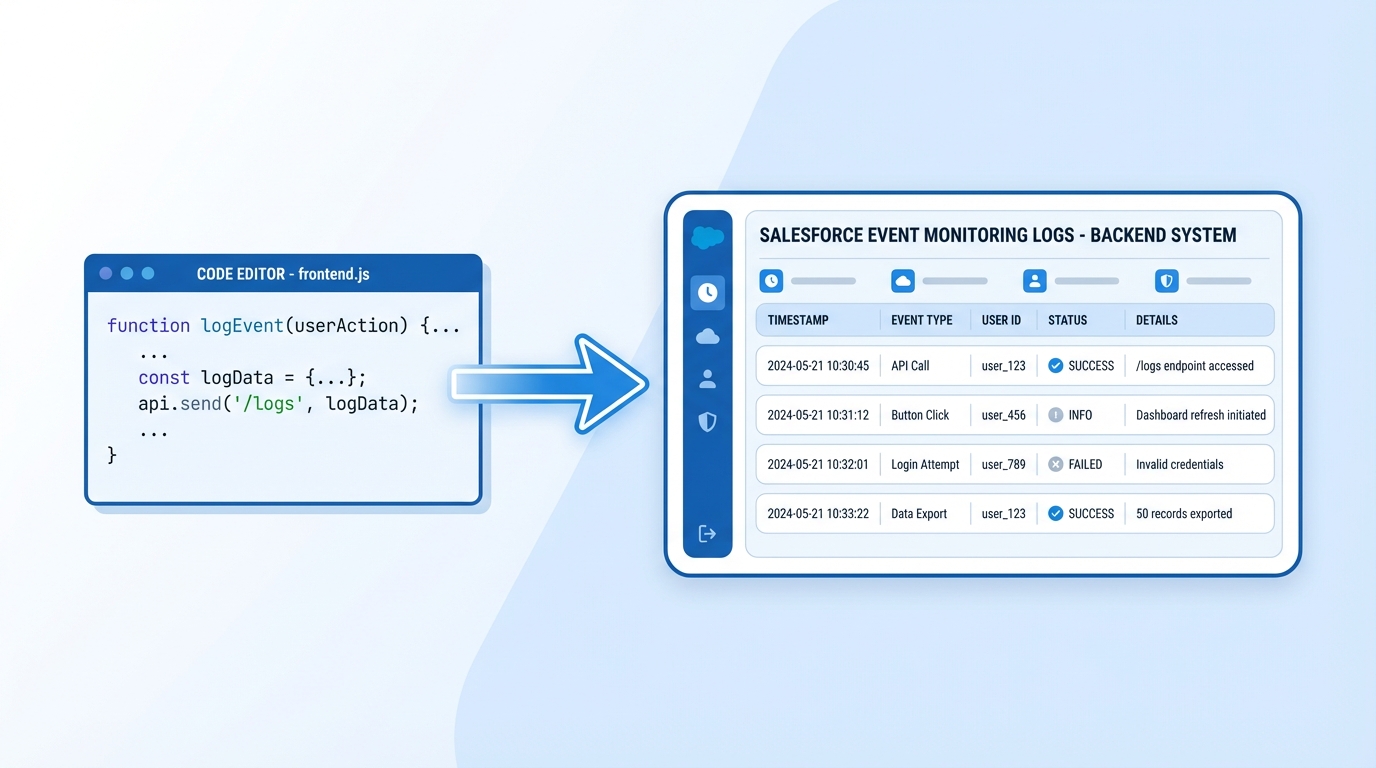
A diagram of the data flow from Lightning Web Component code to the Salesforce Event Monitoring log dashboard.
Setting up Salesforce lightning/logger in your org
There are a few hoops to jump through in Setup before any of this works. I've seen people get frustrated because their logs weren't showing up, and nine times out of ten it's because they skipped the toggle in Setup.
- First, you need Event Monitoring enabled in your org. This is usually a paid add-on, so check your licensing.
- Head over to Event Monitoring Settings in Setup.
- Find the toggle for Enable Lightning Logger Events and flip it to On.
- Keep in mind that this doesn't work on the Salesforce mobile app yet. It's strictly for Lightning Experience on desktop.
How to use the API in your code
The implementation is pretty clean. You import log from the lightning/logger module and call it whenever something important happens. That beats wiring up LWC component communication just to bubble an error up to a parent logger. Here's how it looks in a real component:
import { LightningElement } from 'lwc';
import { log } from 'lightning/logger';

export default class ActionTracker extends LightningElement {
    handleProcessClick() {
        const eventData = {
            action: 'Submit_Application',
            status: 'Started',
            timestamp: Date.now()
        };

        // This sends the data straight to Salesforce
        log(eventData);
    }
}
Don't just log strings. Always pass an object. When you're looking at these logs later in a dashboard, structured fields like "action" or "componentId" make filtering far easier than searching through raw text.
Best practices for Salesforce lightning/logger
Just because you can log everything doesn't mean you should. If you're not careful, you'll end up with a mountain of noise that costs a fortune in storage. I've found that the "less is more" approach works best here. Focus on the critical paths: form submissions, payment clicks, or an unexpected error landing in a try-catch block.
- You've got a 4096-character limit per log. If you try to dump a massive JSON blob, Salesforce will truncate it.
- Never log personally identifiable information. No emails, no phone numbers, and definitely no credit card digits.
- Use a consistent naming convention for your actions. If one dev logs "save_clicked" and another logs "SubmitBtn", your analytics will be a mess.
- Event Monitoring logs don't stay around forever. If you need a permanent audit trail, you'll need to export them to a tool like Splunk or a custom Big Object.
Key takeaways
- Salesforce lightning/logger bridges the gap between client-side actions and server-side visibility.
- You must enable "Lightning Logger Events" in Setup before any data will be captured.
- It works best with structured objects rather than simple strings.
- It's a desktop-only feature for now, so don't expect it to catch mobile app errors.
If you're tired of flying blind with your LWCs, instrument one high-traffic component and see the kind of data that starts flowing in. You'll probably be surprised by how users are actually working through your UI versus how you thought they were using it. It's a small change to your code that pays off the next time a "critical" bug report hits your desk.

Leave a Comment