


The Automation Lightning App is something I wish we had years ago. If you have ever spent ten minutes scrolling through a massive list of flows in the standard Setup menu just to find one active version, you know exactly what I am talking about. It is a dedicated home for your automations that lives right in the App Launcher, and it makes life a lot easier for anyone managing a complex org.
Why you should care about the Automation Lightning App
The old way of managing flows was clunky. You had to go into Setup, search for "Flows," and then deal with a list that felt like it was designed in 2010. The Automation Lightning App gives you an interface that matches the rest of Lightning Experience, and it gets you to the flow you want faster.
I have seen teams struggle with "flow bloat" where they have hundreds of versions and no clear way to see what is actually running. This app helps clean that up. You get better search tools, recently viewed lists, and a way to sort your work that actually makes sense. It saves a lot of clicking, especially if you are following best practices for Salesforce Flow to keep your org tidy.
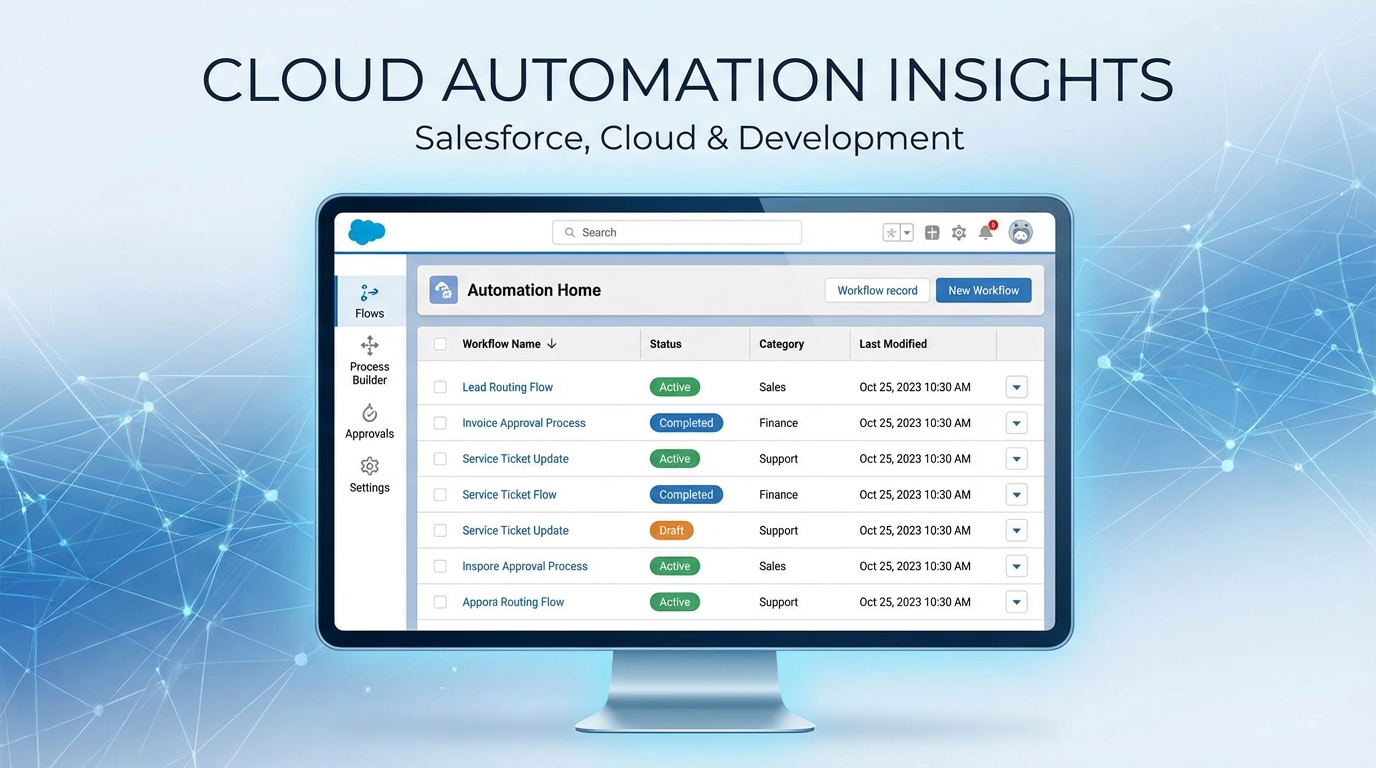
A realistic mockup of the Salesforce Automation Lightning App interface showing a centralized dashboard for managing flows and automation tasks.
What makes this app actually useful?
It brings everything into one view, which turns the flow list into something closer to a management hub. These are the features I find myself using the most:
- Better search and filters, so you can find what you need without knowing the exact name of the flow.
- Recently viewed, which is a lifesaver when you are jumping back and forth between two or three flows.
- Sorting by name, date, or who last touched it. Simple, but effective.
- A clean UI that is designed for humans rather than for the back-end system.
One thing that trips people up is thinking this is just a shortcut to the Setup page. It is a full app that lets you view and manage your automation strategy without the "Setup" headache.
Improving team collaboration
In my experience, one of the biggest hurdles for a growing team is visibility. The Automation Lightning App makes it easier to show a stakeholder or a junior admin what is going on. You can share views and keep everyone on the same page. If you are keeping up with the Salesforce Spring '26 Flow updates, you'll see that Salesforce is doubling down on making these tools more accessible to everyone.
How to enable the Automation Lightning App in your org
Turning it on takes about a minute, but you do need the right permissions:
- Head over to Setup.
- Type "Process Automation Settings" into the Quick Find box.
- Scroll down until you see the toggle for the Automation Lightning App.
- Flip that switch to "On".
- Now, go to your App Launcher (the waffle icon) and search for "Automation". There it is.
Once you are in, I suggest pinning it to your navigation bar. Then take a second to look at your most recent flows and see how much easier they are to find. It is a small change that saves a lot of clicks over a week.
Making the most of your new setup
Now that you have the app, don't treat it like the old list. Use the sorting, use the views, and keep your naming conventions consistent. I've worked with orgs where "Flow_v1_FINAL_USE_THIS" was a common name. Don't be that person. Use the better visibility this app provides to enforce some standards.
One more thing: limit who can edit. Just because the app is easy to use doesn't mean everyone should be in there changing logic. Use your profiles and permission sets to keep the "edit" rights for the people who actually know the business logic. It'll save you a lot of debugging time later.
Key takeaways
- The Automation Lightning App is a dedicated space to manage, search, and organize all your flows.
- It is way faster than using the standard Setup menu and offers a much better search experience.
- You have to manually turn it on in Process Automation Settings before it shows up in the App Launcher.
- It is perfect for teams that need better visibility into their automation.
- Using it helps you stay organized as you add more complex triggers and logic to your org.
Most teams get this wrong by ignoring the new tools Salesforce gives us. Turn on the app, get your flows organized, and spend your time building instead of hunting for a lost version in a list of five hundred items.



Leave a Comment