
Ever tried debugging a production issue where a user says "it just didn't work," but you can't see what happened in the browser? If you're building complex components, Salesforce lightning/logger is the tool you've probably been waiting for to stop the guesswork. It's a lightweight API that lets us push logs from a Lightning Web Component (LWC) directly into Salesforce's Event Monitoring system.
Why Salesforce lightning/logger beats console logs
I've seen so many teams rely on console.log for debugging. But here's the thing: once your code is in production, those logs are basically invisible to you. You can't ask a customer to open their DevTools and read back a stack trace. That's where Salesforce lightning/logger comes in. It captures structured data and stores it on the server side so you can actually see what's happening across your user base.
Now, this isn't a replacement for a full Salesforce Universal Logging Framework, but it's a massive step up for front-end observability. It gives you a direct line from the user's browser to your Event Monitoring logs without making the app feel sluggish.
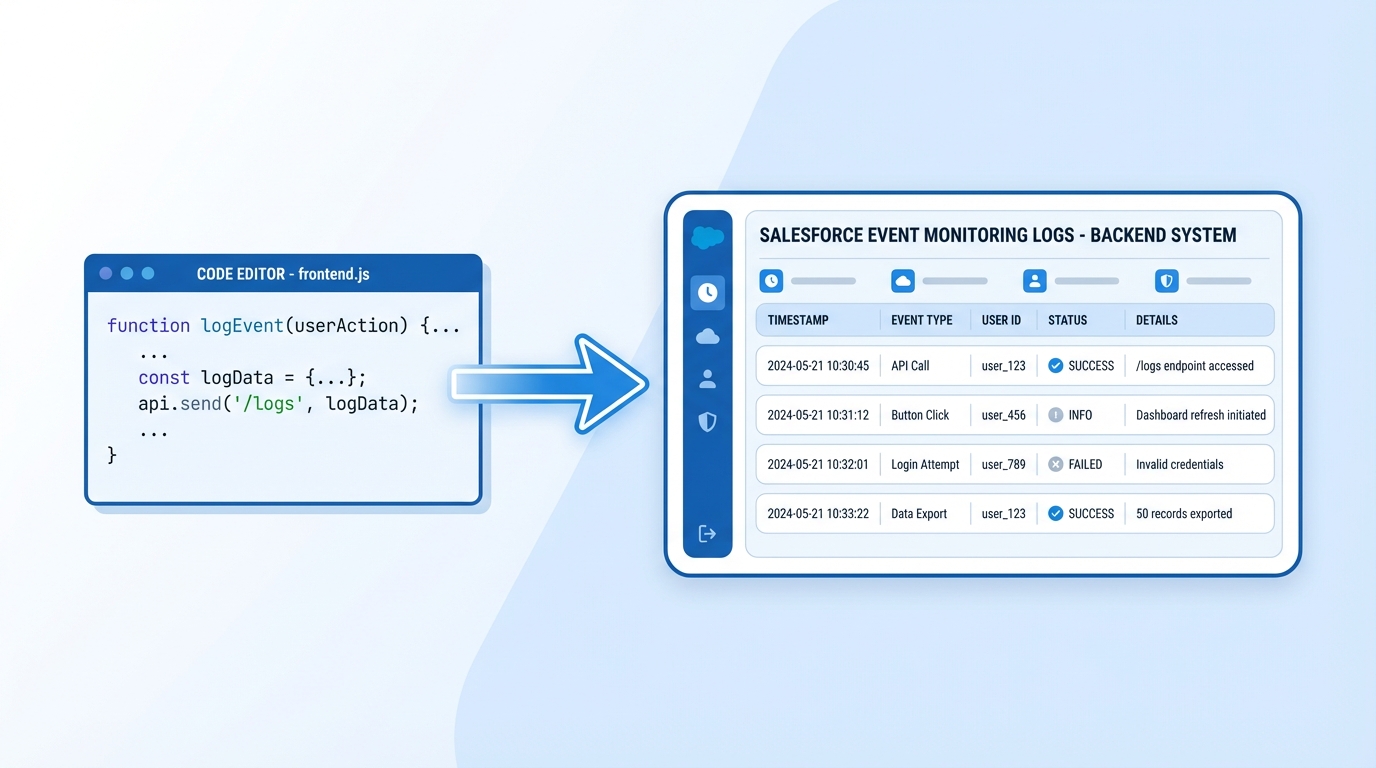
A technical diagram illustrating the data flow from front-end Lightning Web Component code to the Salesforce Event Monitoring log dashboard.
Setting up Salesforce lightning/logger in your org
You can't just start coding and expect it to work right away. There are a few hoops to jump through in Setup first. I've seen people get frustrated because their logs weren't showing up, and nine times out of ten, it's because they skipped the toggle in Setup.
- First, you need Event Monitoring enabled in your org. This is usually a paid add-on, so check your licensing.
- Head over to Event Monitoring Settings in Setup.
- Find the toggle for Enable Lightning Logger Events and flip it to On.
- Keep in mind that this doesn't work on the Salesforce mobile app yet - it's strictly for Lightning Experience on desktop.
How to use the API in your code
The implementation is actually pretty clean. You import log from the lightning/logger module and call it whenever something important happens. It's much better than trying to manage LWC component communication just to bubble up an error to a parent logger. Here's a quick look at how it looks in a real component:
import { LightningElement } from 'lwc';
import { log } from 'lightning/logger';

export default class ActionTracker extends LightningElement {
    handleProcessClick() {
        const eventData = {
            action: 'Submit_Application',
            status: 'Started',
            timestamp: Date.now()
        };

        // This sends the data straight to Salesforce
        log(eventData);
    }
}
Pro tip: Don't just log strings. Always pass an object. When you're looking at these logs later in a dashboard, having structured fields like "action" or "componentId" makes filtering a thousand times easier than searching through raw text.
Best practices for Salesforce lightning/logger
Look, just because you can log everything doesn't mean you should. If you're not careful, you'll end up with a mountain of noise that costs a fortune in storage. I've found that the "less is more" approach works best here. Focus on the critical paths - things like form submissions, payment clicks, or when an unexpected error catches in a try-catch block.
- Watch your limits: You've got a 4096-character limit per log. If you try to dump a massive JSON blob, Salesforce will truncate it.
- No PII: This should go without saying, but never log personally identifiable information. No emails, no phone numbers, and definitely no credit card digits.
- Use clear labels: Use a consistent naming convention for your actions. If one dev logs "save_clicked" and another logs "SubmitBtn", your analytics will be a mess.
- Check your retention: Remember that Event Monitoring logs don't stay around forever. If you need a permanent audit trail, you'll need to export these logs to a tool like Splunk or a custom Big Object.
Key Takeaways
- Salesforce lightning/logger bridges the gap between client-side actions and server-side visibility.
- You must enable "Lightning Logger Events" in Setup before any data will be captured.
- It works best with structured objects rather than simple strings for better reporting.
- It's a desktop-only feature for now, so don't expect it to catch mobile app errors.
If you're tired of flying blind with your LWCs, give this a shot. Start by instrumenting just one high-traffic component and see the kind of data that starts flowing in. You'll probably be surprised by how users are actually interacting with your UI versus how you thought they were using it. It's a small change to your code that pays off the next time a "critical" bug report hits your desk.



Leave a Comment