

If you've spent any time in the page layout editor, you've probably run into those stubborn required Case fields that just won't go away. You try to drag them off the layout to clean things up for your users, but Salesforce just won't let you. It's one of those small things that can be really annoying when you're trying to build a streamlined experience.
I've seen plenty of admins get frustrated by this, especially when they're working in older orgs still using Classic page layouts. You want a clean screen, but Salesforce insists that certain data points stay right where they are. So, how do you handle this without making the UI a mess? Let's break down what's happening and how to fix it.
Which Required Case Fields are Locked in Classic?
When you're editing a Case page layout, you'll notice some fields have a little blue dot next to them. That dot is Salesforce's way of telling you, "This isn't going anywhere." In my experience, these are the ones that usually trip people up because they're hardcoded into the layout's requirements.
The usual suspects for these fixed fields include:
- Contact Name
- Status
- Priority
- Case Origin
- Subject
- Description
- Web Email
Now, you might not use all of these for every single business process. But because the Case object is so central to how Salesforce handles support, the platform treats these required Case fields as the bare essentials for a record to even exist in a Classic view.
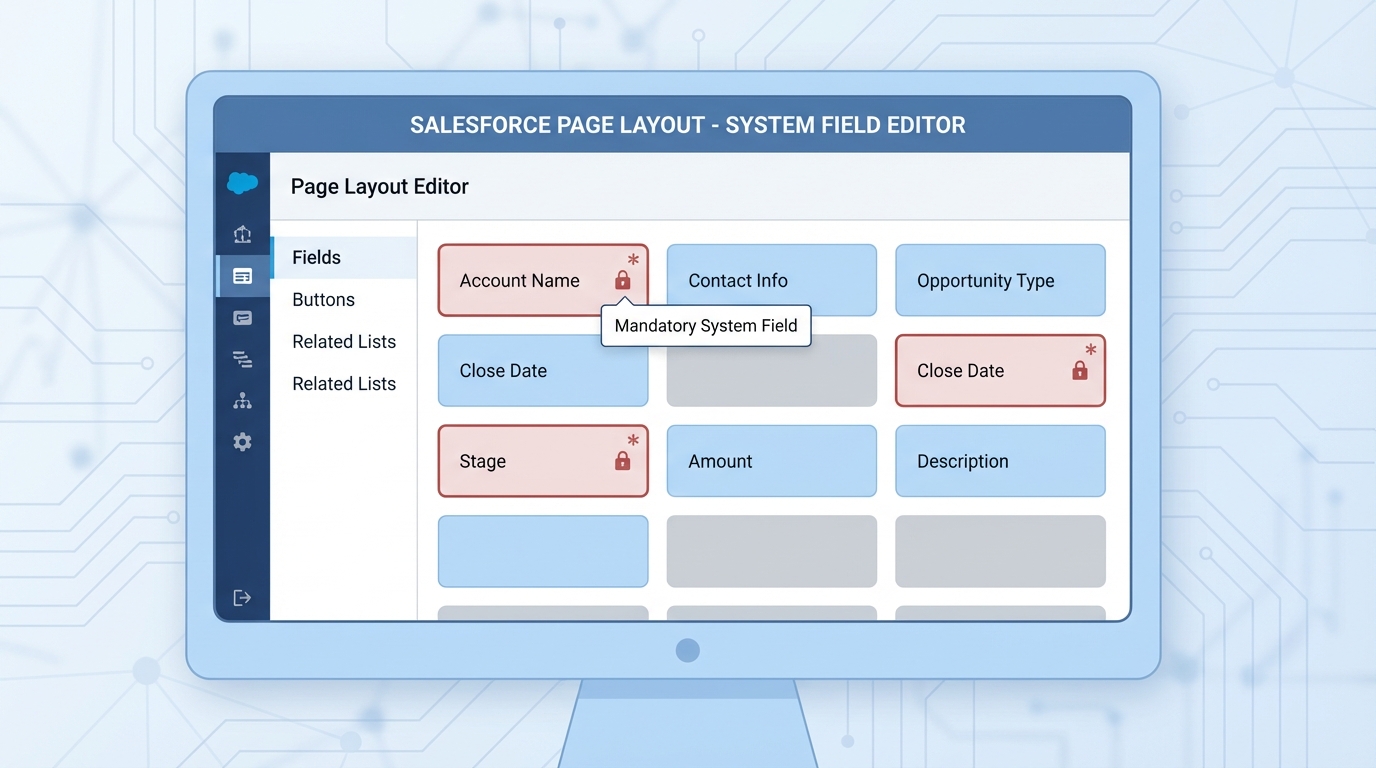
A realistic UI mockup of a Salesforce page layout editor showing mandatory Case fields marked with lock icons and required indicators.
Why You Can't Simply Delete These Required Case Fields
So why does this happen? Here's the thing: Salesforce built the Case object with a specific logic in mind for support teams. In the old-school Classic page layout engine, these fields are considered part of the "system" requirements. Salesforce basically decided years ago that a Case without a Status or a Subject isn't really a Case, so they locked them in to prevent data integrity issues.
But honestly, most teams get this wrong by just leaving them in the middle of the screen. Just because they have to be there doesn't mean they have to be in the way. In my experience, clarity is an admin's most valuable contribution, and a cluttered layout is the enemy of clarity. If your users don't need to see "Web Email" because you don't use Web-to-Case, having it sit there just creates noise.
Smart Ways to Handle Required Case Fields Without Breaking Your Org
If you're stuck with Classic layouts for now, you aren't completely out of luck. You can't delete them, but you can definitely manage them better. Here are a few tricks I've used on projects to keep the UI clean:
- Make them read-only: If you don't want users touching a field but Salesforce says it has to stay, set it to read-only on the layout level. This keeps the data safe and stops people from clicking into things they shouldn't.
- The "Junk" Section: I often create a section at the very bottom of the page called "System Information" or "Hidden Fields." Move those required Case fields down there so users don't have to scroll past them every day.
- Use Default Values: If you're forced to have a field like "Case Origin" but you only ever have one type, just set a default and move the field out of the primary view.
Pro Tip: If you're struggling with layout clutter, always ask yourself if the user actually needs to edit the field or just see it. Moving non-essential fields to the bottom of the page is the easiest way to improve user adoption overnight.
The Real Solution: Switching to Dynamic Forms
If you really want to get rid of these restrictions, you need to move to Dynamic Forms. This is probably the most overlooked feature for people still clinging to old layouts. When you migrate a Case record page to Dynamic Forms, that "blue dot" restriction basically disappears. You can finally remove those required Case fields from the UI entirely if they aren't relevant to your process.
If you're still weighing your options, check out this guide on Salesforce Dynamic Forms vs Record Types to see which path makes sense for your team. Dynamic Forms give you the power to show or hide fields based on user profile, record type, or even the value of another field. It's a total shift in how we handle page design.
Key Takeaways
- Salesforce Classic layouts force certain standard fields to stay on the page.
- Look for the blue dot in the layout editor to identify these required Case fields.
- You can hide them from immediate view by moving them to a bottom section or making them read-only.
- Upgrading to Dynamic Forms is the only way to truly remove these fields from the user interface.
At the end of the day, your job is to make the CRM easy to use. Dealing with required Case fields is just part of the puzzle. If you can't move to Dynamic Forms yet, use the "bottom of the page" trick to keep your users focused on the data that actually helps them close cases. It's a small change, but your support team will thank you for it.




Leave a Comment