

Look, we have all been there. You build a standard report, but the VP wants a comparison that the basic builder just cannot handle. That is where Salesforce advanced reporting comes into play. Most of us start with simple lists, but eventually, you need to dig deeper into the data without exporting everything to Excel every Monday morning.
Getting the Most Out of Salesforce Advanced Reporting
In my experience, many admins avoid the "advanced" side of the house because they think it requires code. But here is the thing: most of these tools are purely point-and-click. They just require a bit of logic. Let's break down the features that actually make a difference in a busy org.
1. Custom Report Types
This is the foundation. If you do not get this right, nothing else works. I have seen teams try to force data into standard types when they really needed a custom one to show "Accounts without Opportunities." If you are still confused about the basics, check out this guide on Salesforce report types to see the difference between standard and custom.
- When to use: When you need to link up to four levels of related objects or hide fields that just clutter the sidebar.
- Pro tip: Always rename your fields in the layout editor. "Account: Account Name" is redundant; just call it "Client Name."
2. Joined Reports
Joined reports get a bad rap because they can be slow, but they are great for "side-by-side" views. Imagine seeing your sales pipeline in one block and support cases in the next, all grouped by the same Account. It gives you a full 360-degree view without jumping between tabs.
3. Cross Filters
This is probably the most overlooked feature in the builder. It lets you filter a report based on related records using "with" or "without" logic. Want to find Accounts that have no active Opportunities? Use a cross filter. It is much cleaner than building a complex custom report type for a one-off request.
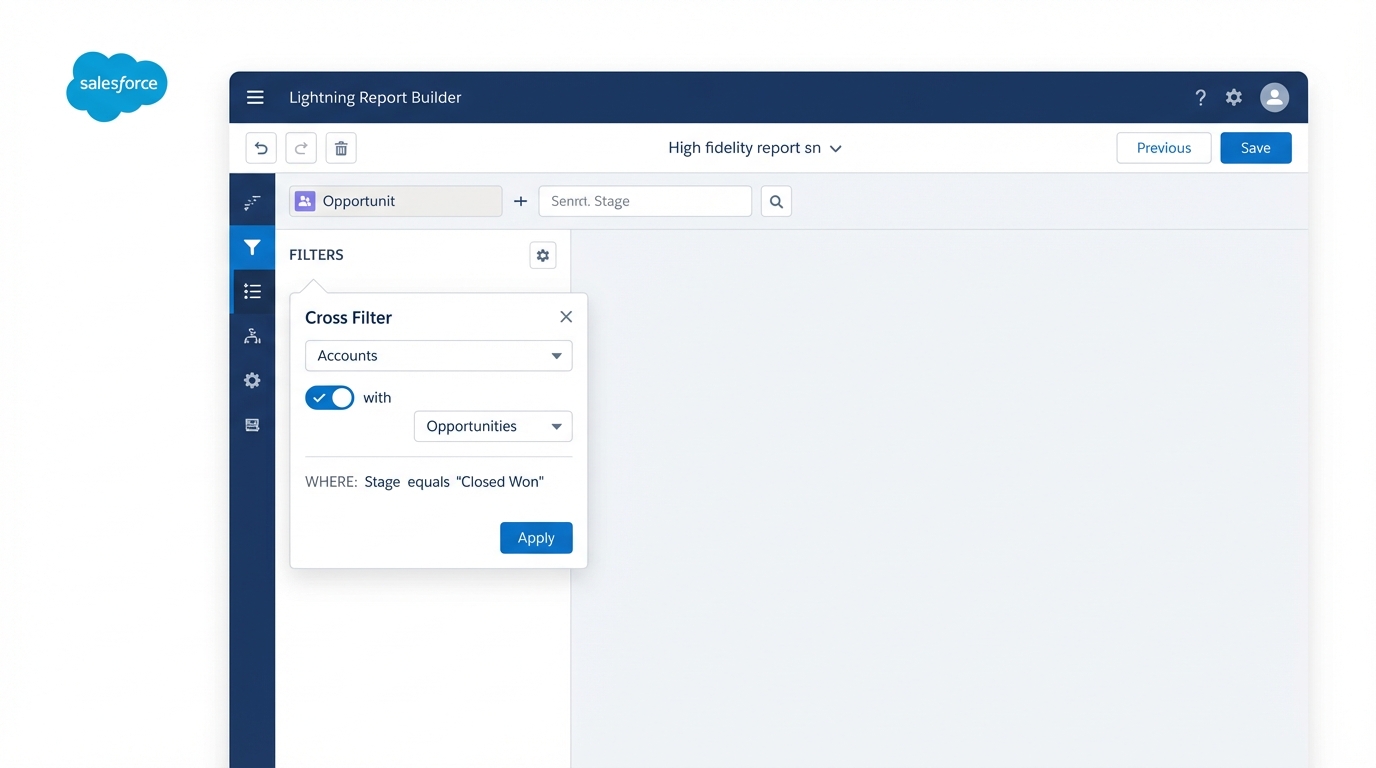
A realistic UI mockup of the Salesforce Report Builder showing the configuration of a cross filter between two related objects.
4. Row-Level Formulas
Before these existed, we had to create a new custom field on the object every time we wanted to do a simple calculation. Now, you can do it right in the report. For example, if you want to see the number of days between two dates on a single record, just write a quick formula. It keeps your schema clean and your developers happy.
One thing that trips people up: you can only have one row-level formula per report. If you need ten different calculations, you might actually need a formula field on the object instead.
Why Salesforce Advanced Reporting Beats Manual Spreadsheets
I used to spend hours every month cleaning data in VLOOKUPs. Salesforce advanced reporting tools are designed to stop that madness. When you use the right features, the data stays in the system where it is secure and up to date.
5. Historical Trend Reporting
Ever had a manager ask, "What did the pipeline look like last week compared to today?" That is a nightmare to answer if you are not tracking history. Historical trending lets you see how values like Amount or Close Date have shifted over time. It is built-in for Opportunities and Cases, so you should turn it on today.
6. Summary Formulas
Now, these are different from row-level formulas. Summary formulas let you calculate data at the grouping level. I use these most often for "Win Rates." You take the number of closed-won deals and divide it by the total number of deals in that group. It is a classic move for any sales dashboard.
Win Rate Formula:
WON:SUM / CLOSED:SUM
7. Reporting Snapshots
If you need to track data over a long period (like years), historical trending will not cut it because it only keeps data for a few months. Snapshots take a "picture" of your report and save it into a custom object. It is a bit of a setup, but for long-term growth tracking, it is the only way to go.
8. Field-to-Field Filtering
This is a simple one, but it is powerful. It lets you compare two fields on the same record. For instance, you can filter for all Opportunities where the "Last Modified Date" is the same as the "Created Date." It is a great way to find stale data or records that were never touched after they were made.
9. Bucket Fields
Honestly, most teams get their data entry wrong. You might have ten different "Lead Sources" that really mean the same thing. Instead of cleaning the data (which you should still do eventually), you can use a Bucket Field to group them into categories like "Web," "Partner," or "Event" on the fly.
10. Unique Count
Stop exporting to Excel just to "Remove Duplicates." If you have a list of 500 Opportunities and you want to know how many unique Accounts they belong to, just click the "Show Unique Count" option on the Account Name column. It is a tiny checkbox that saves a massive amount of time.
Key Takeaways for Admins
Mastering Salesforce advanced reporting takes some practice, but here are the main points to remember:
- Use Cross Filters to find what is missing (the "without" logic).
- Keep your object schema clean by using Row-Level Formulas for one-off math.
- Use Bucket Fields to fix messy data categories without a data load.
- Remember that managing large data volumes can impact your report performance, so filter aggressively.
So, what does this actually mean for your day-to-day? It means you can say "yes" to more complex requests without needing to write a single line of Apex. Start small. Pick one report that you usually export to Excel and see if you can rebuild it using one of these features. You will probably find that the tool is more capable than you thought. Just remember to test your filters and verify your totals before you send that dashboard to the board of directors.




Leave a Comment