


Why I use the Salesforce environment switcher daily
If you've ever spent half your morning logging in and out of different sandboxes, you know exactly how frustrating it is. That's where the Salesforce environment switcher comes in. I've spent years jumping between client orgs, and this is one of those tools you don't realize you need until you start using it. It lets you manage multiple accounts under one email address without losing your mind or your browser history.
The reason it matters is friction. As an admin or a consultant you're usually juggling a production org, a few dev sandboxes, and maybe a UAT environment. Before I started using the switcher, that meant a messy password manager or a dozen browser profiles. Now it's one entry point. It's especially handy when you're testing across different roles and profiles to see how a new feature actually looks to an end user.
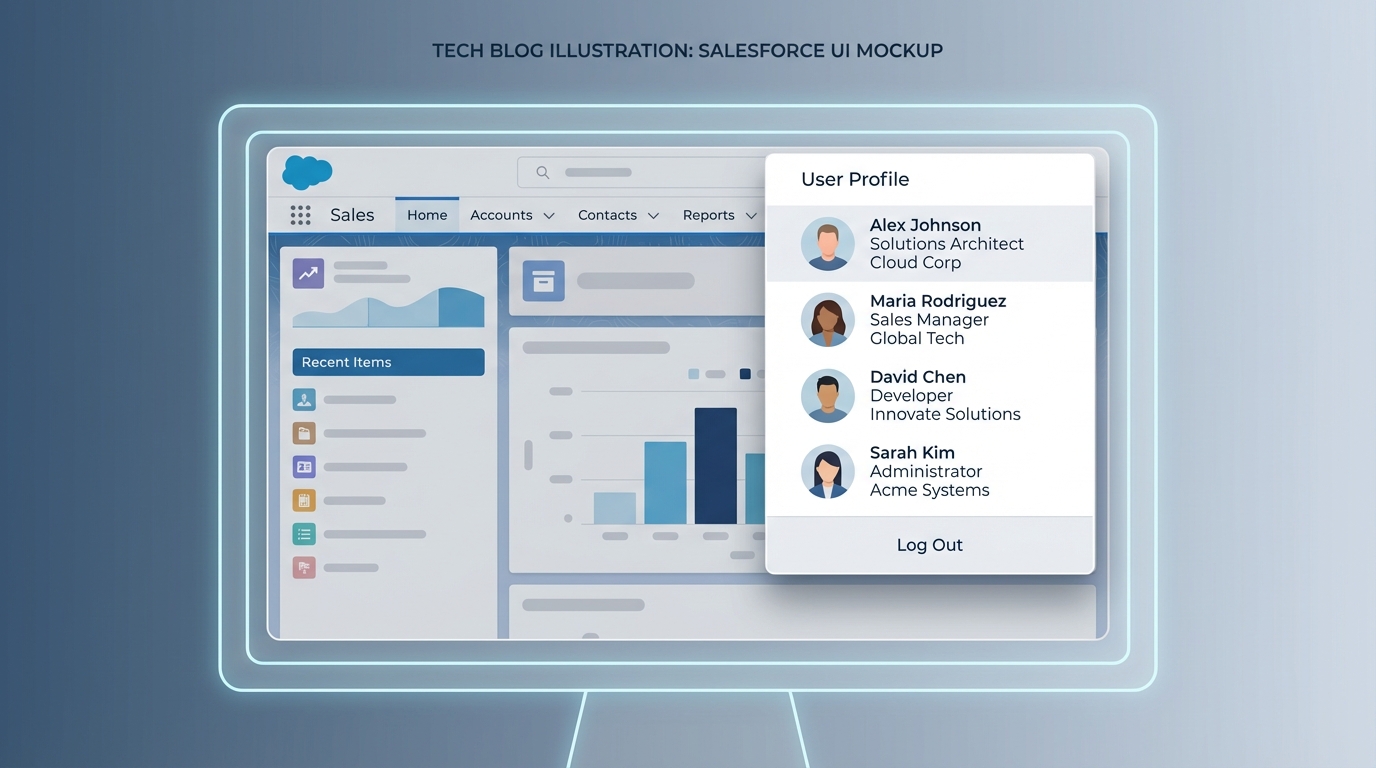
A Salesforce user profile menu with several connected accounts listed for quick switching.
How to set up the Salesforce environment switcher
The setup isn't rocket science, but there's a specific order to it. Your email address has to be consistent across the orgs you want to link. Once that's sorted:
- Head over to the welcome page at https://welcome.salesforce.com/.
- Choose the option to log in with your email address.
- Put in your main email and wait for the verification code. That's the part that keeps things secure.
- Once you've verified your identity, you'll see a dashboard with tiles for every Salesforce property linked to that email.
- Click the tile you need, and you're in.
There is a catch. Depending on how your org is set up, you might still hit a password prompt or an SSO redirect. The environment switcher gets you to the front door, but it doesn't always bypass the local locks when your security team has them tightened down.
Pro tips for managing your tiles
One thing that trips people up is having twenty tiles that all look identical because they're all named "Sandbox." You can edit the names on those tiles. If your org name is "Sales Org" but you're working on a migration project in that sandbox, rename the tile to something like "Migration Dev." It saves a lot of time when you're moving fast. Don't sleep on the search box either. With a long list of orgs, typing the first three letters is way faster than scrolling through a sea of blue icons.
I always tell my junior devs: don't just rely on browser bookmarks. If you lose your laptop or clear your cache, you're stuck. The Salesforce environment switcher is your centralized source of truth for access across different Salesforce sandbox types.
Security and the Salesforce environment switcher
Is this actually safe? That's the first thing my security-conscious clients ask, and the answer is yes. Even though you're seeing all your accounts in one place, Salesforce still makes you prove who you are through that initial email verification. And as I mentioned, individual org security still applies. If an org requires MFA, you still have to provide that second factor.
In my experience, the bigger risk is your email account. If your email isn't locked down, someone could theoretically get into every org you've linked. So keep that account protected with strong MFA. It's a basic step, and it's the one most people overlook until something goes wrong. If you're managing a team, make sure they're using company-managed emails for all their linked accounts so you can kill access when someone leaves the project.
Key takeaways
- One email address shows you every org you're assigned to.
- Rename your tiles so you don't accidentally run a script in the wrong environment.
- Email verification is required every time you start a new session.
- Use the search bar to jump between accounts in seconds.
Stop wasting time on a pile of login tabs and forgotten passwords. If you haven't tried the Salesforce environment switcher yet, give it a go today. It's a small change to your workflow, and it saves you a lot of headaches when you're deep in the weeds of a complex project.



Leave a Comment