


Why the Salesforce environment switcher is a lifesaver for consultants
If you're tired of logging out and back in just to check a different sandbox, start using the Salesforce environment switcher. It's one of those tools that seems small until you count the time it saves. I've seen teams waste hours every week just managing passwords.
You know the routine: a production org, three sandboxes, and maybe a developer edition for testing. The Salesforce environment switcher lets you reach all those accounts under a single email address. It's practical, it's fast, and honestly, it's how we should have been doing things years ago.
Setting up the Salesforce environment switcher
Getting this running isn't complicated, but there's a specific flow you need to follow.
- Head over to welcome.salesforce.com and pick the "Log In with Email" option. Use the email address that's tied to all your different orgs.
- Salesforce sends a code to your inbox. Grab that code, paste it in, and keep moving. This is the main security gate that keeps everything locked down.
- Once you're in, you'll see the Salesforce environment switcher dashboard: a collection of tiles, each representing a different org or user account.
- Click a tile to enter that environment. Depending on how your admin set things up, you might still need to enter a password or use SSO, but the heavy lifting of finding the right URL is already done.
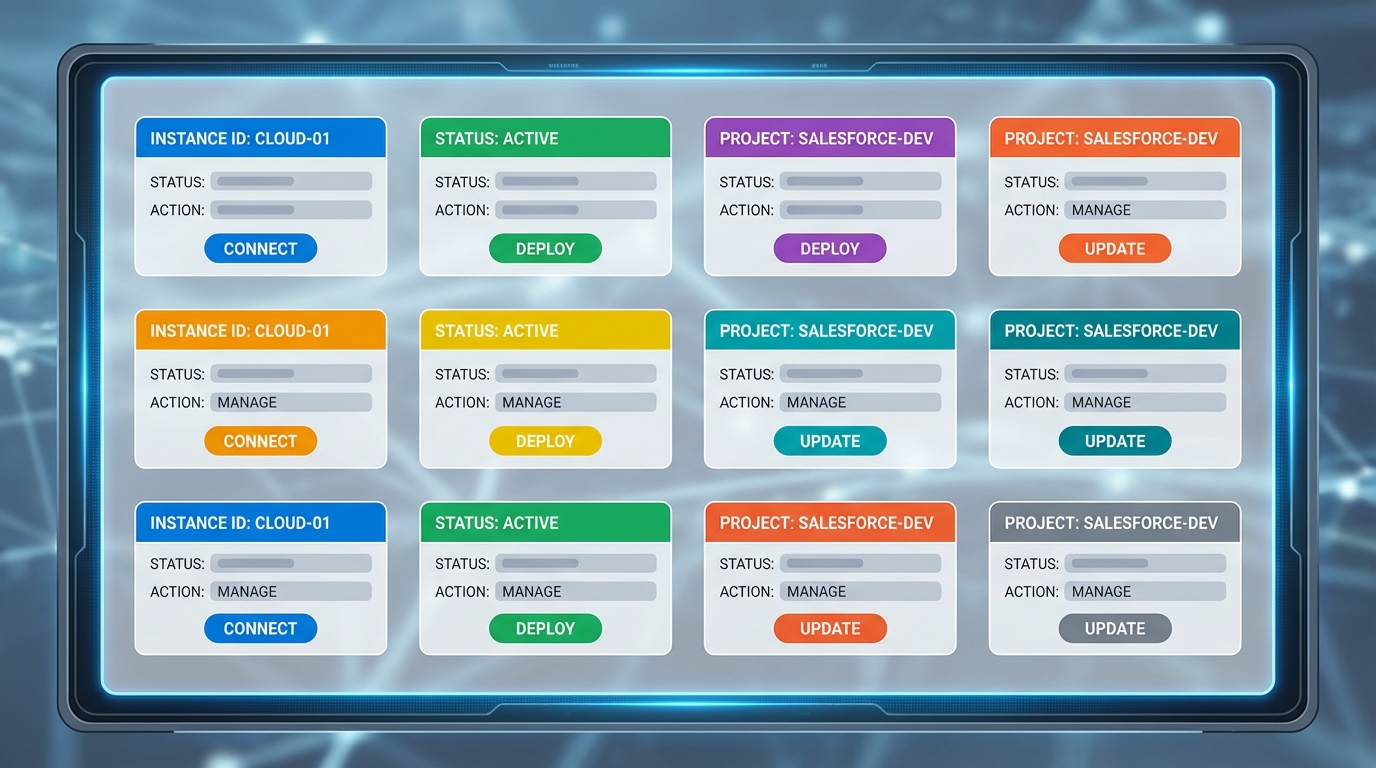
The dashboard shows one tile per org or user account.
Making the most of your tiles
One thing that trips people up is having twenty tiles that all look the same. If every tile says "Sandbox," you're going to click the wrong one eventually. You can edit these tiles so they make sense for your specific project.
The search box filters your environments if you're working across a massive list. The bigger win is the "Edit" icon on the tiles. I always rename mine to something like "Project Alpha - UAT" or "Client X - Dev" so I don't accidentally run a script in the wrong place. If you're managing a lot of different environments, you might also want to check out some Salesforce Chrome extensions that can help with org coloring and identification.
In my experience, the biggest win is the reduced mental load, even more than the speed. Not having to remember which username goes with which sandbox is a massive relief when you're deep in a deployment.
Security and best practices
Is this safe? Salesforce uses that initial email verification to make sure only you can see the list of accounts. You still need to be smart about it. Your email account basically becomes the keys to the kingdom, so make sure your email itself is locked down with MFA.
It also helps to know which Salesforce sandbox types you're connecting to. The switcher handles them all, but your login requirements might change if you're jumping from a Developer Pro sandbox to a Full Copy sandbox that requires SSO. Talk to your admin to make sure your login policies don't conflict with the switcher's flow.
Key takeaways
- The Salesforce environment switcher centralizes all your logins under one email for faster access.
- Always rename your tiles to avoid making mistakes between production and test environments.
- Verification codes add a layer of security, but your email account must be secure.
- It works across different org types, from scratch orgs to full production instances.
Wrapping it up
The Salesforce environment switcher removes friction. If you're an admin or a developer, you've got enough to worry about without fighting your login screen. It's a simple change, but for anyone managing more than two orgs, it quickly becomes a necessity.


Leave a Comment