

Setting up a Transaction Security Policy is one of those tasks that sounds intimidating until you actually do it. I've seen so many teams struggle with admins accidentally impersonating integration users or deployment accounts, which can cause absolute chaos in the audit logs. If you want to lock down your org, blocking the "Login As" feature for sensitive accounts is a great place to start.
Why you need a Transaction Security Policy for Login As
Most of us use the "Login As" feature every single day to troubleshoot issues. It's a lifesaver, but it's also a bit of a security nightmare if it isn't managed. Think about your middleware or your CI/CD service accounts. There is almost no reason an admin should ever be "logging in as" those users manually.
When you use a Transaction Security Policy to monitor the LoginAs event, you're adding a layer of protection that standard profiles just don't offer. It lets you say, "Yes, you are an admin, but no, you cannot touch this specific account." It's about reducing the risk of someone accidentally triggering a sync or making a change that looks like it came from a system process.
Building your Transaction Security Policy step-by-step
The good news is that you don't need to be a developer to get this working. You can build this logic right in the Setup menu. Here is the basic flow I usually follow when I'm setting this up for a client:
- Head over to Setup and find Transaction Security Policies.
- Create a new policy and choose the "LoginAs" event type.
- Set up your condition to look for the specific User ID you want to protect.
- Decide what happens when the policy triggers - usually, you'll want to "Block" the attempt.
- Turn on notifications so you get an email whenever someone tries to bypass the rule.
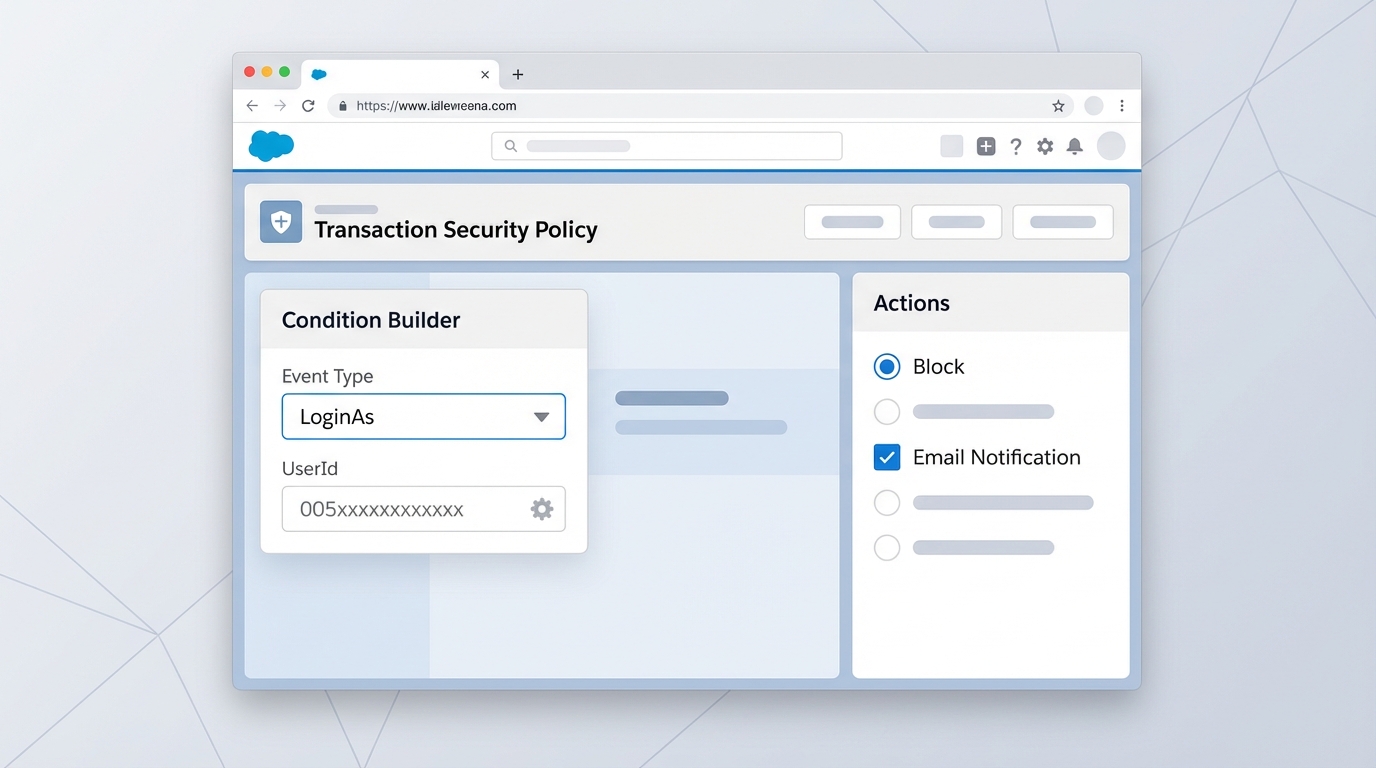
A screenshot of the Salesforce Transaction Security Policy configuration screen showing the settings for blocking a LoginAs event and enabling email notifications.
The 15-digit ID trap
Here is the thing that trips everyone up: Salesforce expects the 15-digit User ID in the policy condition. If you copy the 18-digit ID from your browser's URL bar, the policy just won't fire. I've spent way too much time debugging policies only to realize I had those extra three characters at the end. Your condition should look something like Target.Id == "005xxxxxxxxxxxx".
Best practices for real-world orgs
Look, I know it's tempting to just turn this on and walk away, but you have to be careful. If you're managing a complex environment, you might want to check out how Agentforce Security Center handles automated risk detection to get a broader view of your security posture. But for this specific policy, keep it simple.
Don't just block everyone blindly. You can combine conditions to make the policy smarter. For example, you might allow a specific "Super Admin" profile to login as these accounts while blocking everyone else. Or maybe you only block the attempt if the admin is logging in from an unrecognized IP range. The flexibility is there, so use it.
One thing I always tell my peers: never set a new policy to "Block" on day one. Run it in "Report" or "Notify" mode for a week first. You'll be surprised how many legitimate processes or emergency admin tasks you might have forgotten about.
And remember, these policies run in real-time. That's the beauty of it. Unlike a weekly audit report that tells you what went wrong last Tuesday, a Transaction Security Policy stops the mistake before it even happens. It's a proactive way to handle security rather than just cleaning up the mess later.
Key Takeaways
- Target sensitive accounts: Focus on integration, deployment, and executive users.
- 15-digit IDs only: Don't use the 18-digit ID or the username in your conditions.
- Start with notifications: Test your logic before you start blocking people.
- Audit everything: Use the notifications to track who is trying to access restricted accounts.
So, is it worth the effort? Absolutely. It takes about ten minutes to configure, but it saves you from the massive headache of an unauthorized data change. If you're looking to tighten up your org's security, this is a quick win that actually makes a difference. Give it a shot in your sandbox first and see how it feels.




Leave a Comment