


If you are setting up a Shopify Salesforce integration, you are probably tired of chasing order numbers across two systems. I have seen plenty of teams struggle with data drift because their store and their CRM aren't talking to each other. Moving the data is the easy half of a good Shopify Salesforce integration. The hard half is getting your sales and service teams to trust what they see on the screen. When the data is synced correctly, you stop guessing and start using customer history to drive more sales.
Why bother with a Shopify Salesforce integration?
When these two systems talk, life gets easier for everyone. Your marketing team can see what people are buying without asking for a CSV export, and your support team can see order statuses right inside the Service Console. I've worked on projects where the finance team spent ten hours a week matching Shopify payouts to Salesforce records. That is time they could have spent on analysis. Centralize orders, customer history, and inventory, and you get a single source of truth that stays accurate as you scale.
What to do before you start your Shopify Salesforce integration
I cannot stress this enough: don't start mapping fields on day one. You need a plan. One thing that trips people up is trying to sync every single field available. You don't need all 50+ Shopify metadata tags in Salesforce. It just creates noise. Here is the checklist I usually run before we touch any code or tools:
- Pick your data. Decide whether you really need inventory and returns, or whether customers and orders will do for now.
- Clean your data. If you have "John Doe" in Shopify and "J. Doe" in Salesforce, you are going to have a bad time. Merge your duplicates first.
- Standardize SKUs. Make sure your product codes match across both platforms. If they don't, your order sync will fail.
- Check API limits. Shopify has rate limits, and so does Salesforce. A massive initial sync has to account for both.
- Lock down security. Create a dedicated integration user in Salesforce instead of using your own admin account. Troubleshooting and auditing get much easier later on.
Pro tip: when you set up your integration user, give it the least amount of permission it needs to do the job. I've seen integrations accidentally wipe out custom field data because the permissions were too broad.
Pick your integration approach
There is no one-size-fits-all way to do this. The right choice depends on your budget and how much custom logic you have. If you are just starting out, a pre-built connector might be fine. They are usually cheaper and get you running in hours. If you have complex rules, like custom subscription logic or multi-currency setups, you might need something more flexible.
For mid-sized companies, middleware like Workato or MuleSoft is often the right level. It lets you build logic without writing a ton of Apex. For massive scale or very specific business rules, a custom Salesforce API integration is usually the best bet. It costs more upfront but won't break when your business grows.
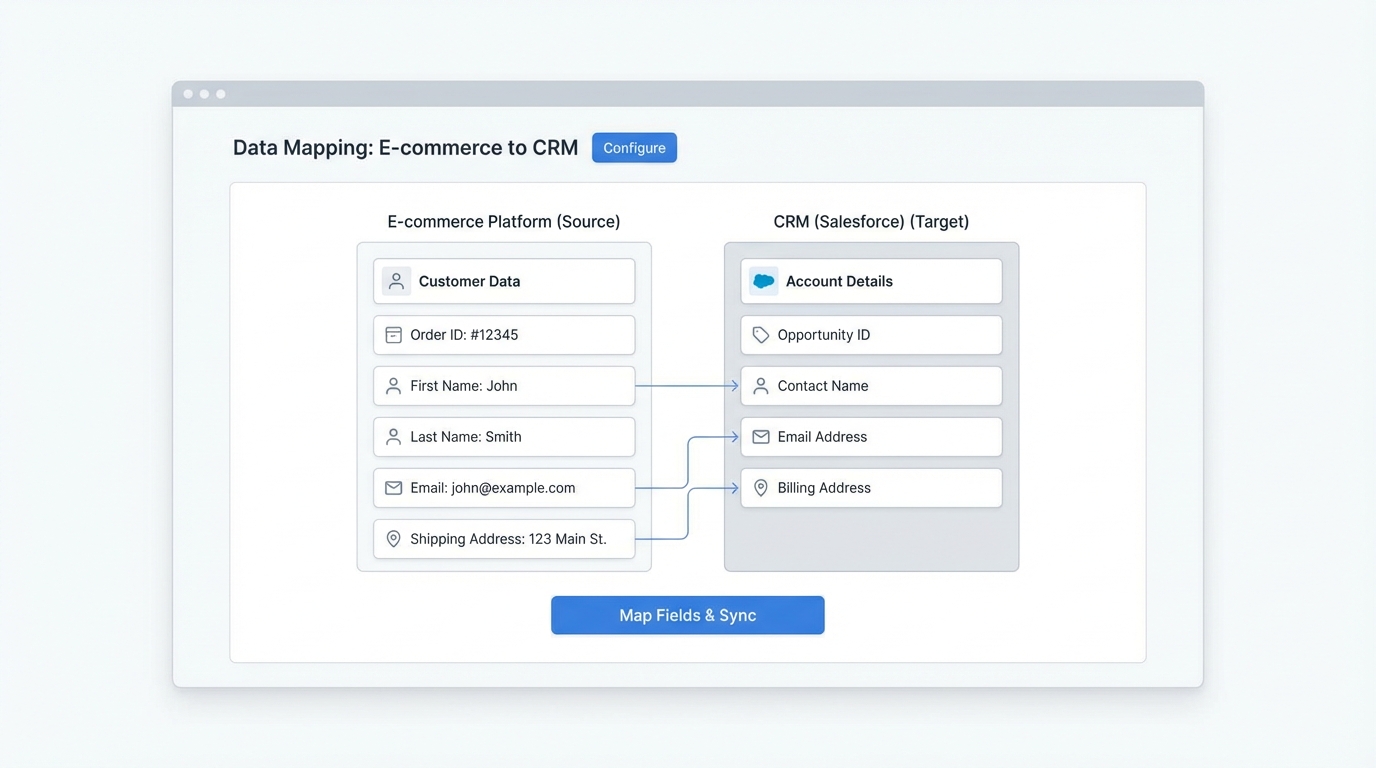
A professional UI mockup illustrating the field mapping process between an e-commerce dashboard and a Salesforce CRM environment.
Building your Shopify Salesforce integration step by step
- Map your fields. Get a spreadsheet and map every Shopify field to a Salesforce field. Be careful with picklists: if a value exists in Shopify but soql-not-in-not-equal-exclusion/" class="auto-link">not in Salesforce, the sync will error out.
- Set up the pipe. Connect your systems and define how often they sync. Real-time? Every hour? For most teams, a 5-15 minute delay is perfectly fine and saves on API calls.
- Test the weird stuff. Don't just test a standard order. Test a partial refund, a discount code that brings the total to zero, a split shipment. Those "edge cases" are where most integrations fail.
- Phase the rollout. Don't flip the switch for your entire store at once. Start with one region or a small group of customers, then watch the logs for a few days to make sure nothing is breaking.
- Train the humans. Your team needs to know where to find the data. Show them where the "Shopify Order Number" lives in Salesforce and how to tell whether a sync has happened.
Mistakes I've seen teams make (and how to avoid them)
The biggest one is never defining "ownership." If a customer changes their email in Salesforce, does that update Shopify, or does Shopify always win? Decide this early, or you'll end up with data bouncing back and forth in a loop. Don't ignore error handling either. You need a way to get notified if the sync stops working. There is nothing worse than realizing a week later that 500 orders never made it into Salesforce.
If you are dealing with a high volume of transactions, you also need to be careful about managing large data volumes. Salesforce can slow down if you dump millions of order line items into it without a strategy for archiving or indexing. Keep your org lean by syncing only what you actually need for reporting and service.
Key takeaways
- Clean your data before you start. Garbage in means garbage out.
- Start small and sync only the essential fields to reduce noise.
- Always test edge cases like refunds and partial cancellations.
- Set up automated alerts so you know the second a sync fails.
- Decide which system "owns" the data to avoid sync loops.
A Shopify Salesforce integration should be something you set up and then forget about. It should just run in the background. If you find yourself constantly fixing sync errors, that is usually a sign your data mapping or your error handling needs another look. Do the boring prep work now, and you'll save yourself a lot of late-night troubleshooting later.



Leave a Comment