

Getting Started with Salesforce Flow Types
Look, if you've been working in the ecosystem for more than a minute, you know that picking the right Salesforce flow types is basically half the battle. I've seen plenty of projects get messy because someone used a screen flow where an auto-launched one belonged, or vice versa. It isn't just about making things work - it's about making sure your org doesn't crawl to a halt when you hit a certain data volume.
So, why does this matter? Because each flow type has its own "superpower" and its own set of limits. If you're coming from a developer background, you can think of these as different ways to hook into the execution order. If you're an admin, think of them as the different tools in your utility belt. Let's break this down into what actually matters when you're building on the clock.
Breaking Down the Different Salesforce Flow Types
Screen Flows
These are your interactive flows. If you need a user to click a button, fill out a form, or follow a guided wizard, this is what you use. I've used these for everything from simple lead intake forms to complex multi-step discount calculators. You can put them on Lightning pages, utility bars, or even launch them from a quick action. The big thing to remember is that they require a UI - they won't just run in the background on their own.
Record-Triggered Flows
This is the bread and butter of modern Salesforce automation. These fire automatically when a record is created, updated, or deleted. But here's the thing: you have to choose between "Fast Field Updates" (Before-Save) and "Actions and Related Records" (After-Save). This is probably the most overlooked feature by beginners, but it's a huge deal for performance.
- Before-Save: Use these for simple field updates on the same record that triggered the flow. They're incredibly fast because they happen before the data is committed to the database.
- After-Save: Use these when you need to update related records, send an email, or call an Apex action. You need the record ID for these tasks, and you only get that after the save happens.
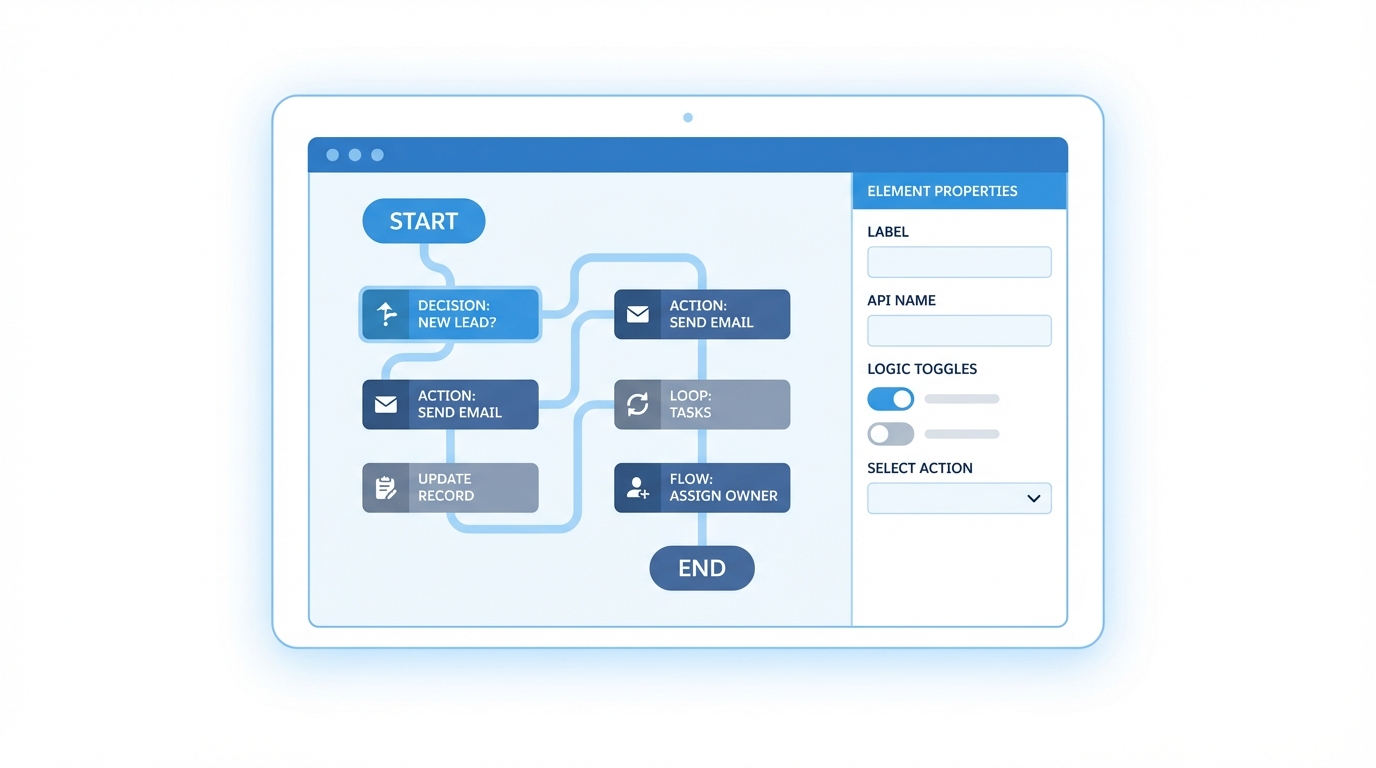
A professional UI mockup of an automation flow builder showing a logic diagram and configuration panels for cloud-based workflows.
Auto-launched Flows (No Trigger)
I like to think of these as the "reusable components" of the flow world. They don't start on their own. Instead, they're called by something else - like another flow, an Apex class, or even a REST API call. In my experience, if you find yourself building the same logic in three different flows, you should probably move that logic into an auto-launched flow and call it as a subflow. It makes maintenance way easier down the road.
Pro Tip: Always use a naming convention that tells you exactly what a flow does at a glance. I usually start mine with the object name followed by the trigger type, like "Account_AfterSave_UpdateContacts".
Choosing Between Salesforce Flow Types
So what does this actually mean in a real-world project? You'll often find yourself debating between Apex vs Flow for complex logic. But even within the declarative world, choosing the right pattern is key. If you're doing batch cleanup, you don't want a record-triggered flow firing 50,000 times. That's where schedule-triggered flows come in.
Schedule-Triggered Flows
These run at a specific time - daily, weekly, or just once. They're perfect for those "housekeeping" tasks. For example, I once worked on an org where we needed to deactivate users who hadn't logged in for 90 days. A schedule-triggered flow handled that every night at 2:00 AM without anyone lifting a finger. It's much simpler than writing a Schedulable Apex class.
Platform Event-Triggered Flows
These are a bit more niche but very powerful for integrations. They listen for a platform event and jump into action the moment it arrives. If you're working with an external system that pushes data into Salesforce asynchronously, this is likely your best bet. It's built for that event-driven architecture that modern systems love.
Best Practices and Performance
One thing that trips people up is bulkification. Salesforce handles the heavy lifting, but you can still break things if you put a Get Records element inside a loop. Honestly, most teams get this wrong at least once. You should always look at Salesforce Flow bulkification techniques to keep your org healthy.
- Keep your logic modular. Use subflows.
- Avoid hardcoding IDs. Use variables or lookups instead.
- Test with large data sets. What works for one record might fail for 200.
- Use Before-Save flows whenever possible for speed.
When You Need a Little Apex
Sometimes, the built-in Salesforce flow types just can't do what you need. Maybe you have a super complex calculation or you need to call a specific legacy API. In those cases, you can use an Invocable Method to bridge the gap. Here's a quick look at what that looks like:
public with sharing class FlowAction {
    @InvocableMethod(label='Run Custom Logic' description='Do something Flow cannot do')
    public static void execute(List<Id> ids) {
        // Your custom logic goes here
    }
}
Key Takeaways
- Screen Flows: Use for any process requiring user input or a UI.
- Before-Save Flows: Best for high-performance field updates on the same record.
- After-Save Flows: Essential for related records and external actions.
- Schedule-Triggered: Perfect for recurring batch jobs and data cleanup.
- Auto-launched: Great for building reusable logic units.
At the end of the day, mastering Salesforce flow types is about knowing which tool fits the specific problem you're trying to solve. Don't overcomplicate it. Start with the simplest flow type that meets your requirements and only move to more complex patterns if you actually need the extra functionality. Your future self - and whoever inherits your org - will thank you for it.




Leave a Comment