


You're staring at a report and the column names don't match any field names you know. Instead of guessing or digging through Setup, I pull the Salesforce report metadata using the REST API. It's a lot faster than building a package.xml and waiting on a metadata retrieve just to see what's under the hood.
Why you should check Salesforce report metadata via REST
I've seen teams spend hours trying to figure out why a report isn't showing the right data. Sometimes it's because the report is using a field from a related object that has the same name as a field on the primary object. The raw Salesforce report metadata settles it. You see the exact API name and the object it's coming from.
This is especially handy when you're dealing with standard vs custom report types. Custom report types can hide or rename fields, which makes the UI a bit of a liar. The REST API tells you the truth about what the report is actually querying.
One thing that trips people up is thinking they need to be a hardcore developer to use this. You don't. If you can copy and paste a URL into Workbench, you can do this in thirty seconds.
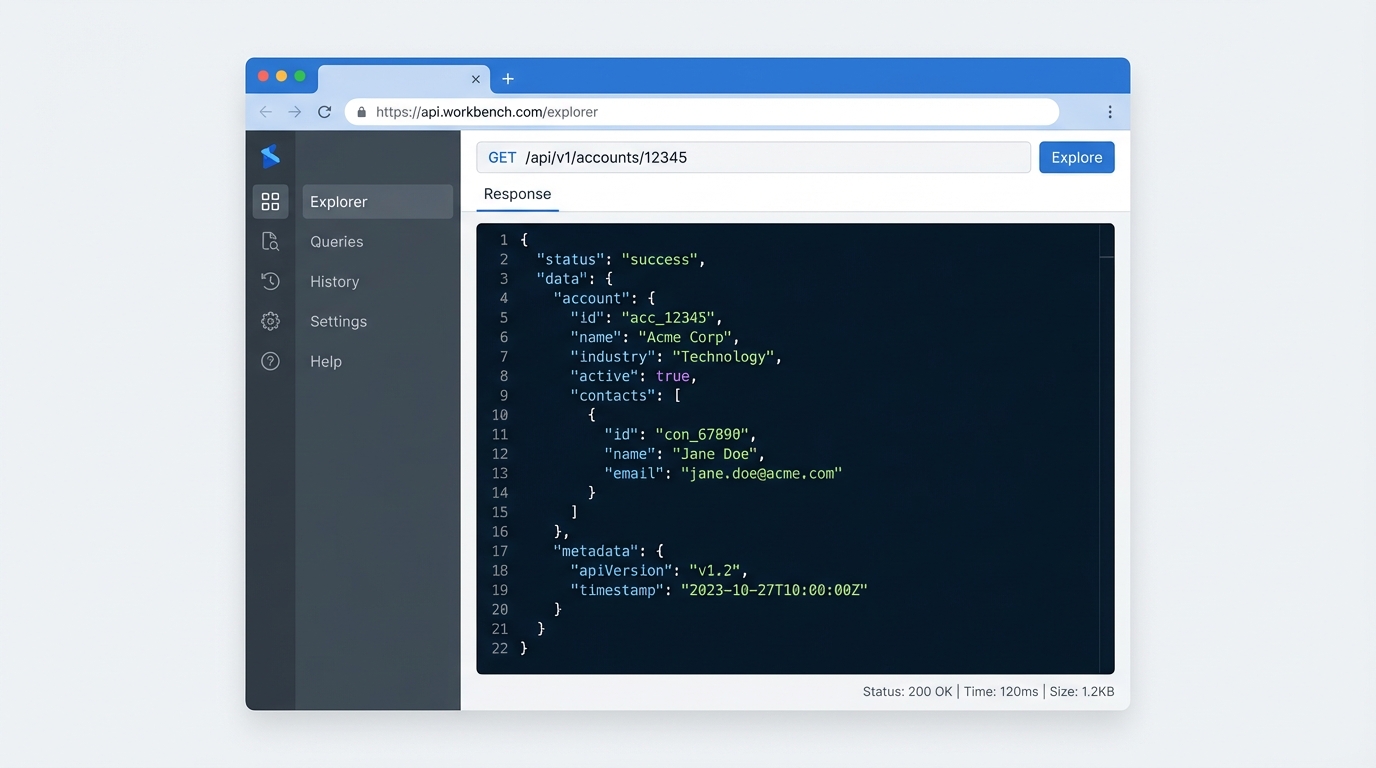
A REST API explorer showing report metadata as syntax-highlighted JSON.
Step-by-step: pulling Salesforce report metadata
You have a few options here. I usually use Workbench because it's reliable, but if you're into Salesforce Chrome extensions like Salesforce Inspector Reloaded, that works just as well.
- First, grab the Report ID from your browser's URL. It's that 15 or 18-character string starting with 00O.
- Open up Workbench and head over to the REST Explorer.
- Set the method to GET.
- Enter this URL, swapping out the placeholder for your actual ID:
/services/data/v62.0/analytics/reports/YOUR_REPORT_ID - Hit "Execute" and wait for the JSON to pop up.
The raw request example
If you're more of a command-line person, the same request looks like this:
GET /services/data/v62.0/analytics/reports/00OGB00000Dt9Qv2AJ
Once that response comes back, don't let the big wall of text scare you. You only need to look at a couple of specific spots to find the Salesforce report metadata you're after.
How to read the JSON response
When the results load, you'll see a few folders or keys in the JSON. I always expand reportMetadata first, because that's where the detailColumns live. That list shows you every column in the report by its API name, so the "Account Name" vs "Company Name" confusion goes away and you see "Account.Name" plain as day.
For the actual data structure, look at the factMap. This section breaks down the totals and the individual rows. If you're troubleshooting a summary report, the aggregates section under T|T will show you exactly how Salesforce is calculating those totals.
Most teams get this wrong by trying to export the report to Excel to "reverse engineer" it. That's a waste of time. Reading the Salesforce report metadata directly gives you the blueprint of the report without all the noise.
Key takeaways
- The REST Explorer is the fastest way to see API names for report columns.
- You don't need to deploy any code or XML files to see the report structure.
- The
factMapsection is where you verify aggregated data. - Checking the
reportTypein the metadata confirms you're using the right source.
Next time a stakeholder asks why a report isn't matching their dashboard, don't click around the Report Builder. Run a quick GET request instead. It saves you a ton of headache, and it's one of those habits that separates the experts from the click-and-hope crowd.



Leave a Comment