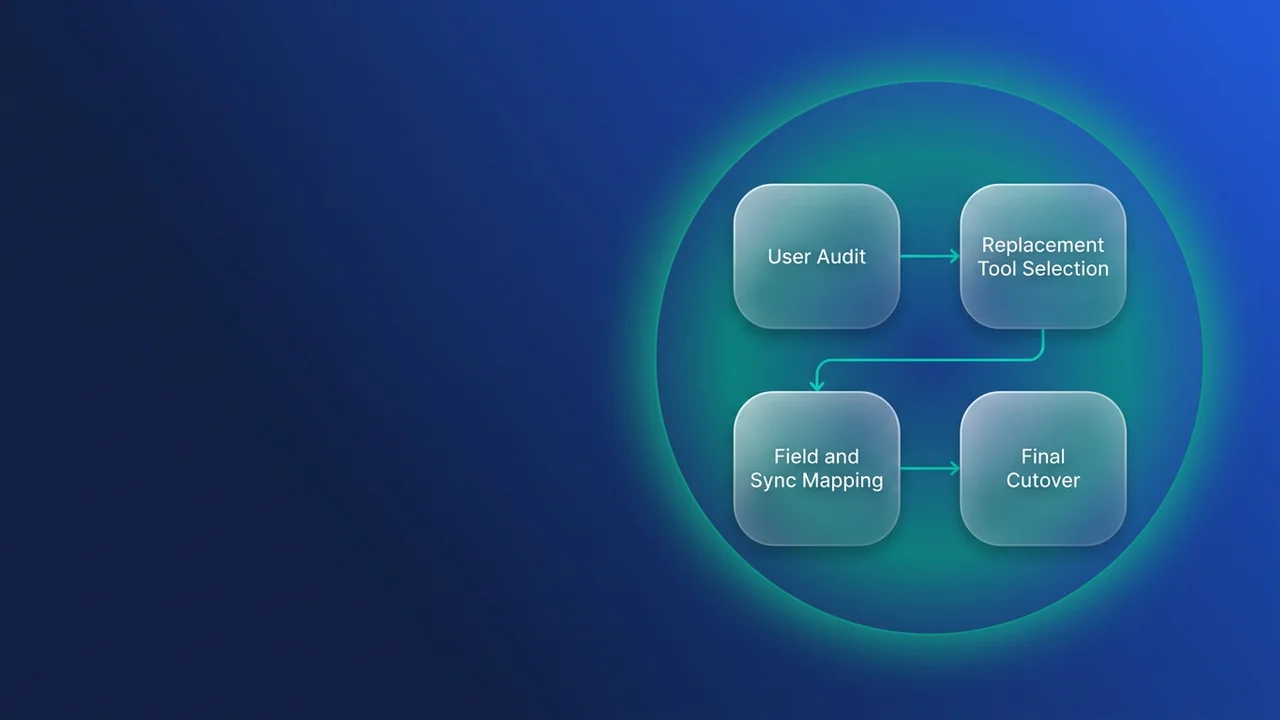

Salesforce for Outlook (SFO) retires on January 30, 2027. On that date the desktop client stops authenticating and every function that depends on it stops too. If you still have users on the client, you have about eleven weeks left, and the date is almost a year earlier than many pages still say. This plan covers finding those users, choosing a replacement for each function, rebuilding what does not migrate, and getting the client uninstalled before you lose access to its Setup pages.
What stops working on January 30, 2027, and why the date moved
Salesforce Help article 000393445 was first published in June 2020 and last updated on October 1, 2026. It now says SFO is "rescheduled to retire on January 30, 2027". The stated reason is architectural: SFO relies on legacy authentication and cannot support the controls the platform now requires for connected apps. The article says the date was rescheduled, yet plenty of community threads and third-party guides still give December 2027.
Once the date passes:
- Desktop client authentication fails, so contact, event and task sync stop.
- The side panel, the system tray controls and email logging through the Add Emails button stop working.
- Admins lose access to Outlook configurations in Setup.
- Users cannot download the client or view their settings.
- My Unresolved Items no longer lists unmatched SFO items. It stays active for Einstein Activity Capture and Email to Salesforce.
Data that was already synced is not affected. The third point is the one teams miss. Your mapping and filter definitions live in those Setup pages, so once they disappear you are rebuilding from memory.
Find who still runs the client
Start with LoginHistory, because SFO client logins are recorded with their own Application value. The exact string can vary, so do not hard-code it until you have seen what your org records. Export this from your query tool first:
SELECT UserId, Application, LoginTime, Status, Platform
FROM LoginHistory
WHERE LoginTime = LAST_N_DAYS:90
ORDER BY LoginTime DESC
LoginHistory keeps a limited window that you can query, so run the inventory now and save the output. To turn the raw rows into a user list, run this script in Anonymous Apex. It prints every Application value with a count, so you can confirm the SFO string, and then lists each SFO user with their profile and last successful login.
// Set this after reading the Application counts in the first debug line
String sfoApp = 'Salesforce for Outlook';
Datetime since = Datetime.now().addDays(-90);

Map<String, Integer> countsByApp = new Map<String, Integer>();
Map<Id, Datetime> lastSfoLoginByUser = new Map<Id, Datetime>();
Integer rowCount = 0;

for (LoginHistory entry : [
        SELECT UserId, Application, LoginTime, Status
        FROM LoginHistory
        WHERE LoginTime >= :since
        LIMIT 45000]) {
    rowCount++;
    String app = entry.Application == null ? '(blank)' : entry.Application;
    Integer seen = countsByApp.containsKey(app) ? countsByApp.get(app) : 0;
    countsByApp.put(app, seen + 1);

    if (app == sfoApp && entry.Status == 'Success') {
        Datetime prior = lastSfoLoginByUser.get(entry.UserId);
        if (prior == null || entry.LoginTime > prior) {
            lastSfoLoginByUser.put(entry.UserId, entry.LoginTime);
        }
    }
}
if (rowCount == 45000) {
    System.debug('Row cap reached: results are partial. Shorten the window or filter on Application.');
}
System.debug('Application values: ' + countsByApp);

for (User u : [
        SELECT Id, Username, Profile.Name, IsActive
        FROM User
        WHERE Id IN :lastSfoLoginByUser.keySet()
        ORDER BY Profile.Name]) {
    System.debug(u.Username + ' | ' + u.Profile.Name + ' | active=' + u.IsActive
        + ' | last SFO login=' + lastSfoLoginByUser.get(u.Id));
}
The 50,000 query-row limit covers the whole transaction, so the script caps LoginHistory at 45,000 rows to leave room for the User query. If the debug output says the cap was reached, the list is partial: shorten the window, or add AND Application = :sfoApp to the query once you know the value. Then go to Setup > Outlook Configurations and export or screenshot every configuration along with its assigned users and profiles. That export, together with the LoginHistory list, is your migration scope. Users who appear in a configuration but have no recent logins can usually be uninstalled without further work.
Decide what replaces each function
Salesforce names two replacements. Outlook Integration replaces the side panel experience, and Einstein Activity Capture (EAC) replaces automated contact and event sync. Neither one covers everything SFO did.
| SFO function | Replacement | What to check |
|---|---|---|
| Side panel in Outlook | Outlook Integration | Not supported on Outlook or Exchange 2010; edition availability |
| Add Emails logging | Outlook Integration side panel; EAC for automatic capture | Which EAC email mode the org uses, and whether existing reports still work |
| Contact sync | EAC | Custom mappings and filters must be recreated |
| Event sync | EAC | Choose Salesforce to Outlook, Outlook to Salesforce, or both ways |
| Task sync | Not named in the Salesforce guidance | Test it in a sandbox before you promise users anything |
| Category-based sync filters | EAC capture and exclusion behaviour | Different model; selective-sync users will see a change |
| My Unresolved Items (SFO items) | None after retirement | Ask users to clear their queue before cutover |
Task sync is the row I would raise with stakeholders first. The help article lists contacts and events for EAC and does not mention tasks. If your sales team relies on Outlook tasks appearing in Salesforce, confirm the behaviour in a sandbox before you commit to a cutover date.
Where EAC differs from SFO sync
The largest difference is where captured email is stored. In the legacy EAC email setting, captured email is not saved as standard Salesforce records, so it does not appear in standard reports, automation or the public API. Summer '25 added Sync Email as Salesforce Activity. That setting writes email as EmailMessage and Task records, turns on Enhanced Email, applies activity sharing rules, skips internal and excluded emails, and lets users capture headers only. It also counts against data storage, and once you enable it you cannot go back to the legacy setting. It is the default in new orgs and in orgs that never turned on EAC or Inbox.
Since June 2026 Salesforce has been moving orgs to it automatically on a rolling basis, each org on its own date, so check which mode yours is in now. Salesforce is also retiring EAC's Activity 360 Reporting, Activity Metrics and Activities Dashboard in favour of standard reports on synced activity data.
If your current reports are built on email Tasks that SFO logged, measure volume before and after the switch:
SELECT CALENDAR_YEAR(CreatedDate) yr, CALENDAR_MONTH(CreatedDate) mo, COUNT(Id) emails
FROM Task
WHERE TaskSubtype = 'Email'
AND CreatedDate = LAST_N_MONTHS:12
GROUP BY CALENDAR_YEAR(CreatedDate), CALENDAR_MONTH(CreatedDate)
ORDER BY CALENDAR_YEAR(CreatedDate), CALENDAR_MONTH(CreatedDate)
A sharp fall after cutover usually means the org is on the legacy email mode and the activity reports are missing email that used to land as Tasks. My choice would be Sync Email for any team whose pipeline reviews depend on activity reporting, with an archiving plan budgeted from the start. The trade-off is storage cost against reportability, and the setting cannot be reversed, so make the decision deliberately and record it before anyone switches EAC on.
Rebuild field mappings and sync filters
Salesforce states that custom field mappings and sync filters do not transfer automatically and must be recreated. The article gives no mapping-by-mapping guidance, so build your own register from the Setup export. Record the object, the Outlook field, the Salesforce field and the direction for each mapping, then make one decision per row: the new products cover it, you rebuild it with automation, or you drop it.
For the rebuild cases, a before-insert trigger on Event is often the simplest option. Suppose SFO had been filling a custom Meeting_Channel__c picklist through a mapping. The trigger below derives that value from the meeting details:
trigger EventChannelTrigger on Event (before insert) {
    EventChannelHandler.stampChannel(Trigger.new);
}
public with sharing class EventChannelHandler {
    private static final Map<String, String> CHANNEL_BY_MARKER = new Map<String, String>{
        'teams.microsoft.com' => 'Teams',
        'zoom.us' => 'Zoom',
        'meet.google.com' => 'Google Meet'
    };

    public static void stampChannel(List<Event> newEvents) {
        for (Event ev : newEvents) {
            if (String.isNotBlank(ev.Meeting_Channel__c)) {
                continue; // keep values set by users or other automation
            }
            String details = ((ev.Location == null ? '' : ev.Location) + ' '
                + (ev.Description == null ? '' : ev.Description)).toLowerCase();

            for (String marker : CHANNEL_BY_MARKER.keySet()) {
                if (details.contains(marker)) {
                    ev.Meeting_Channel__c = CHANNEL_BY_MARKER.get(marker);
                    break;
                }
            }
            if (String.isBlank(ev.Meeting_Channel__c) && String.isNotBlank(ev.Location) && !ev.Location.toLowerCase().contains('http')) {
                ev.Meeting_Channel__c = 'In person';
            }
        }
    }
}
Add a marker to CHANNEL_BY_MARKER for every meeting tool your org uses. A link with no known marker and no http in the Location, such as a bare Webex address, still gets stamped In person. Because the trigger fires on every inserted Event, it also covers meetings that reps enter by hand. Confirm during the sandbox pilot that events created by EAC sync fire it as well before you rely on it. It runs no queries and no DML, so it is bulk-safe. Write a test class that inserts 200 events with mixed locations before you deploy it.
In SFO, users controlled sync with Outlook categories: either sync everything except items marked "Don't Sync with Salesforce", or sync only items marked "Sync with Salesforce". EAC does not work that way. In Sync Email mode it skips internal and excluded emails and lets users capture headers only. Users who were on selective sync will see more captured than before, so walk them through the exclusions before cutover.
Cutover and uninstall schedule
Do not plan around the end of January. Setup access goes when the client goes, so any fix you need after that date has to be made without the original configuration in front of you. This is the schedule I would run from today:
- This week: run the LoginHistory inventory, export Outlook configurations, build the mapping register and choose the EAC email mode.
- Late November: pilot one sales team on Outlook Integration and EAC. Ask pilot users to clear My Unresolved Items, then uninstall their client.
- Early December: deploy the mapping automation, then run the Task volume query again and compare it with the pilot baseline.
- Through December: roll out to remaining users by profile, uninstalling or disabling the SFO client on each machine as you go.
- Mid-January: rerun the LoginHistory script. Any user still logging in through SFO gets a direct call.
If you cannot finish in time, Salesforce's guidance is to save your Outlook configuration details before January 30 and complete the move afterwards.
What to watch for
- Users on Outlook or Exchange 2010 have no supported path to the new products. Raise this with IT now, because the mail platform has to be upgraded first.
- Next-generation features are not available in every Salesforce edition, so confirm entitlement before you design around them.
- Task sync is not named in the replacement guidance. Treat it as a gap until you have tested it.
- Sync Email as Salesforce Activity cannot be reverted and uses data storage. Your org may also be moved to it on Salesforce's rolling automigration schedule.
- Dashboards built on Activity 360 Reporting, Activity Metrics or the Activities Dashboard need rebuilding as standard reports.
- Users who log in only a few times a quarter can fall outside a 90-day window, so check the Setup configuration export against the LoginHistory list.
Leave a Comment