

Why you'd want to put a Lightning component in Visualforce
If you still maintain legacy pages, you have probably wondered how to embed a Lightning component in Visualforce without doing a full rewrite. The setup is always the same: a big, complicated Visualforce page that works perfectly well, and a piece of modern UI or a feature that only exists in Lightning. Instead of migrating the whole thing, we use Lightning Out.
Older orgs hit this constantly. You might be halfway through a transition to Lightning Experience, or stuck in Classic for a specific business reason. Either way, dropping a Lightning component in Visualforce lets you build the new feature with modern tools and leave the old page working.
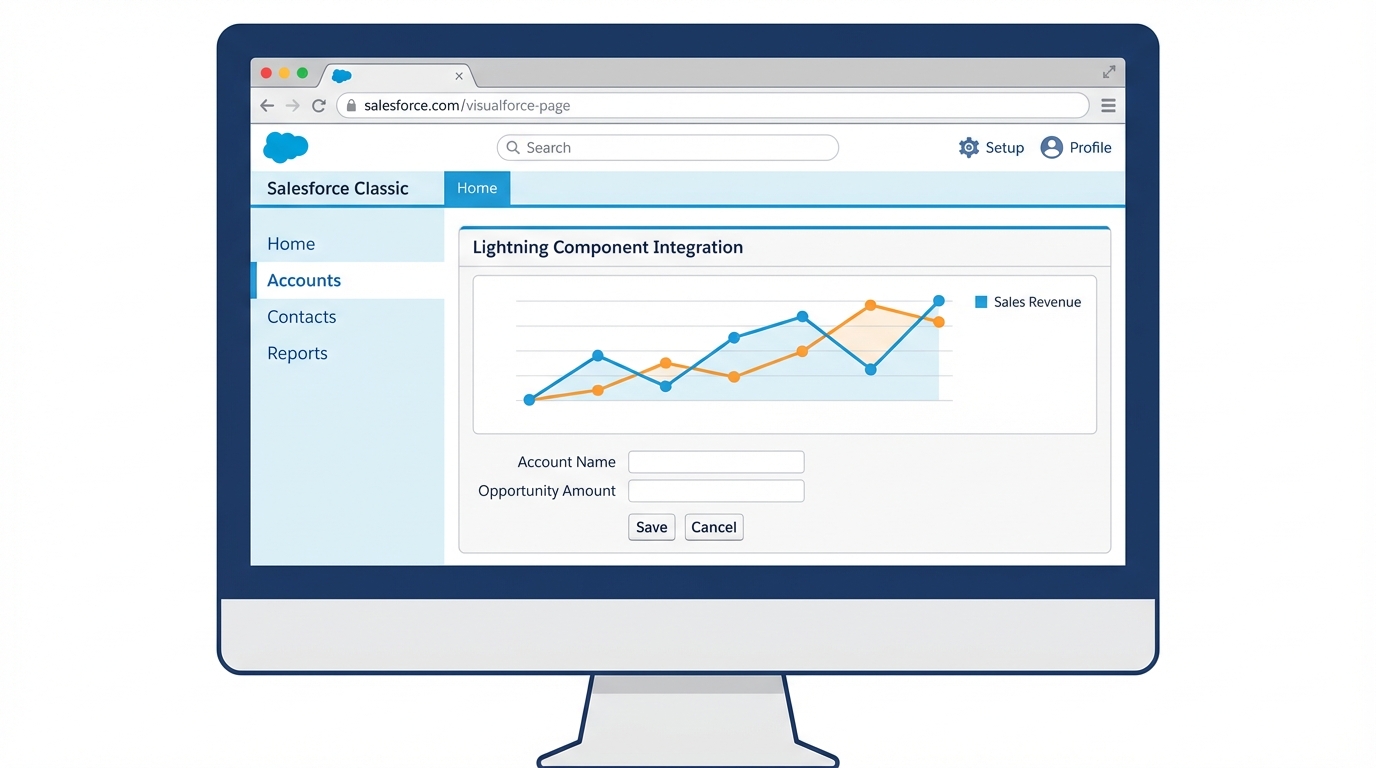
A mockup of a modern Lightning component embedded in a classic Salesforce Visualforce page layout.
The step-by-step guide to adding a Lightning component in Visualforce
Lightning Out is the bridge that lets you run Lightning components outside the standard Lightning container. A couple of things have to be right before you start writing code. First, you need My Domain enabled. If you don't have that set up, stop right here and go do it, because nothing else will work.
Second, your component and your application need to be accessible, which means access="GLOBAL" on your Aura components. I've watched plenty of developers miss that and spend an hour wondering why their scripts are throwing 404 errors.
1. Create the Aura app wrapper
Visualforce can't call a component directly, so you need an Aura app to act as the host. That app extends ltng:outApp and declares which components it's going to use. A minimal c:myLightningApp.app file looks like this:
<aura:application extends="ltng:outApp" access="GLOBAL">
    <aura:dependency resource="markup://c:myComponent" />
</aura:application>
force:slds isn't strictly required in the app if you're already using it in the component, though it doesn't hurt. The tag that matters is aura:dependency. It tells Salesforce to pre-load your component so it's ready when the Visualforce page asks for it.
2. Writing the Visualforce page
On the Visualforce side, the <apex:includeLightning /> tag brings in the JavaScript libraries, and a small script block initializes the app and creates the component.
<apex:page standardController="Account">
    <apex:includeLightning />

    <div id="lightning-container" />

    <script>
        $Lightning.use("c:myLightningApp", function() {
            $Lightning.createComponent(
                "c:myComponent",
                { "recordId": "{!Account.Id}" },
                "lightning-container",
                function(cmp) {
                    console.log('Component is live!');
                }
            );
        });
    </script>
</apex:page>
The third parameter in $Lightning.createComponent trips people up. It's the ID of the HTML element where you want the component to land, here the div with the ID lightning-container. Get that ID wrong and your component never shows up.
3. What about Lightning Web Components (LWC)?
You can use an LWC too, and you still need that Aura app wrapper. Point the aura:dependency to your LWC instead of an Aura component. For anything new I'd go the LWC route and treat the Aura wrapper as the delivery vehicle. On more complex work it's worth reading up on how communication between Lightning web components works so you can pass data back and forth.
I've seen teams spend hours debugging why their component won't load, only to realize 'My Domain' wasn't deployed in the sandbox. Check that first. It's the most common point of failure for Lightning Out.
Troubleshooting your Lightning component in Visualforce
The most common failure is the "white screen of death" where nothing loads at all, and it's usually a permissions issue. Check your browser console: 403 Forbidden errors point straight back at that access="GLOBAL" attribute.
CSS clashing is the other regular offender. Visualforce has its own styles and SLDS (Salesforce Lightning Design System) has its own, and they don't always play nice. If your buttons look weird or your spacing is off, wrap your container in a <div class="slds-scope"> so the Lightning styles stay where they belong. A Chrome extension for Salesforce helps here, since you can inspect the DOM and see which styles are winning the fight.
Keep an eye on the session as well. If the user's session expires, or they're coming from a different domain, Lightning Out gets cranky. In an Experience Cloud site, make sure you're passing the correct site prefix or community URL.
Key takeaways
- My Domain has to be active before any of this works.
- Both the Aura app and the component need
access="GLOBAL". - The container is an Aura app extending
ltng:outApp. - The ID in your JavaScript has to match the ID of your
div. - LWCs work too, wrapped in an Aura dependency.
Adding a Lightning component in Visualforce isn't as scary as it sounds. Follow the boilerplate, watch your access levels, and you'll have modern components running on your old pages without the risk of a total page rebuild.


Leave a Comment