

If you've spent any time in a mature org, you've probably had to deal with Salesforce Large Data Volumes. It usually starts with a single report that takes forever to load, and before you know it, your whole system feels like it's wading through molasses. But here's the thing: "large" is relative. For some, it's a million records; for others, we're talking billions.
The short answer? It's when your org starts feeling heavy. At this scale, you'll see queries that used to take milliseconds suddenly timing out, and your users will start complaining that their list views are spinning forever. I've seen teams ignore these early warning signs, only to have a critical data load fail right when they need it most. So, how do we keep things fast?
Why Salesforce Large Data Volumes Break Things
When you hit that LDV threshold, the standard ways of doing things just don't cut it anymore. Your triggers might start hitting governor limits because they're trying to process too much at once. Or maybe you're seeing those dreaded "UNABLE_TO_LOCK_ROW" errors during a bulk update. It's frustrating, but it's usually a sign that your architecture needs a bit of a tune-up.
One thing that trips people up is data skew, which can absolutely murder your performance. If you have ten thousand contacts all linked to one parent account, Salesforce has to work ten times harder to figure out who can see what. It's a classic bottleneck that I see in almost every old org I audit.
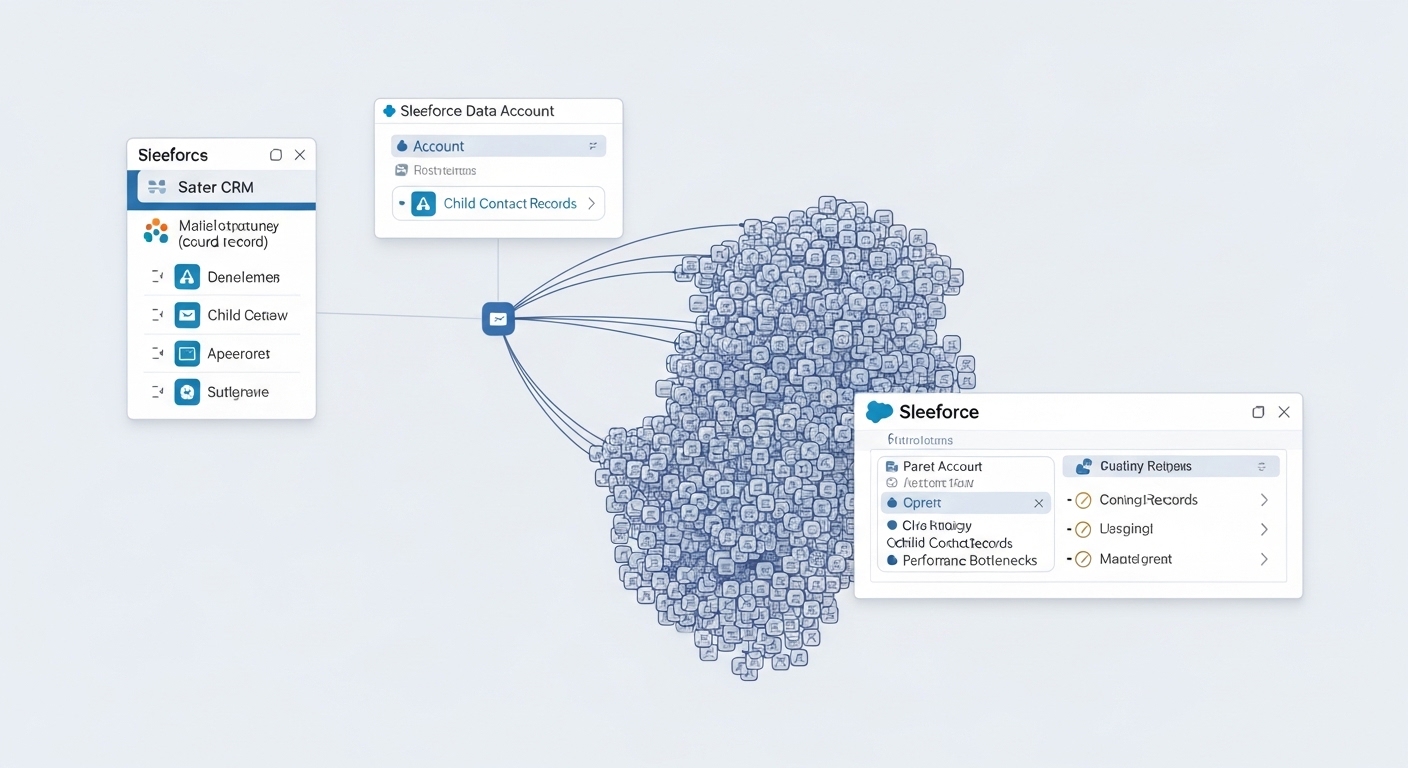
A technical diagram showing data skew where a single parent record is connected to thousands of child records, illustrating a performance bottleneck in Salesforce.
Strategies for Managing Salesforce Large Data Volumes
Look, you don't need to be a data scientist to handle this, but you do need a plan. You can't just throw more code at the problem and hope it goes away. Here are the big moves that actually make a difference in the real world.
1. Fix Your Data Model
Keep your relationships as simple as you can. If you have a high-volume object, don't clutter it with a dozen lookups that nobody uses. I've found that moving to a master-detail relationship can help with some things, but it also makes record locking more likely. It's a trade-off. Also, try to avoid many-to-many relationships on objects that grow by millions of rows a year.
2. Get Serious About Indexing
When you're deep in Salesforce Large Data Volumes territory, standard fields like CreatedDate or Name are already indexed, but that's often not enough. If you're constantly filtering by a custom "Region" field, you need to make it an External ID or ask Salesforce Support for a custom index. And please, stop using "CONTAINS" in your SOQL. It forces a full table scan, which is basically the slowest way to find data.
3. Use Skinny Tables
This is probably the most overlooked feature for performance. If you have an object with 100 fields but your users only ever report on five of them, a skinny table can help. It creates a separate table with just those fields, skipping the overhead of the main table. It sounds like magic, but you have to ask Salesforce to turn it on for you.
4. Move Heavy Work to the Background
If a user clicks "Save," they shouldn't have to wait for 50 other records to update. I usually tell people to move heavy logic to Async Apex whenever they can. Whether it's a Queueable job or a Batch process, keeping the UI snappy is priority number one. If you're building LWCs that need to show this data, you might want to use Apex cursors to stream large datasets instead of loading everything at once.
5. Archive Your Old Stuff
Honestly, most teams get this wrong by trying to keep every single record from 2012 in their live system. Do you really need ten-year-old task logs? Probably not. Move that data to an external database or use Big Objects. Big Objects are the way to go for Salesforce Large Data Volumes that just need to sit there for compliance but don't need to be edited every day.
Pro tip: If your query takes more than a few seconds, don't just blame the platform. Check your filters first. Most "slow" Salesforce issues are actually just bad SOQL.
6. Optimize Your Triggers
If you have five different triggers on one object, you're asking for trouble. Stick to a one-trigger-per-object pattern and make sure your code is bulkified. I've seen triggers that work fine with 10 records but completely explode when a data load hits them with 200. Always test your logic against the maximum batch size.
7. Virtualize When Possible
Sometimes the best way to handle data in Salesforce is to not have it in Salesforce at all. If you have 50 million rows of order history in a SQL database, use Salesforce Connect to show it as an External Object. It keeps your storage costs down and your org running lean.
Practical Checklist for Your Next Audit
- Check which objects have more than 1 million records and see if they have custom indexes.
- Look for SOQL queries using "!=" or "NOT LIKE" - these are performance killers.
- Identify "hot" records with too many child relationships to avoid locking issues.
- Review your Batch Apex jobs to see if any are running for hours on end.
- Set up a data retention policy so you aren't paying for storage you don't need.
Key Takeaways
- Selectivity is king: If your queries aren't selective, your performance will tank.
- Async is your friend: Don't make users wait for complex calculations.
- Archive early: Don't wait until you hit 90% storage capacity to think about a purge.
- Watch for skew: Distribute your data to keep the sharing engine happy.
Managing Salesforce Large Data Volumes is one of those things that separates the junior admins from the architects. It's not about one single "fix" - it's about building a habit of clean data and efficient code. Keep your Salesforce Large Data Volumes strategy simple: index what you search, archive what you don't use, and always, always bulkify your logic. Your users (and your sanity) will thank you later.




Leave a Comment